EasyManua.ls Logo

Canon UC800 - Exposure Control and Backlight Compensation

Canon UC800
56 pages
Print Icon
To Next Page IconTo Next Page
To Previous Page IconTo Previous Page
Loading...
Advanced
Functions
Exposure
Control
B
The
camera
adjusts
the
exposure
automatically,
making
sure
that
your
pictures
are
neither
too
dark
or
too
light.
There
is
a
choice
of
six
recording
programs
to
deal
with
different
recording
conditions
(see
p.
24).
28
This
section
explains
how
to
use
two
more
exposure
functions.
These
will
give
you
added
control
over
your
recordings.
The
camera
usually
adjusts
the
exposure
so
that
it
is
suitable
for
the
whole
scene,
and
especially
for
the
area
in
the
centre
of
the
viewfinder.
FlexiZone
AE
allows
you
to
choose
any
part
of
the
scene,
so
that
even
if
your
subject
is
towards
the
edge
of
the
screen,
or
if
it
is
very
bright
or
very
dark,
it
will
still
be
properly
exposed.
1.
T
urn
the
program
selector
to
o.
*
The
FlexiZone
control
frame
appears
in
the
viewfinder.
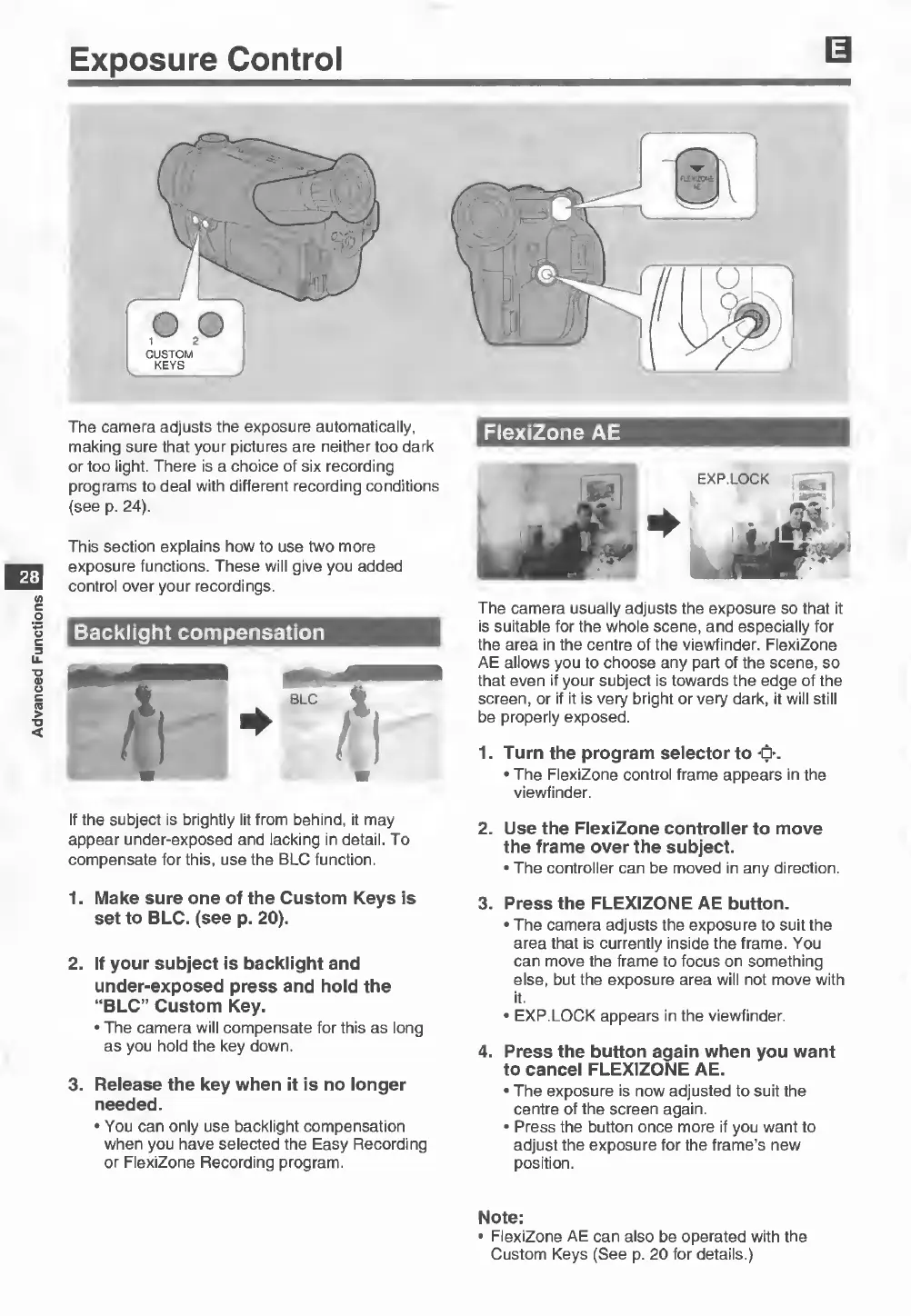
If
the
subject
is
brightly
lit
from
behind,
it
may
appear
under-exposed
and
lacking
in
detail.
To
compensate
for
this,
use
the
BLC
function.
1.
Make
sure
one
of
the
Custom
Keys
is
set
to
BLC.
(see
p.
20).
2.
If
your
subject
is
backlight
and
under-exposed
press
and
hold
the
“BLC”
Custom
Key.
•
The
camera
will
compensate
for
this
as
long
as
you
hold
the
key
down.
3.
Release
the
key
when
it
is
no
longer
needed.
•
You
can
only
use
backlight
compensation
when
you
have
selected
the
Easy
Recording
or
FlexiZone
Recording
program.
2.
Use
the
FlexiZone
controller
to
move
the
frame
over
the
subject.
•
The
controller
can
be
moved
in
any
direction.
3.
Press
the
FLEXIZONE
AE
button.
•
The
camera
adjusts
the
exposure
to
suit
the
area
that
is
currently
inside
the
frame.
You
can
move
the
frame
to
focus
on
something
else,
but
the
exposure
area
will
not
move
with
it.
•
EXP.LOCK
appears
in
the
viewfinder.
4.
Press
the
button
again
when
you
want
to
cancel
FLEXIZONE
AE.
•
The
exposure
is
now
adjusted
to
suit
the
centre
of
the
screen
again.
•
Press
the
button
once
more
if
you
want
to
adjust
the
exposure
for
the
frame’s
new
position.
Note:
•
FlexiZone
AE
can
also
be
operated
with
the
Custom
Keys
(See
p.
20
for
details.)