EasyManua.ls Logo

Canon UC800 - Auto Editing Preparations

Canon UC800
56 pages
Print Icon
To Next Page IconTo Next Page
To Previous Page IconTo Previous Page
Loading...
Editing
Preparations
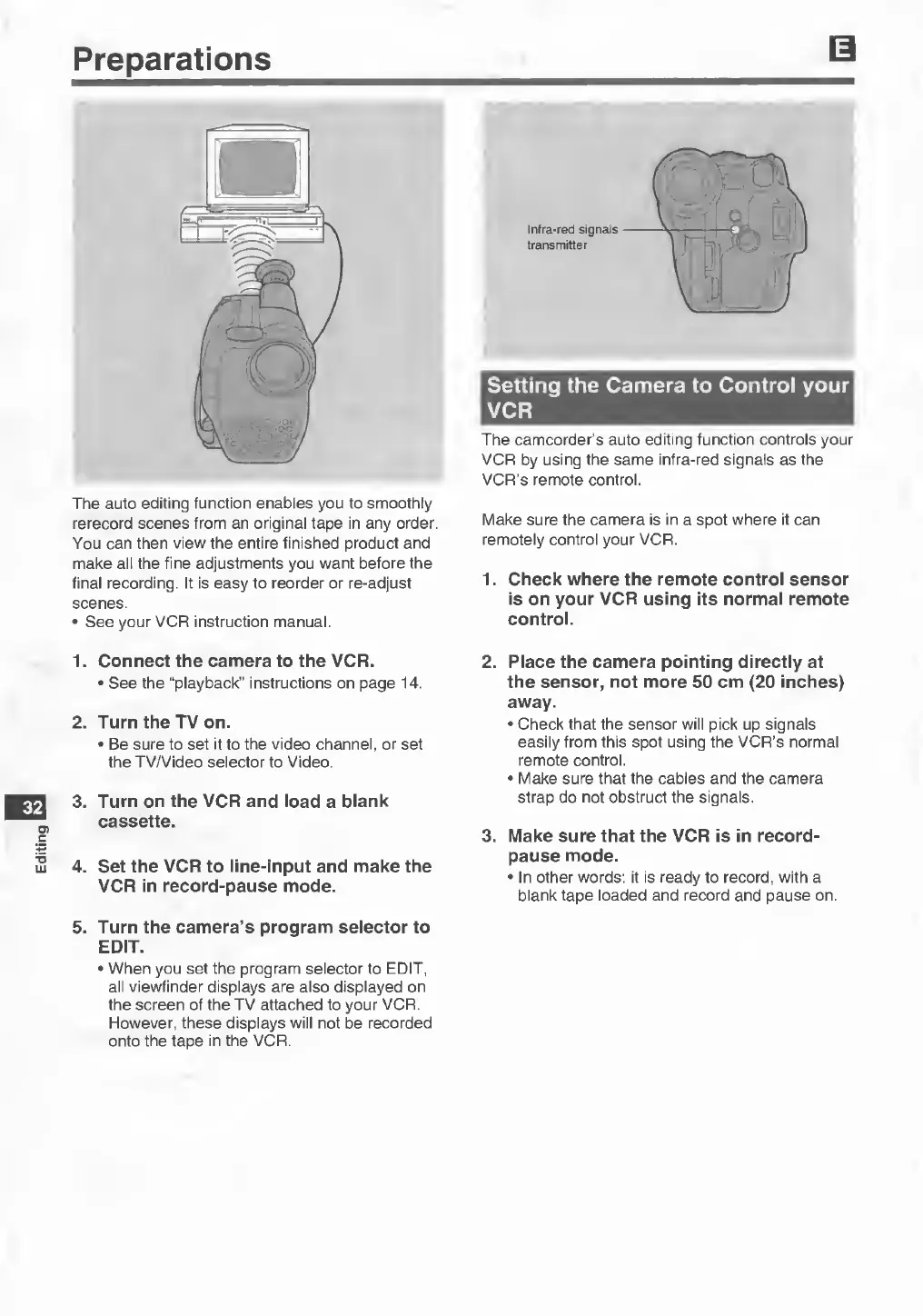
The
auto
editing
function
enables
you
to
smoothly
rerecord
scenes
from
an
original
tape
in
any
order.
You
can
then
view
the
entire
finished
product
and
make
all
the
fine
adjustments
you
want
before
the
final
recording.
It
is
easy
to
reorder
or
re-adjust
scenes.
•
See
your
VCR
instruction
manual.
Infra-red
signals
transmitter
Setting
the
Camera
to
Control
your
VCR
The
camcorder’s
auto
editing
function
controls
your
VCR
by
using
the
same
infra-red
signals
as
the
VCR’s
remote
control.
Make
sure
the
camera
is
in
a
spot
where
it
can
remotely
control
your
VCR.
1.
C
heck
where
the
remote
control
sensor
is
on
your
VCR
using
its
normal
remote
control.
1.
Connect
the
camera
to
the
VCR.
•
See
the
“playback”
instructions
on
page
14.
2.
Turn
the
TV
on.
•
Be
sure
to
set
it
to
the
video
channel,
or
set
the
TV/Video
selector
to
Video.
32
3.
T
urn
on
the
VCR
and
load
a
blank
cassette.
4.
Set
the
VCR
to
line-input
and
make
the
VCR
in
record-pause
mode.
5.
Turn
the
camera’s
program
selector
to
EDIT.
•
When
you
set
the
program
selector
to
EDIT,
all
viewfinder
displays
are
also
displayed
on
the
screen
of
the
TV
attached
to
your
VCR.
However,
these
displays
will
not
be
recorded
onto
the
tape
in
the
VCR.
2.
Place
the
camera
pointing
directly
at
the
sensor,
not
more
50
cm
(20
inches)
away.
•
Check
that
the
sensor
will
pick
up
signals
easily
from
this
spot
using
the
VCR’s
normal
remote
control.
•
Make
sure
that
the
cables
and
the
camera
strap
do
not
obstruct
the
signals.
3.
Make
sure
that
the
VCR
is
in
record-
pause
mode.
•
In
other
words:
it
is
ready
to
record,
with
a
blank
tape
loaded
and
record
and
pause
on.