EasyManua.ls Logo

Canon UC800 - Setting Recorder Select for Auto Editing

Canon UC800
56 pages
Print Icon
To Next Page IconTo Next Page
To Previous Page IconTo Previous Page
Loading...
Using
the
Auto
Editing
Function
the
first
time
E
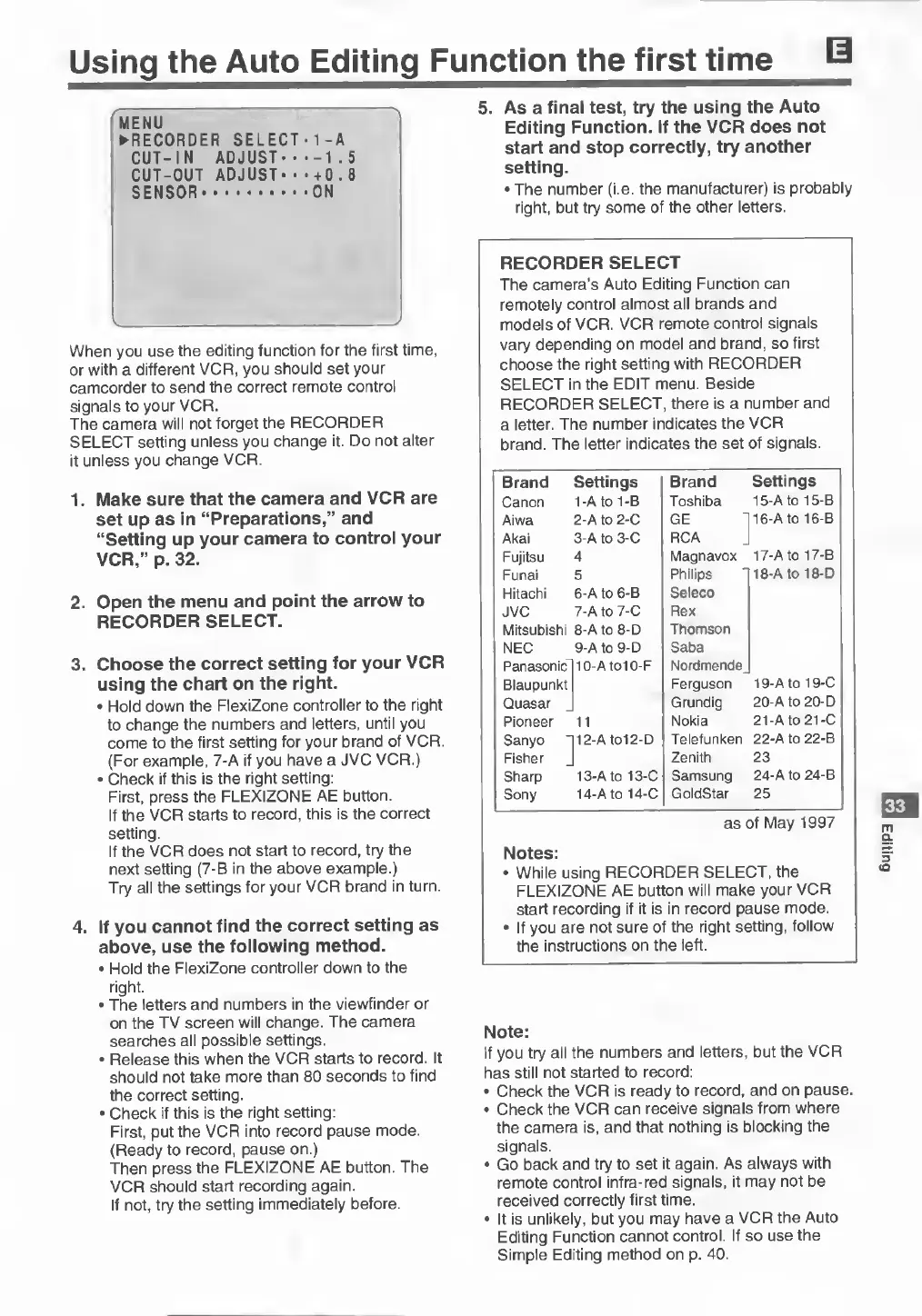
MENU
►
R
E
C
O
R
D
E
R
SELECT
1
-A
CUT-IN
ADJUST••
-1
.
5
CUT-OUT
ADJUST
■
■
+
0
.
8
SENSOR..
*
ON
When
you
use
the
editing
function
for
the
first
time,
or
with
a
different
VCR,
you
should
set
your
camcorder
to
send
the
correct
remote
control
signals
to
your
VCR.
The
camera
will
not
forget
the
RECORDER
SELECT
setting
unless
you
change
it.
Do
not
alter
it
unless
you
change
VCR.
1.
Make
sure
that
the
camera
and
VCR
are
set
up
as
in
“Preparations,”
and
“Setting
up
your
camera
to
control
your
VCR,”
p.
32.
2.
Open
the
menu
and
point
the
arrow
to
RECORDER
SELECT.
3.
Choose
the
correct
setting
for
your
VCR
using
the
chart
on
the
right.
•
Hold
down
the
FlexiZone
controller
to
the
right
to
change
the
numbers
and
letters,
until
you
come
to
the
first
setting
for
your
brand
of
VCR.
(For
example,
7-A
if
you
have
a
JVC
VCR.)
•
Check
if
this
is
the
right
setting:
First,
press
the
FLEXIZONE
AE
button.
If
the
VCR
starts
to
record,
this
is
the
correct
setting.
If
the
VCR
does
not
start
to
record,
try
the
next
setting
(7-B
in
the
above
example.)
Try
all
the
settings
for
your
VCR
brand
in
turn.
4.
If
you
cannot
find
the
correct
setting
as
above,
use
the
following
method.
•
Hold
the
FlexiZone
controller
down
to
the
right.
•
The
letters
and
numbers
in
the
viewfinder
or
on
the
TV
screen
will
change.
The
camera
searches
all
possible
settings.
•
Release
this
when
the
VCR
starts
to
record.
It
should
not
take
more
than
80
seconds
to
find
the
correct
setting.
•
Check
if
this
is
the
right
setting:
First,
put
the
VCR
into
record
pause
mode.
(Ready
to
record,
pause
on.)
Then
press
the
FLEXIZONE
AE
button.
The
VCR
should
start
recording
again.
If
not,
try
the
setting
immediately
before.
5.
A
s
a
final
test,
try
the
using
the
Auto
Editing
Function.
If
the
VCR
does
not
start
and
stop
correctly,
try
another
setting.
•
The
number
(i.e.
the
manufacturer)
is
probably
right,
but
try
some
of
the
other
letters.
RECORDER
SELECT
The
camera’s
Auto
Editing
Function
can
remotely
control
almost
all
brands
and
models
of
VCR.
VCR
remote
control
signals
vary
depending
on
model
and
brand,
so
first
choose
the
right
setting
with
RECORDER
SELECT
in
the
EDIT
menu.
Beside
RECORDER
SELECT,
there
is
a
number
and
a
letter.
The
number
indicates
the
VCR
brand.
The
letter
indicates
the
set
of
signals.
Brand
Settings
Brand
Settings
Canon
1-A
to
1
-B
Toshiba
15-A
to
15-B
Aiwa
2-A
to
2-C
GE
16-A
to
16-B
Akai
3-A
to
3-C
RCA
Fujitsu
4
Magnavox
17-A
to
17-B
Funai
5
Philips
18-AtO
18-D
Hitachi
6-A
to
6-B
Seleco
JVC
7-A
to
7-C
Rex
Mitsubishi
8-A
to
8-D
Thomson
NEC
9-A
to
9-D
Saba
Panasonic
10-A
tolO-F
Nordmende^
Blaupunkt
Ferguson
19-A
to
19-C
Quasar
Grundig
20-A
to
20-D
Pioneer
11
Nokia
21-A
to
21-C
Sanyo
12-A
to12-D
Telefunken
22-A
to
22-B
Fisher
Zenith
23
Sharp
13-A
to
13-C
Samsung
24-A
to
24-B
Sony
14-A
to
14-C
GoldStar
25
as
of
May
1997
Notes:
•
While
using
RECORDER
SELECT,
the
FLEXIZONE
AE
button
will
make
your
VCR
start
recording
if
it
is
in
record
pause
mode.
•
If
you
are
not
sure
of
the
right
setting,
follow
the
instructions
on
the
left.
Note:
If
you
try
all
the
numbers
and
letters,
but
the
VCR
has
still
not
started
to
record:
•
Check
the
VCR
is
ready
to
record,
and
on
pause.
•
Check
the
VCR
can
receive
signals
from
where
the
camera
is,
and
that
nothing
is
blocking
the
signals.
•
Go
back
and
try
to
set
it
again.
As
always
with
remote
control
infra-red
signals,
it
may
not
be
received
correctly
first
time.
•
It
is
unlikely,
but
you
may
have
a
VCR
the
Auto
Editing
Function
cannot
control.
If
so
use
the
Simple
Editing
method
on
p.
40.
33
Editing