EasyManua.ls Logo

Canon UC800 - Editing Scenes: Changing Points

Canon UC800
56 pages
Print Icon
To Next Page IconTo Next Page
To Previous Page IconTo Previous Page
Loading...
Editing
Scenes
Changing
the
“cut-in”
/
“cut-out”
point
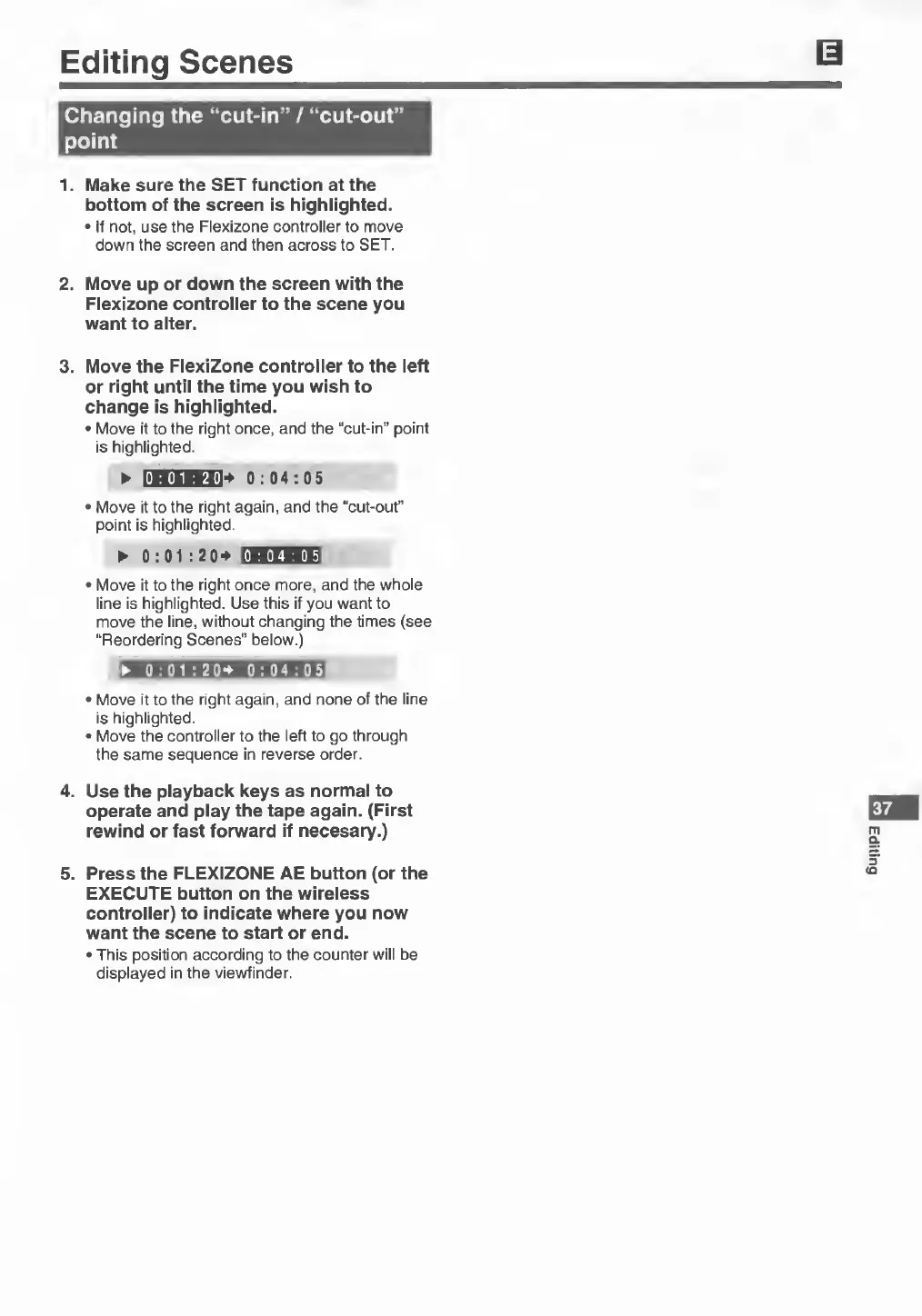
1.
Make
sure
the
SET
function
at
the
bottom
of
the
screen
is
highlighted.
•
If
not,
use
the
Flexizone
controller
to
move
down
the
screen
and
then
across
to
SET.
2.
Move
up
or
down
the
screen
with
the
Flexizone
controller
to
the
scene
you
want
to
alter.
3.
Move
the
FlexiZone
controller
to
the
left
or
right
until
the
time
you
wish
to
change
is
highlighted.
•
Move
it
to
the
right
once,
and
the
“cut-in”
point
is
highlighted.
►
IiBIHi]4
0:04:05
►
pma
+
0:04:05
•
Move
it
to
the
right
again,
and
the
“cut-out”
point
is
highlighted.
►
0:01:20+
bUlU
iH
•
Move
it
to
the
right
once
more,
and
the
whole
line
is
highlighted.
Use
this
if
you
want
to
move
the
line,
without
changing
the
times
(see
“Reordering
Scenes”
below.)
0:0
1:2
0+
0:04:05
•
Move
it
to
the
right
again,
and
none
of
the
line
is
highlighted.
•
Move
the
controller
to
the
left
to
go
through
the
same
sequence
in
reverse
order.
4.
Use
the
playback
keys
as
normal
to
operate
and
play
the
tape
again.
(First
rewind
or
fast
forward
if
necesary.)
5.
Press
the
FLEXIZONE
AE
button
(or
the
EXECUTE
button
on
the
wireless
controller)
to
indicate
where
you
now
want
the
scene
to
start
or
end.
•
This
position
according
to
the
counter
will
be
displayed
in
the
viewfinder.
Editing