EasyManua.ls Logo

Canon UC800 - Simple Editing Without Remote Control

Canon UC800
56 pages
Print Icon
To Next Page IconTo Next Page
To Previous Page IconTo Previous Page
Loading...
Editing
40
Simple
Editing
to
a
VCR
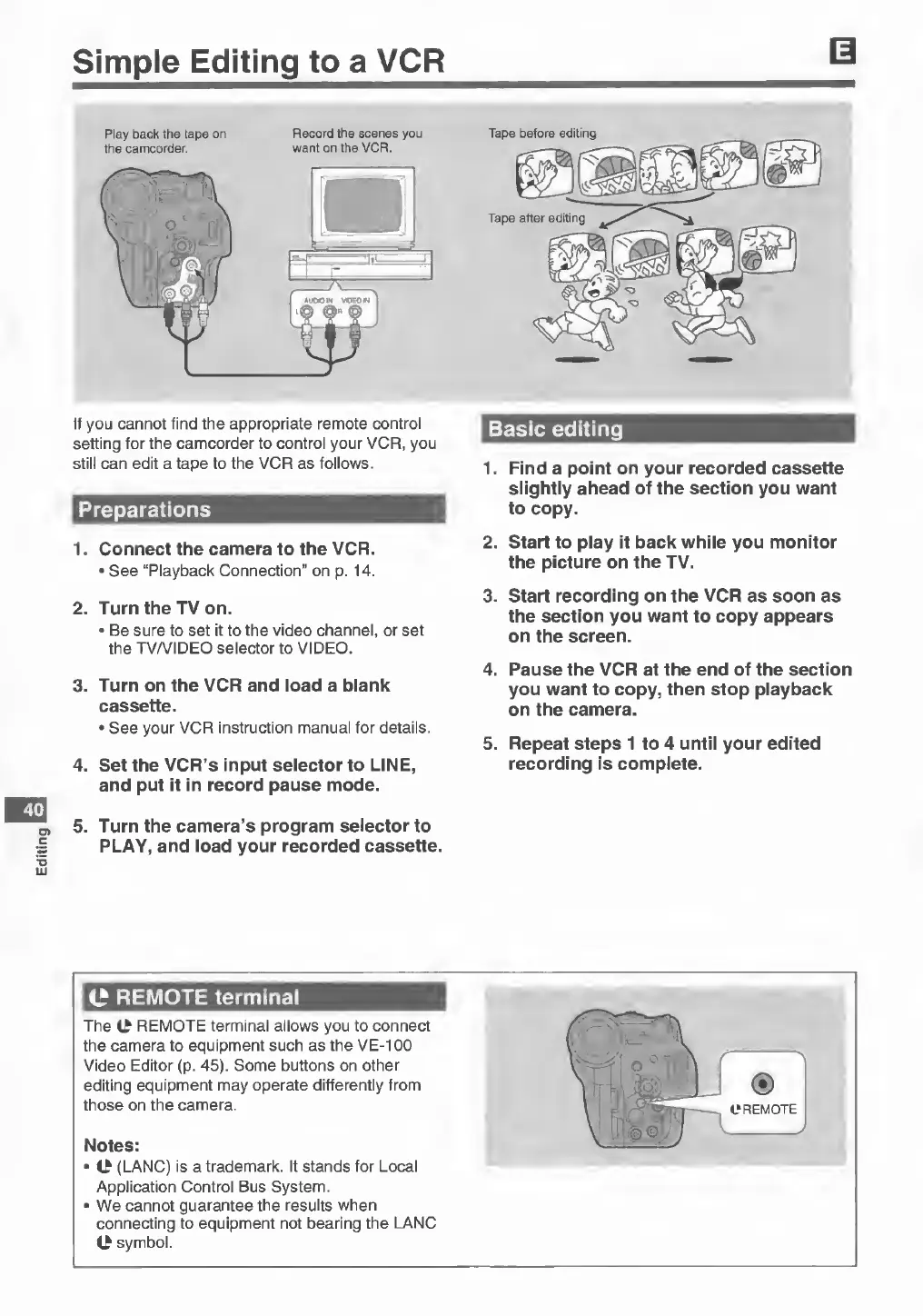
If
you
cannot
find
the
appropriate
remote
control
setting
for
the
camcorder
to
control
your
VCR,
you
still
can
edit
a
tape
to
the
VCR
as
follows.
Preparations
1.
Connect
the
camera
to
the
VCR.
•
See
“Playback
Connection”
on
p.
14.
2.
Turn
the
TV
on.
•
Be
sure
to
set
it
to
the
video
channel,
or
set
the
TV/VIDEO
selector
to
VIDEO.
3.
Turn
on
the
VCR
and
load
a
blank
cassette.
•
See
your
VCR
instruction
manual
for
details.
4.
Set
the
VCR’s
input
selector
to
LINE,
and
put
it
in
record
pause
mode.
5.
Turn
the
camera’s
program
selector
to
PLAY,
and
load
your
recorded
cassette.
Basic
editing
1.
Find
a
point
on
your
recorded
cassette
slightly
ahead
of
the
section
you
want
to
copy.
2.
Start
to
play
it
back
while
you
monitor
the
picture
on
the
TV.
3.
Start
recording
on
the
VCR
as
soon
as
the
section
you
want
to
copy
appears
on
the
screen.
4.
Pause
the
VCR
at
the
end
of
the
section
you
want
to
copy,
then
stop
playback
on
the
camera.
5.
Repeat
steps
1
to
4
until
your
edited
recording
is
complete.
O
REMOTE
terminal
The
C
REMOTE
terminal
allows
you
to
connect
the
camera
to
equipment
such
as
the
VE-100
Video
Editor
(p.
45).
Some
buttons
on
other
editing
equipment
may
operate
differently
from
those
on
the
camera.
Notes:
•
(LANC)
is
a
trademark.
It
stands
for
Local
Application
Control
Bus
System.
•
We
cannot
guarantee
the
results
when
connecting
to
equipment
not
bearing
the
LANC
C
symbol.