To Next Page

L
Leslie ThomasAug 31, 2025
What to do if the viewer gets disconnected from my Canon Security Camera?
- RRobin CooperAug 31, 2025
Check the network and PC for any issues. Try rebooting the PC and connecting again.

What to do if the viewer gets disconnected from my Canon Security Camera?
Check the network and PC for any issues. Try rebooting the PC and connecting again.
What to do if my Canon Security Camera cannot be controlled?
If you connect the Admin Viewer as an administrator, you will have exclusive control. If you connect as an Authorized User, you cannot control the camera unless the administrator releases control.
Why is my Canon Security Camera not starting?
If you're using a PoE hub, check the LAN cable connection. If using an AC adapter (sold separately), verify it's correctly connected. Try turning the camera off and then on again.
How to troubleshoot no audio on my Canon VB-H43?
If there is no audio, check the camera's audio server settings and the sound and audio device settings on your PC. If using the Admin Viewer with administrator privileges, ensure the camera isn't connected to the RM Viewer or another viewer that's using audio. For VB Viewer, the Canon Network Camera Audio Receiver add-on must be installed. If you're using Internet Explorer 10 or 11 on a 64-bit system with the camera as a trusted site and protected mode enabled, disable protected mode.
How to fix Canon VB-H43 Security Camera Admin Tools that will not start?
If you see a message that your web browser is not supported, use Internet Explorer 8 or greater. If you see a message to install .NET Framework x.x, install the corresponding version or enable the settings. If JavaScript is not available, enable [Active Script] in Internet Explorer's security settings. Ensure you've installed your Admin Tools Certificate and, if using Internet Explorer 9 or greater, registered the camera's IP address as a Trusted Site. Also, enable [XAML browser applications], [File download], and [Launching programs and files in an IFRAME] in Internet Explorer's security settings.
What to do if the top page of my Canon VB-H43 Security Camera is not displayed?
First, ensure the LAN cable is correctly connected and that your network settings (IP address, subnet mask, and default gateway address) are correctly configured for your network. If you changed the IP address, reboot the camera for the new address to take effect. Verify that the correct URI (camera IP address) is entered in your web browser. Also, check if the connection is blocked in [Access Control] settings or if there are any issues with the authentication method, [User Name], [Password], combination of certificates, and network rules for connection in [802.1X] on the Setting page.
What to do if VB Initial Setting Tool does not operate for Canon Security Camera?
If the VB Initial Setting Tool isn't working: * Check if the LAN cable is correctly connected. * Restart the camera. Note that the camera stops responding to the VB Initial Setting Tool 20 minutes after being turned on. * Ensure the camera and the PC running the tool are on the same LAN segment. * The tool might not work if Windows Firewall is enabled. See “Notes on Use When the [Windows Firewall] Function is Enabled”. * Make sure you are using the latest version of the VB Initial Setting Tool.
Legal disclaimer regarding data loss and warranty.
User responsibility for network security and recommendations.
Lists registered trademarks of Canon and other companies.
Information on open-source modules included in the product.
Lists available user manuals included with the camera.
Explains how to read and understand the manual.
Explains safety symbols used in the guide.
General warnings for safe camera operation.
FCC compliance information for the network camera.
General precautions for using the camera and its components.
Precautions and recommendations for cleaning the camera.
Lists common features of the camera models.
Lists software installed with the camera.
System requirements for operating the software.
Steps to configure Windows Firewall for the VB Initial Setting Tool.
Steps to prepare the camera before initial setup.
Steps to install the necessary software.
Procedures for performing initial camera network settings.
Steps to start the camera angle adjustment software.
How to establish a connection with the camera.
How to create a CSV file for managing camera connections.
How to navigate to different camera functions from the top page.
Requirements for accessing camera settings and tools.
Administrator password, LAN, IPv4, IPv6, DNS, SNMP settings.
Camera date, time zone, and daylight saving settings.
Camera name, initial settings, control, day/night, and position settings.
Configuring video size, quality, and frame rate.
Configuring event operations like video record and volume detection.
Managing user accounts and access privileges.
Managing memory card operations and viewing its status.
Device info, logs, current settings, rebooting, backup/restore.
Top page for launching all Admin Tools.
Tool to hide areas in the camera image with privacy masks.
Tool to create panorama images of the entire captured area.
Tool to set camera presets and home position visually.
Tool to set intelligent functions for event detection.
Viewer for operating condition logs of the camera.
Utility for managing recorded video on memory cards.
Defines user roles and their camera control capabilities.
Prerequisites like Admin Tools Certificate installation.
Overview of Admin Viewer interface elements.
How to change camera angle using pan/tilt sliders or clicking the video.
Function for transmitting only a part of the camera's effective pixel area.
Using Viewer PTZ panel to magnify parts of the camera image.
How to access the camera's memory card.
Common problems and their countermeasures.
Classifies log messages and provides descriptions.
Messages displayed in the viewer's information field.
How to restore factory defaults using the camera's reset switch.
Table of all factory default settings.
 General
| Type | IP security camera |
|---|---|
| PTZ control | Yes |
| Processor model | Canon DIGIC DV III |
| Placement supported | Indoor |
| Light exposure modes | Aperture priority AE, Auto, Manual, Shutter priority AE |
| Connectivity technology | Wired |
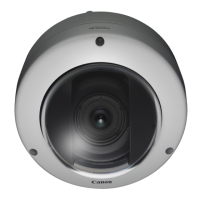
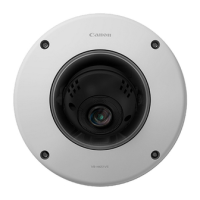
| Form factor | Dome |
| Mounting type | Ceiling |
| Product color | White |
| Total megapixels | 2.1 MP |
| Maximum resolution | 1920 x 1080 pixels |
| Supported video modes | 1080p, 720p |
| Video formats supported | H.264, M-JPEG |
| Supported graphics resolutions | 320 x 240, 960 x 540, 1280 x 960, 1280 x 720 (HD 720), 1920 x 1080 (HD 1080), 640 x 480 (VGA) |
| Pan range | -170 - 170 ° |
| White balance | Auto, Daylight, Fluorescent, Lamp, Manual |
| Tilt angle range | -90 - 10 ° |
| Camera shutter speed | 0.0000625 - 1 s |
| Minimum illumination | 0.001 lx |
| Sensor type | CMOS |
| Optical sensor size | 1/3 \ |
| Digital zoom | 12 x |
| Optical zoom | 20 x |
| Focus adjustment | 1.6 - 3.5 |
| Focal length range | 4.7 - 94 mm |
| Security algorithms | EAP-MD5, EAP-TLS, EAP-TTLS, SSL/TLS |
| Password protection type | User |
| Built-in HDD | No |
| Internal memory | 5 MB |
| Compatible memory cards | SD, SDHC, SDXC |
| Cabling technology | 10/100Base-T(X) |
| Supported network protocols | TCP/IP, UDP, HTTP, FTP, SNMP (MIB2), SMTP (Client), DHCP (Client), DNS (Client), ARP, ICMP, POP3, NTP, SMTP authentication, RTSP, WV-HTTP (Canon proprietary), ONVIF |
| Compliance industry standards | 802.3af PoE |
| Interface | RJ-45 |
| Ethernet LAN (RJ-45) ports | 1 |
| Audio system | 2-way |
| Built-in microphone | - |
| AC input voltage | 24 V |
| Power source type | PoE |
| Power consumption (max) | 9.2 W |
| Operating temperature (T-T) | -10 - 50 °C |
| Operating relative humidity (H-H) | 5 - 85 % |
 Weight and Dimensions
| Width | 132 mm |
|---|---|
| Height | 155 mm |
| Weight | 1140 g |