57
Configuring EOS Utility Connection Settings
4
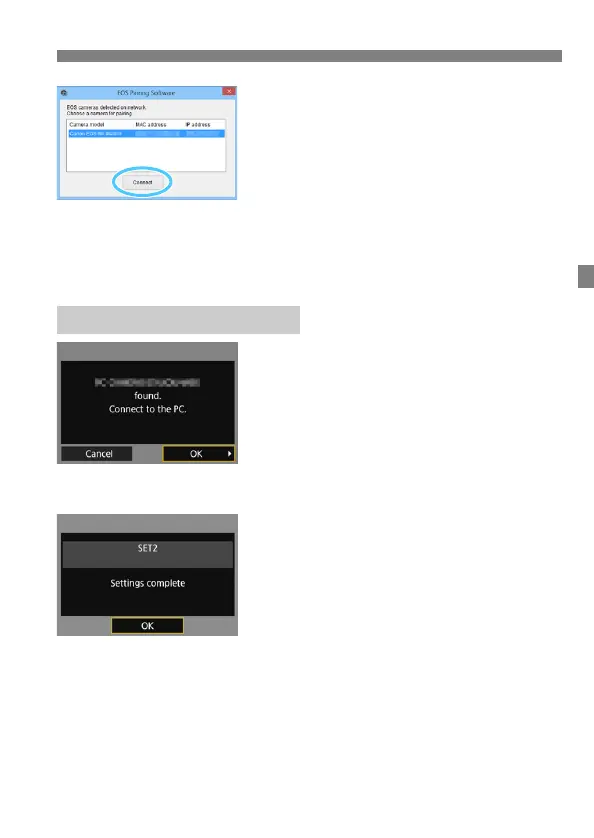
Click [Connect] on the computer.
Select the camera to connect to, then
click [Connect].
If multiple cameras are displayed,
identify the camera to connect to by
its MAC address displayed on the
camera’s LCD monitor.
The MAC address can also be
checked on the [Function settings]
screen (p.114).
5
Select [OK].
When the camera detects the
computer on which you clicked
[Connect] in step 4, the screen on
the left is displayed.
Select [OK] and press <0>. A
connection completion screen will
appear.
6
Select [OK].
Press <0> to return to the [Network
settings] screen.
The <Y> lamp on the camera will
light up in green.
Settings information is stored in the
camera. It is not stored in the
transmitter.
The settings for connecting to EOS Utility are now complete.
There is no need to complete pairing again if you will continue using
a particular camera to which the transmitter is attached and
computer together after pairing without changing the settings.
Operation on the Camera-2


 To Next Page