IFU-2800 Rev E 11/18
9
8. Troubleshooting
In case of any issues with the system, refer to this guide for possible solutions. If the problem persists,
contact CapsoVision or your local distributor of CapsoVision devices.
Symptom Possible Solutions
CapsoView® menu item
“Download g Download
Images” is not enabled (it is in
gray font and not black)
1. Verify that the USB cable is connected between the system and the computer, that the system power is ON and
that system indicator light is illuminated.
2. Verify that the computer has been congured for downloading capsule data and conrm that the system USB
driver is installed.
3. Turn system OFF, wait a few seconds, and turn it back ON.
4. Disconnect and reattach the USB cable.
5. Close and restart the CapsoView® software application.
6. Reboot the computer.
After selecting “Download Images”
a system data transfer error
message appears
1. Turn the system OFF, wait a few seconds, and turn it back ON to reset the USB connection. Try downloading again.
2. Try docking a known, good capsule, such as a capsule with data previously downloaded. If the error message
reappears, the system may be malfunctioning. On the other hand, if this known-good capsule docks successfully (the
Procedure Information window appears), the original capsule may be damaged or malfunctioning. In this case, click
“Cancel” in the Procedure Information window.
After selecting “Download Images”
an error message appears indicating
that no capsule is detected
1. Verify that the capsule is in the receptacle and in the correct orientation with the battery-end facing upwards.
2. Ensure that the capsule dimple and system receptacle are clean.
3. Rotate the capsule approximately 180° and retry.
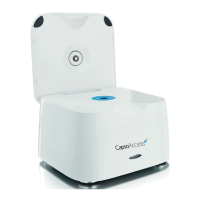
The CapsoAccess® system indicator
light is not illuminated
1. Verify that the power switch is turned to ON.
2. Verify that the power cable is fully inserted into the outlet and plugged into the power supply
and that the light on the power supply is illuminated.
3. Verify that the power supply is plugged into the system.


 To Next Page
 Loading...