Page | 36
6.6 AutoFix mode
Select AutoFix mode from the main menu to use the rapid fire option. AutoFix mode can sometimes be a more
efficient way of collecting specific data, rather than carrying out a full FastScan: for example, when surveying the
break-lines of a stockpile or a long sequence of points defining a crest.
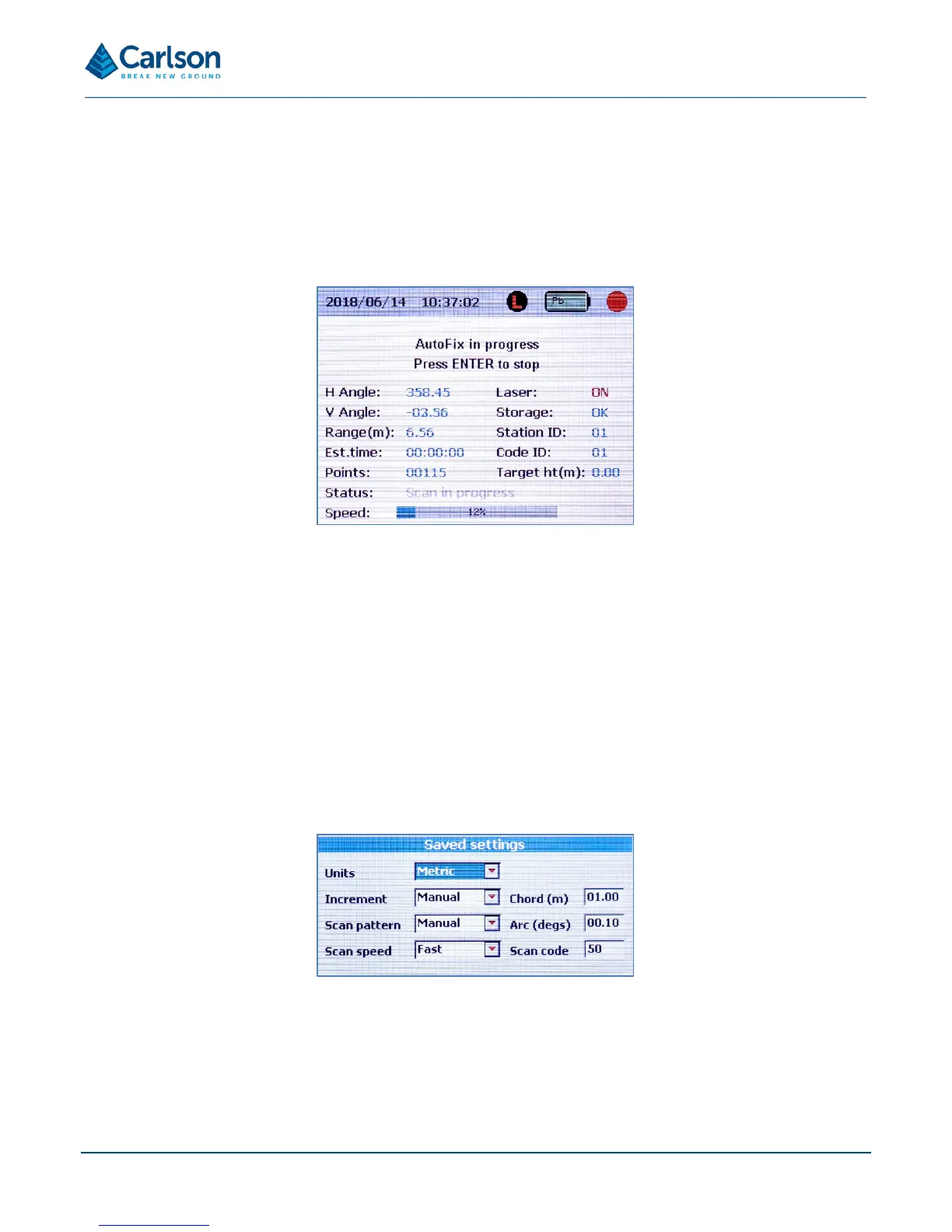
A message window prompts for a change in Code ID. Enter a value to progress to the AutoFix survey screen.
The target height is automatically set to 0.00 for AutoFix operations.
The header displays ‘AutoFix in progress. Press ENTER to stop’. The Status label displays ‘Scan in progress’.
The rapid fire AutoFix function shoots approximately 30 points per second. The laser triggers when the laser module
is moved at an angular speed greater than 2° per second. Until this point, the Laser label displays OFF. Once the
laser is firing, the Laser label displays ON.
To finish using AutoFix mode and return to the main menu, press ENTER.
6.7 Saved settings
Select ‘Adjust saved user settings’ from the main menu to change the default set-up of the Quarryman Pro.
NOTE: when all settings have been entered, the Quarryman Pro powers itself OFF to save the selected
configuration. A message appears offering the chance to either save the settings and shut down the instrument, or
to abort any changes and return to the main menu. Press ENTER to continue or HOME to abort.
This screen offers the chance to configure some preferred options. For regular users who have a predictable
sequence of operations, this will save having to select the full configuration for each scan. For example, you may


 To Next Page