Page | 33
o Survey in progress
o USB error
• Speed: displays the currently set motor speed. The default value is 1%, which is the slowest speed
available. This value can be altered with the SPEED UP / SPEED DOWN buttons.
6.5 FastScan mode
Select FastScan mode from the main menu to use the Quarryman Pro’s scanning functionality. The various options
available are described below. Further information on the concepts involved are outlined in section 7.3.
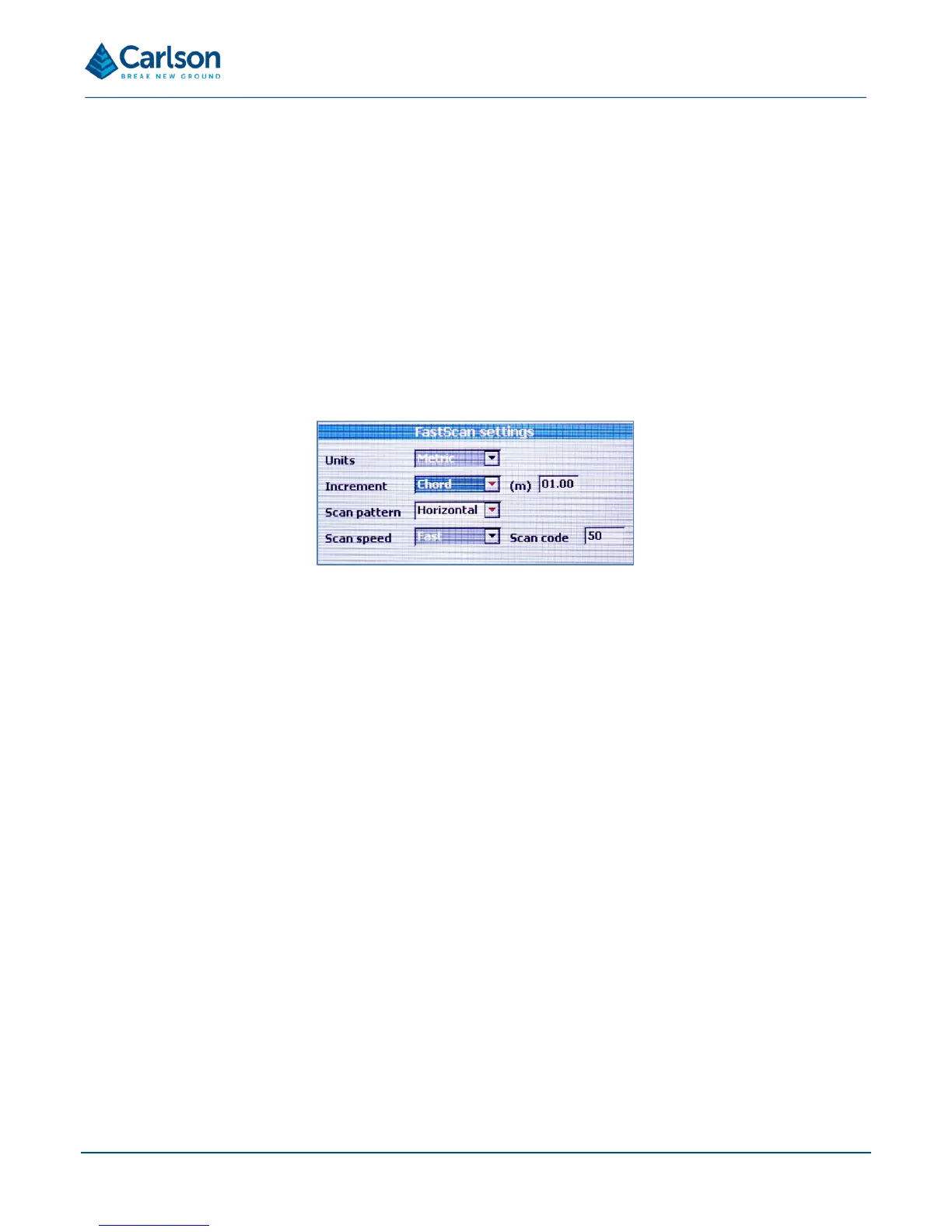
FastScan settings
The FastScan settings screen appears.
Select the options required for the scan. Some of the options will be greyed out, having already been determined in
the Saved settings screen: see section 6.7. For regular users that have a predictable sequence of operations for
face profiling, this will save having to select the full configuration for each scan.
The settings displayed are:
• Units: only configurable from the Saved settings screen.
• Increment: select Arc or Chord.
• Scan Pattern: select Horizontal, Vertical or Both.
• Scan Speed: select Fast, Medium or Slow.
• Chord Length: enter a value in metres or feet. The default value is configured in the Saved settings
screen. This option will not be visible if Arc increment has been selected.
• Arc Segment: enter a value in degrees. The default value is configured in the Saved settings screen. This
option will not be visible if Chord increment has been selected.
• Scan Code: enter a code for the scan. The default value is configured in the Saved settings screen.
For each option, use the SCROLL button to select, and the ENTER button to accept. Use the FUNCTION button to
move to the previous, active option. When all the values have been entered, a window prompts you to either:
• press ENTER again to accept the settings and continue with the scan or,
• press the HOME button to abort the scan and return to the main menu.



 To Next Page