EasyManua.ls Logo

Carlson Quarryman Pro - User Manual

Default Icon
57 pages
Print Icon
To Next Page IconTo Next Page
Loading...
Quarryman Pro manual H-5915-8503-03-A June 2018
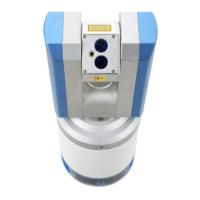
Quarryman Pro
ruggedised laser scanner
user manual

Questions and Answers

  • R
    Robert FernandezAug 14, 2025
    How to fix a Carlson Scanner that does not power up?
    • A
      Aaron PowellAug 14, 2025
      If your Carlson Scanner isn't powering up, start by ensuring the power cable is securely connected. Next, verify that the lithium-ion battery is fully charged before attempting any scanning operations. Finally, inspect the power cable, pins, and connectors for any signs of damage. If you find damage, arrange for repair or replacement of the cable.
  • J
    James JimenezAug 17, 2025
    What to do if my Carlson Scanner keeps shutting down?
    • D
      Donna DanielsAug 17, 2025
      If your Carlson Scanner shuts down during operations, the battery may be discharged. Try swapping to a backup power source or ensuring the battery is fully charged. Also, if you are using a lead acid battery, press 5 for 3 seconds while the instrument is powering up. The battery icon on the status bar will indicate Pb if the selection has been registered.
  • T
    Tammy LewisAug 20, 2025
    Why is there noise in the scan data of my Carlson Quarryman Pro Scanner?
    • E
      Erin SmithAug 20, 2025
      If you observe 'noise' in the scan data during operations with your Carlson Scanner, avoid pointing the laser into strong sunlight, as this can interfere with the receiving optics. Also, laser ranging to wet surfaces is unpredictable, so avoid standing or running water on the targeted face. If these are not the cause, arrange recalibration, as the laser electronics may be faulty.
  • T
    Tammy SmithAug 25, 2025
    Why are the ranges incorrect in Point and shoot mode of my Carlson Quarryman Pro Scanner?
    • J
      Jane BauerAug 25, 2025
      If you are getting incorrect ranges in Point and shoot mode on your Carlson Scanner, do not use a reflective prism as a target. If thick dust, mist, or snow is interfering with observations, switch on last-hit mode. If the problem persists, wait for dust or bad weather to clear, if feasible. Also, avoid pointing the laser directly at the sun.
  • H
    hgentryAug 27, 2025
    How to fix multiple scans not matching up on my Carlson Scanner?
    • B
      Bethany WilsonAug 27, 2025
      If your Carlson Scanner is producing multiple scans that don't match up or showing large traverse misclosures, ensure the initial reference observation is precisely aimed and pointing to the correct target. Use the bubble carefully to ensure the instrument is leveled before it is switched on. Also, ensure the tripod is secure and the tribrach is tightly fastened to it. Measure from the ground under the instrument to the cross on the side panel and enter in metres or feet. Only enter a target height if shooting to a target above the object being surveyed and enter in metres or feet. If these steps don't resolve the issue, arrange recalibration, as the telescope may not be aligned with the laser or the encoders may be faulty.
  • R
    Robert RogersAug 30, 2025
    Why is the point cloud fuzzy on my Carlson Quarryman Pro?
    • S
      spencerdanielAug 30, 2025
      If the point cloud from your Carlson Scanner is ill-defined and 'fuzzy', switch on last-hit mode if thick dust, mist, or snow is interfering with the scan. If the problem persists, wait for dust or bad weather to clear, if feasible. Laser ranging to wet surfaces is unpredictable.
  • D
    Donna RussoSep 3, 2025
    What causes a large spread of heights from a resection on a Carlson Scanner?
    • H
      Henry GonzalezSep 3, 2025
      If you observe large 'spread of heights' from a resection using your Carlson Scanner, ensure the targets are stable and have the targets remounted and resurveyed if necessary. Also, ensure the coordinates have been entered correctly in the processing software and that the correct target has been matched with the correct observation. If these steps don't resolve the issue, arrange recalibration, as the telescope may not be aligned with the laser.
  • J
    john87Sep 6, 2025
    Why are there holes in the point cloud from my Carlson Quarryman Pro?
    • K
      Kevin ProctorSep 7, 2025
      If you're seeing 'holes' in the point cloud from your Carlson Scanner, it may be due to standing water or very unreflective surfaces such as coal. Laser ranging to wet or very dark surfaces is unpredictable; try moving closer to the targeted surfaces. If surfaces are beyond the range of the laser, set up the Quarryman Pro in another location if possible and combine scans to overcome range limitations. Surfaces such as coal can give severely reduced ranges, so move closer to the target.
  • P
    Patricia ClarkSep 9, 2025
    What to do if Carlson Quarryman Pro Scanner does not progress past splash-screen?
    • K
      kmichaelSep 9, 2025
      If the instrument does not progress past the splash-screen when starting up your Carlson Scanner, power the unit down. Ensure the USB drive is present and securely connected. Restart the instrument.

Summary

Introduction

2.1 System overview

Description of the Quarryman Pro as a field instrument combining laser scanning.

2.2 Blast design package

How the Quarryman Pro supports blast design operations for quarry operators.

Laser safety

3.1 Quarryman Pro laser module with red dot pointer

Classification and safety recommendations for the laser modules.

Equipment description

4.1 The Quarryman Pro

Overview of the Quarryman Pro instrument and its main components.

4.2 Control Display Unit (CDU)

Details on the CDU keypad, screen, and primary button functions.

4.3 Laser module

Specifications and features of the Quarryman Pro laser module.

Maintenance and care of the Quarryman Pro

5.1 General

General guidelines on maintenance, calibration, and troubleshooting.

Using the Quarryman Pro

6.4 Point and shoot mode

How to use the Point and shoot mode for single shots.

6.5 FastScan mode

Explanation of FastScan mode settings for scanning operations.

Operational guidelines

7.2 Instrument heights and target heights

Importance and measurement of instrument and target heights.

Typical operating sequence

8.1 Positioning the Quarryman Pro

Steps for correctly positioning the instrument on site.

8.2 Setting up the Quarryman Pro

Detailed instructions for setting up the tripod and instrument.

8.3 Switching on and starting the survey

Procedure for powering on and initiating a survey.

Quarryman Pro troubleshooting guide

9.1 Diagnosis of some common issues

Common problems, causes, remedies, and manual references.

Quarryman Pro Specifications

Product information

Safety

General safety information and laser safety precautions.

Carlson Quarryman Pro Specifications

General IconGeneral
Type3D Laser Scanner
Laser ClassClass 1
Battery LifeUp to 4 hours
Data Acquisition Rate1, 000, 000 points per second
Field of View360° horizontal, 270° vertical
Integrated CameraYes
Data OutputLAS, PTX, PTS, E57
ConnectivityWi-Fi

Related product manuals