79
PLAYBACK
To specify the slideshow images
1.
Use [#] and [$] to select “Images”, and then
press [!].
2.
Use [#] and [$] to select the setting you
want, and then press [SET].
3.
Use [#] and [$] to select “Start”, and then
press [SET].
• This starts the slideshow.
To do this:
Include all images in file memory in the
slideshow
Display a single image
Include all images in the FAVORITE
folder (page 93) in the slideshow
Select this setting:
All images
One Image
Favorites
! Selecting a Particular Image for a Slideshow
When you select “One image” as the slideshow type, the
slide show displays only one image, without changing it.
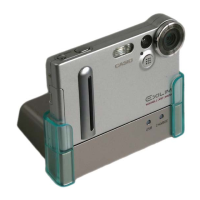
Use this setting when you want a particular image to
remain on the display while the camera is on the USB
cradle (Photo Stand feature). Perform the following steps to
specify which image you want displayed.
1.
Select “One image”, and then press [!].
2.
Use ["] and [!] to scroll through the images
until the one you want to use is on the
monitor screen.
3.
Press [SET] to
register your
selection and return
to the menu screen.
• Pressing [MENU]
instead of [SET] returns
to the menu screen
without registering the
setting.













 To Next Page