ddrum4 SE V1.5x 6. Panel reference: Sound functions
Page 25
S
SS
S
O
OO
OU
UU
UN
NN
ND
DD
D
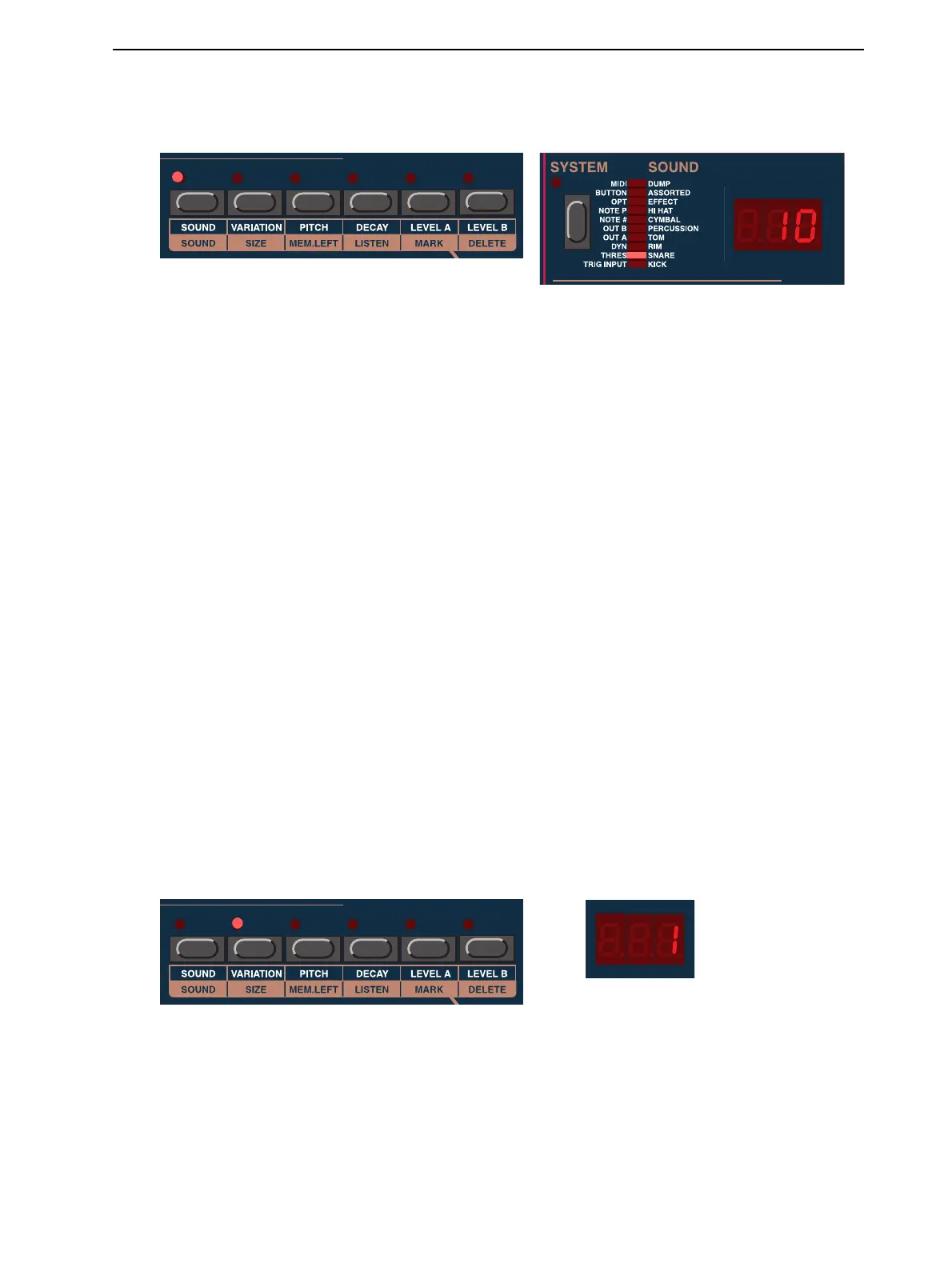
No matter if the ddrum4 SE is in Palette mode or in Kit mode, this is where and how you select a sound
for a particular channel. Any sound in the ddrum4 SE can be assigned to any of the ten sound channels.
The sounds are indicated with a number in the D
ISPLAY
and by a lit segment in the S
YSTEM
I
NDICATOR
bar to indicate sound group (category).
1. Press the S
OUND
button.
2. Select a channel by pressing a C
HANNEL
button.
3. Select a sound by turning the R
OTARY
D
IAL
. As you turn the R
OTARY
D
IAL
, the sound numbers are
shown in the D
ISPLAY
. When selecting sounds the S
YSTEM
I
NDICATOR
bar indicates to which
sound group the selected sound belongs. There are 10 sound groups (categories) in the ddrum4 SE
module: Kick, Snare, Rim, Tom, Percussion, Cymbal, Hi-hat, Effects, Assorted and Dump. If you
want to jump directly to another sound group, hold down the S
OUND
button and turn the R
OTARY
D
IAL
. If you want a channel to be silent, turn the R
OTARY
D
IAL
counter clockwise until ‘---’ is
shown in the D
ISPLAY
. This could be useful if you would like to trigger external sounds over MIDI,
without having the ddrum4 SE making any sound of its own.Tip! You can quickly select consecu-
tive sounds to adjacent channels. This can be very useful for the Tom channels. If you e.g. select a
sound for the high tom, hold down the S
OUND
button and press the M
ID
and L
OW
tom buttons.
The sounds that are next in order to the first selected one, will be assigned to the other two chan-
nels.
If a channel in a kit is silent, the sound assigned to that channel may have been deleted from the sound
memory. If you select that channel in the sound function mode, the D
ISPLAY
will flash. You can then
reload the sound or select another sound to the channel. See page 32 for details on how to load sounds
to the ddrum4 SE.
V
VV
V
A
AA
AR
RR
RI
II
IA
AA
AT
TT
TI
II
IO
OO
ON
NN
N
In some sounds several variations can be selected. A variation uses the same sound sample or multi sam-
ples, but with some additional programming or tweaking. This could be different equalization, different
velocity selections etc. Try them out! Select variation with the R
OTARY
D
IAL
.
Note: The Variation function also works for your custom MIDI Sample Dump sounds. For MIDI
Sample Dump sounds, Variation #5 is a “mono trig” variation which means that any new trig of the


 To Next Page