22
English
Keyboard Backlight LED
Your system supports 2 types of keyboards: standard full
color LED keyboard or full color “Per Key” LED Keyboard
(Factory Option).
Standard Full Color LED Keyboard
You can change the colors for the whole keyboard or partial
sections of the standard full color LED keyboard. The Key-
board Backlight application can be accessed by pressing
the Fn plus key (or by clicking LED Keyboard in the
Control Center). The keyboard LED may be configured us-
ing the Fn + key combination outlined in the table below.
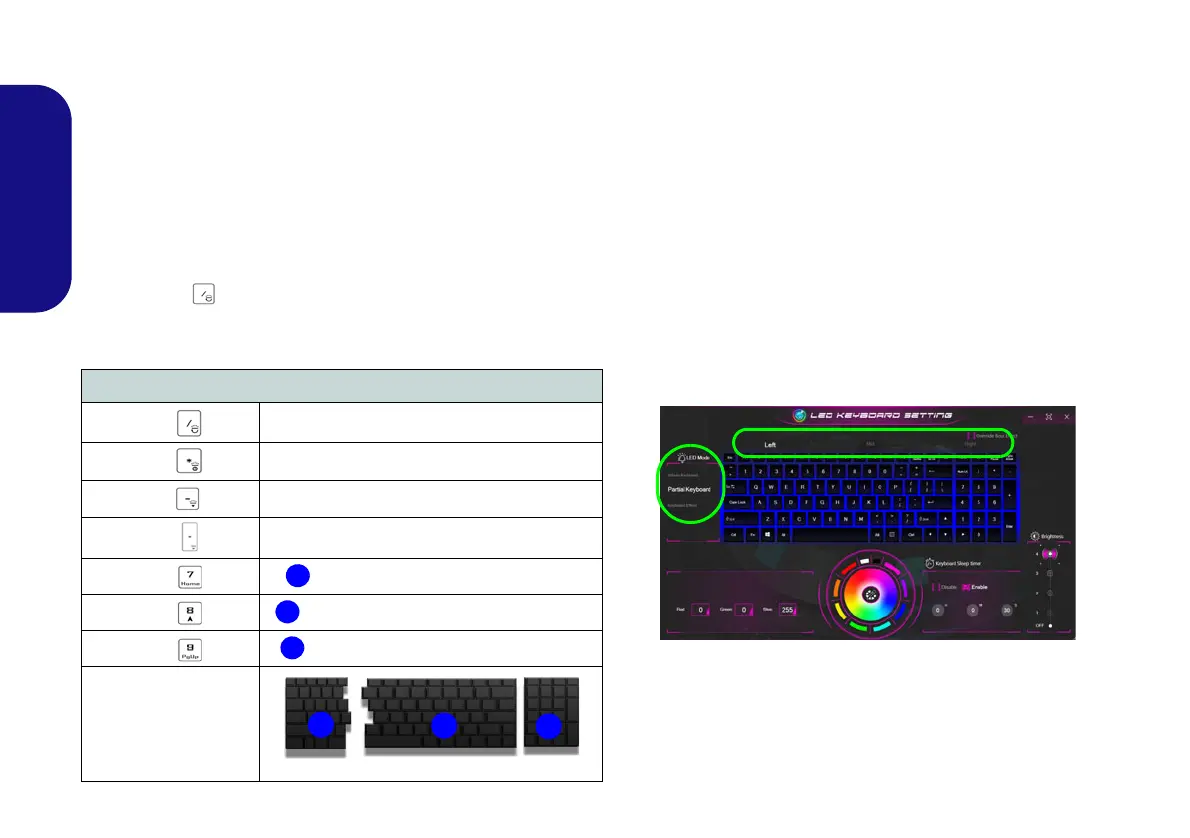
Keyboard LED Function key Combinations
Fn +
Launch the Keyboard Backlight Application
Fn +
Toggle the Keyboard LED On/Off
Fn +
Keyboard LED Illumination Decrease
Fn +
Keyboard LED Illumination Increase
Fn +
Toggle the Left keyboard LED On/Off
Fn +
Toggle the Middle keyboard LED On/Off
Fn +
Toggle the Right keyboard LED On/Off
Table 5 - Key-
board LEDs
(Standard Full
Color LED Key-
board)
LED Mode - Whole Keyboard/Partial Keyboard
Click either of the headings on the left under LED Mode
(Whole Keyboard or Partial Keyboard) to select how
the colors will be applied.
• Whole Keyboard - Simply click a color from the
outer band of the swatch, or click one of the color
mixes from the center of the swatch and it will be
immediately applied to the whole keyboard.
• Partial Keyboard - Simply click a color from the
outer band of the swatch, or click one of the color
mixes from the center of the swatch, and then click
one of the keyboard section headings (Left, Mid or
Right) to apply the color.
Figure 14 - LED Mode (Standard Full Color LED Key-
board)
P950EDnP960P970EDEFEN.book Page 22 Friday, December 21, 2018 10:57 AM



 To Next Page