Page | 18
monitor and pressing the [OK] button to activate/deactivate it for logging. Pressing the [Cancel] button
will save any changes you have made to the datalog list.
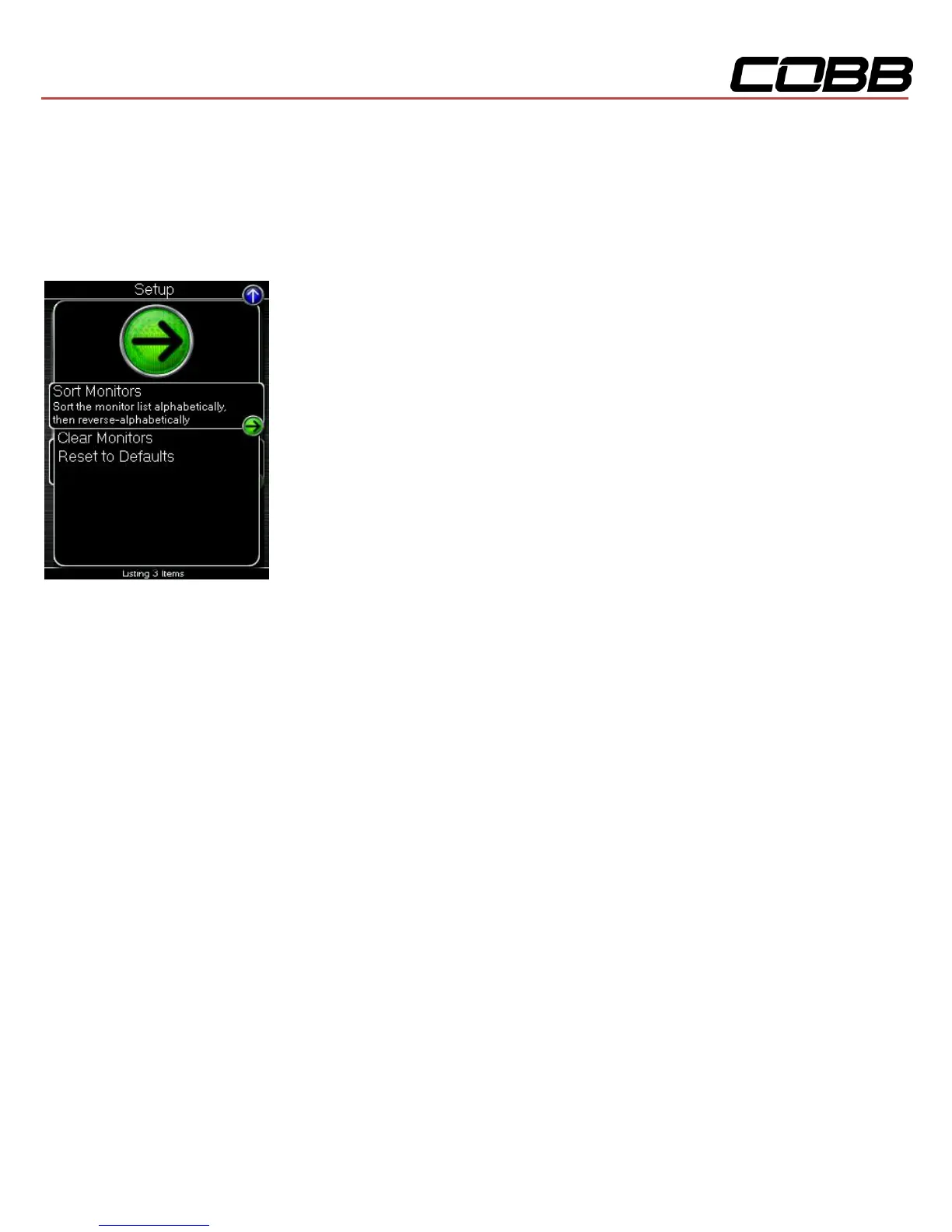
Press [UP] to find the Setup option for Configure Datalog where you will find the following options:
Sort Monitors – Sort the monitor list alphabetically, then reverse-alphabetically
Clear Monitors – Clear all monitors from the datalog list
Reset to Defaults – Restore the datalog list to the default list
NOTE: You will be notified if you have exceeded the recommended amount of monitors to record
in one datalog. If you receive this prompt, reduce the amount of monitors you are recording.
NOTE: The Accessport is only capable of datalogging while the ignition is turned to the ON
position. The Accessport will display an error message if it cannot communicate with the vehicle.
NOTE: Up to 10 log files can be stored on the Accessport. Use AP Manager to delete unneeded
logs. If datalogging is started when there are already 10 log files on the Accessport, the log file
with the lowest numerical value will be automatically overwritten.
NOTE: The 10 log files can be a combined length of 2+ hours long.


 To Next Page