25
PIP (Picture-in-Picture) Settings
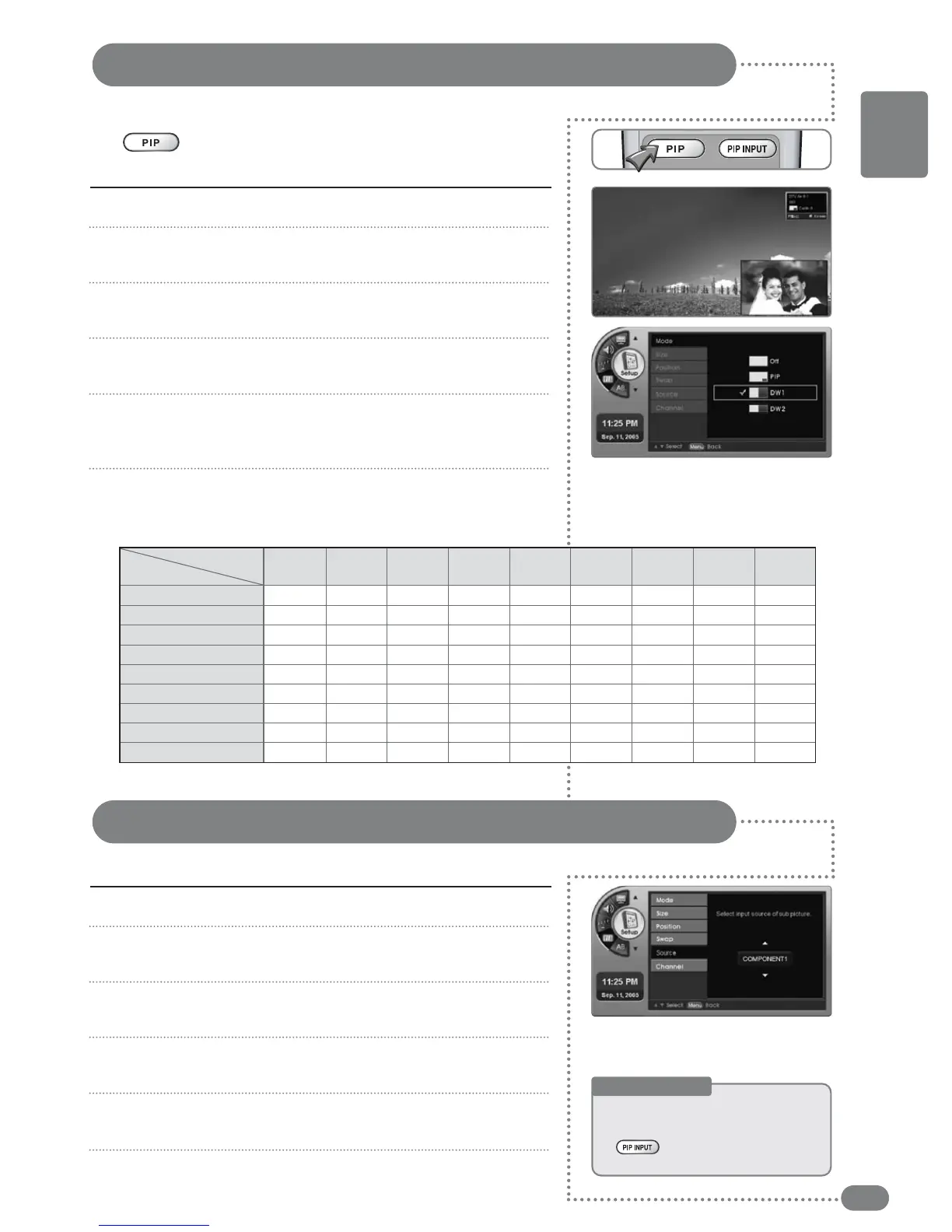
Two channels can be viewed from one screen.
Adjusting the Sub-Screen Contents
You can select which external device will be displayed in the Sub-Screen .
Press [MENU]. -The menu will appear.
Press [
] to move to <Setup>, then press [OK].
-The <Setup> Menu will appear.
Press [
] to move to <PIP>, then press [OK].
-The <PIP> Menu will appear.
Press [
] to move to <Mode>, then press [OK].
-The <Mode> Menu will appear.
Press [
] to select the Sub-Screen (Sub) mode.
-The PIP screen will be selected.
-Selecting <Cancel> cancels the PIP screen.
Press [EXIT] to exit the menu.
1
2
3
4
5
6
Press [MENU]. -The menu will appear.
Press [
] to move to <Setup>, then select [OK].
-The <Setup> Menu will appear.
Press [
] to move to <PIP>, then press [OK].
-The <PIP> Menu will appear.
Press [
] to move to <Source>, then press [OK].
-The <Source> Menu will appear.
Press [
] to select the input to the Sub-Screen.
-You can view your selection on the Sub-Screen.
Press [EXIT] to exit the menu.
1
2
3
4
5
6
Useful Tips
☛
TThhee sseelleecctteedd ddeevviicceess ooff tthhee SSuubb--SSccrreeeenn
ddeeppeenndd oonn tthhee mmaaiinn ssccrreeeenn..
☛
[[PPIIPP
IINNPPUUTT]]
ccaann aallssoo bbee sswwiittcchheedd..
Press [PIP].
You will only hear sound from the main screen.
DTV
Analog TV
External Input 1
External Input 2
S-VIDEO
Component 1
Component 2
DTV
Analog
TV
External
input 1
External
input 2
S-VIDEO
Component
1
Component
2
PC HDMI
PC
HDMI
X
X
O
O
O
O
O
O
O
X
X
O
O
O
O
O
O
O
O
O
X
O
O
O
O
O
O
O
O
O
X
O
O
O
O
O
O
O
O
O
X
O
O
O
O
O
O
O
O
O
X
O
O
O
O
O
O
O
O
O
X
O
O
X
X
X
X
X
X
X
X
X
X
X
X
X
X
X
X
X
X
Main
Sub
PIP Screen Selection Table
(
[
PIP
]
also main to sub switchable.
)
O :
Available. Main to sub switchable.
X :
Unavailable.
ENGLISH


 To Next Page