3.2 TraceCase
21
•
•
•
•
•
•
3.2.2 Switching on/off
► To switch TraceCase on, push the button ( Figure ‘Front view of TraceCase’).
► To switch TraceCase off, push the button for more than 5 s. Then, the LED starts to
flash very quickly and TraceCase shuts down.
3.2.3 Tracing
► When TraceCase is switched off, push the button ( Figure ‘Front view of
TraceCase’) to switch it on.
When on, TraceCase can be reached via Wi‐Fi.
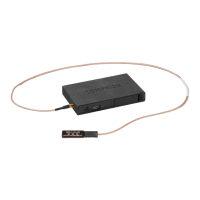
► Plug the antenna cable into the TraceCase socket indicated in
Figure ‘Lateral
view of TraceCase’.
► Place the antenna onto the device under test.
► Push the button shortly (approx. 3–5 s) to start tracing.
► Push the button shortly again (also 3–5 s) to stop tracing.
After stopping, you can immediately start another session.
► To save battery power, push the button for more than 5 s to switch off TraceCase.
► Push the button for more than 30 s to reset the Wi‐Fi parameters to default. Now,
you can reconnect with this network using the default IP address ‘192.168.200.1’
and reconfigure Wi‐Fi settings.
Although it is possible to operate TraceCase just with the hardware button, operation via
TraceCase App is obviously much more convenient. TraceCase session parameters can
only be configured via TraceCase App. The traced sessions are automatically transferred
to your smartphone the next time the TraceCase app connects to TraceCase.
Do not charge the battery while tracing. The charger may cause electromag‐
netic interference that can lead to a distortion of the traced signals.
If you stop tracing in the TraceCase app, the device waits for 5 s so that the
monitoring files in TraceCase cannot be overwritten by accidentally pushing
the button.
For detailed information regarding the trace configuration and editing of ses‐
sion details, refer to
[TraceCase App].


 To Next Page