EasyManua.ls Logo

COMPRO IP55 - User Manual

COMPRO IP55
78 pages
Print Icon
To Next Page IconTo Next Page
Loading...
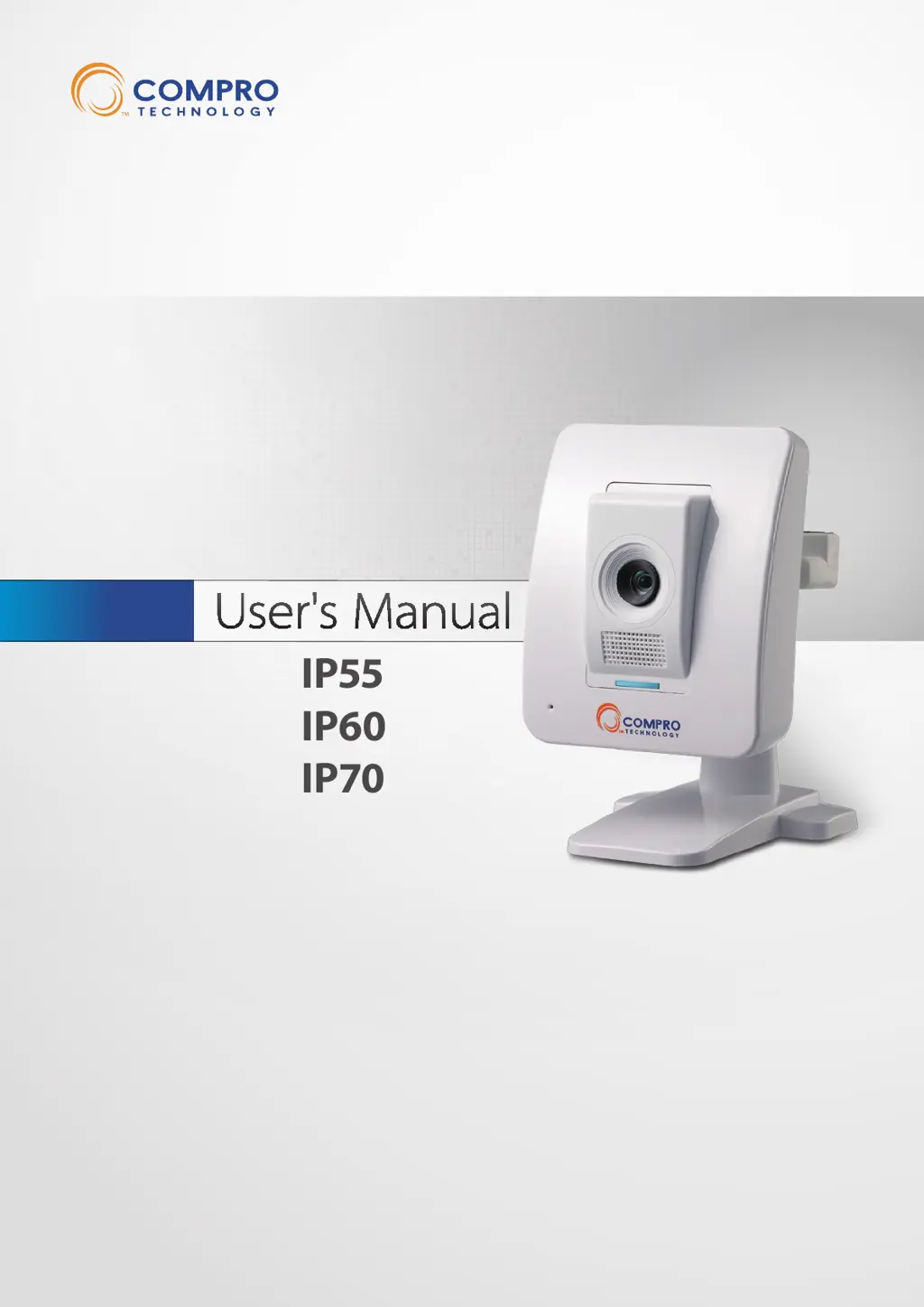
Network Camera
IP55
IP60
IP70
Model No.
V2-110328

Table of Contents

Other manuals for COMPRO IP55

Questions and Answers

  • S
    Stephanie TaylorAug 17, 2025
    What to do if my COMPRO Security Camera is unable to connect to the network?
    • C
      Connie JamesAug 17, 2025
      If your COMPRO Security Camera can't connect to the network, ensure the camera has been powered on for over 1 minute and is connected to either a wired or wireless network. Verify that the IP camera is connected to the correct wireless access point. Double-check that you’ve correctly set the encryption type and key for the connection. If you didn’t use a router on your network, the default IP address for the camera will be 192.168.0.128.
  • L
    Linda SchmidtAug 22, 2025
    What to do if COMPRO Security Camera finds zero cameras during scanning?
    • A
      adavisAug 22, 2025
      If your COMPRO Security Camera finds zero cameras during scanning, first ensure the camera is connected to either the wired or wireless network and has been powered on for at least 1 minute. Then, verify that your computer has a successful connection to the network. Make sure the IP camera is connected to the correct wireless access point and that you've correctly set the encryption type and key for the connection, where applicable. If the issue persists, reset the camera and repeat the above steps.
  • R
    Richard VillarrealAug 25, 2025
    Why can't I access my COMPRO IP55 Security Camera from the internet?
    • B
      Brian CuevasAug 25, 2025
      If you're having trouble accessing your COMPRO Security Camera from the internet even though it works on your local network, here's what to check: * Ensure you've entered the correct hostname (if using iDDNS) or WAN IP address of your camera in your web browser. * Verify that your local network has an active internet connection. * If the camera's WAN IP address has changed, wait a few minutes for the DNS server to update before retrying. * Make sure your router is configured to allow incoming traffic to the camera by enabling port forwarding on the HTTP and RTSP ports the camera uses.
  • M
    Mary TorresAug 28, 2025
    What to do if my COMPRO IP55 network diagnosis shows an error icon?
    • A
      allisonrodriguezAug 28, 2025
      If your COMPRO Security Camera shows an error icon in the network diagnosis, it indicates a network issue. Here's what to check: * Verify that the LAN cable is securely connected to both the camera's Ethernet port and your hub/router. * Confirm that your PC, connected to the same router, can access the internet. * Ensure that you have enabled port forwarding on your router and allowed traffic on the HTTP/RTSP ports your IP camera is using.
  • S
    sandra53Aug 30, 2025
    How to fix COMPRO IP55 Security Camera when I log in but there is no image?
    • C
      Carrie OsbornAug 31, 2025
      If you're successfully logging in to your COMPRO Security Camera but not seeing an image, here are a couple of things to check: * If you're using Internet Explorer, make sure the Compro ActiveX component is installed and enabled. * If you're using Firefox, Safari, or Chrome, ensure that your VLC codec is properly installed.
  • R
    Ruth WhiteSep 2, 2025
    What to do if my COMPRO Security Camera cannot store recordings on microSD card?
    • D
      Danielle DuranSep 2, 2025
      If you are unable to store recordings on the microSD card with your COMPRO Security Camera, consider these possible solutions: * Ensure the microSD card is firmly inserted into its slot. * Format the microSD card via the main setup page, choosing [Recording Setup] from the left menu. * Contact Compro technical support if you suspect a compatibility issue with the SD card. * Use a Class 4 or above SD card for video recording. * Configure a motion detection region before setting up event-based recording in Recording Setup.
  • L
    lucas62Sep 4, 2025
    Why can't I access my COMPRO IP55 Security Camera on the LAN network?
    • M
      Meredith RyanSep 5, 2025
      If you're having trouble accessing your COMPRO Security Camera on your local network using a web browser, here's what to check: * Make sure the camera has been powered on for over 1 minute and the LED status indicator is lit. * Check that the Ethernet cable is securely connected to both the camera's Ethernet port and the network switch; the LED status indicator should appear blue when the connection is successful. * Verify that the IP address you're entering matches the camera's IP address. If you're sure the camera and your PC have the same subnet mask, disconnect other cameras and use iWizard to scan for the camera on your network. * Confirm that your viewing PC is successfully connected to the LAN network.
  • R
    Rachel CarpenterSep 7, 2025
    How to troubleshoot DDNS service issues on a COMPRO IP55?
    • G
      gchavezSep 7, 2025
      If you are experiencing issues with the DDNS service on your COMPRO Security Camera, verify the following: * Ensure that the ID and password are correct in the main setup page. * Confirm that the iDDNS service is enabled and that you have entered the correct address in the main setup page. * Refer to the 'Remote Viewing via Internet Explorer' section in the troubleshooting chapter of this manual for instructions on enabling port forwarding to allow incoming traffic to the network camera.
  • H
    hmurraySep 10, 2025
    Why is my COMPRO Security Camera image pixelated?
    • K
      Kristin LopezSep 12, 2025
      If parts of the image from your COMPRO Security Camera appear pixelated or show square color blocks, it could be due to insufficient network bandwidth. Ensure there is sufficient upload bandwidth available to your network camera.
  • C
    Corey WebbSep 10, 2025
    Why is there no user interface in my COMPRO Security Camera browser?
    • S
      Sandra OconnorSep 12, 2025
      If you're not seeing the user interface for your COMPRO Security Camera in your browser, it could be due to several reasons. First, ensure that ActiveX is installed as per the on-screen instructions. Also, verify that both 'ComproClientActivex' and 'USActiveX control components' are registered under 'Tools -> Manage Add-ons' in Internet Explorer. Check your Internet Explorer security settings to allow ActiveX installation, adding the camera's IP address to trusted sites. Deleting all files under 'OS Drive\Program Files\Compro Embedded' and reinstalling the ActiveX client may also help. If the browser returns a '213 file not found' error, try restarting your computer.

COMPRO IP55 Specifications

General IconGeneral
Ingress Protection RatingIP55
Resolution1920 x 1080 (Full HD)
ConnectivityWired Ethernet
StorageMicroSD card slot
Power Supply12V DC

Related product manuals