9-5Trouble with Remote Viewing on Browser
Chapter 9: Troubleshooting
Trouble with Remote Viewing on Browser
You can view your camera video remotely over the Internet. If you have problem in remote viewing, refer to
the section below for preliminary troubleshooting.
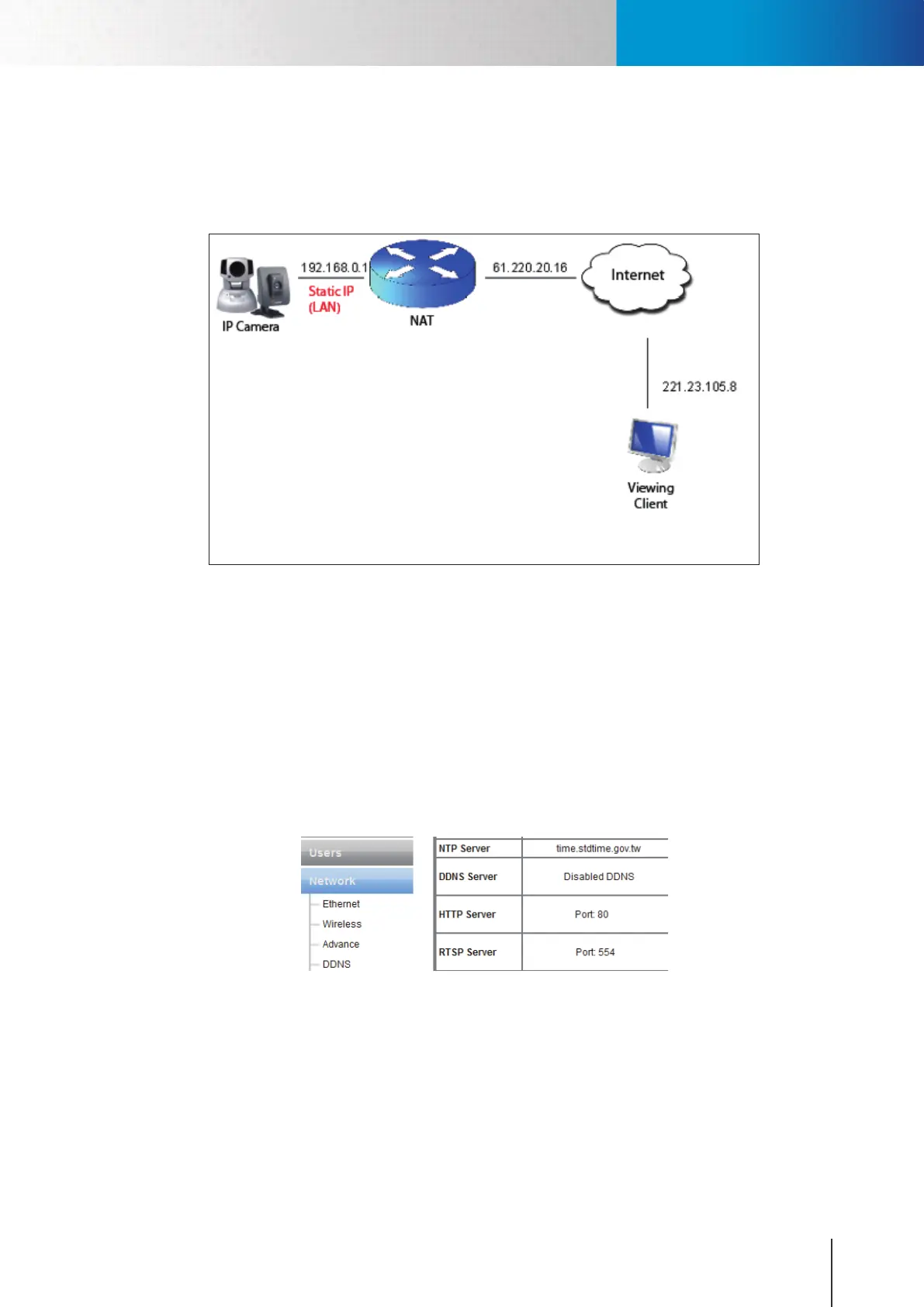
Figure 9-8. Remote viewing via browser
The gure above shows a typical connection setup in which:
• theIPcamerahasastaticvirtualIPaddressof192.168.0.1
• theWANIPaddressattheIPcamerasiteis61.220.20.16.
• theclient(user)istryingtoreceivethevideo/audiostreamremotely.
To successfully view the live video streamed from the IP camera, you need to:
1. Ensure that the camera’s image quality setting stays within the bandwidth limit of your local network.
You can check the camera’s image quality setting in [Setup] > [Video]. If your quality setting exceeds
your upstream bandwidth limit, you will experience stuttering video or black and blank screen.
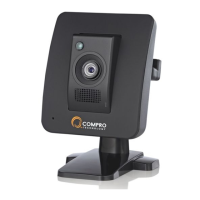
Figure 9-9. Advanced network setup
2. Check the ports used by the camera in [Setup] > [Network] and note down the HTTP and RTSP server
ports, in this case, ports 80 and 554 respectively.
3. Enable port forwarding on the router and allow trac on ports the IP camera is using. You may need
to consult the manufacturer of your router for setting details. Note: Your router may require a reboot


 To Next Page