9-6 Trouble with Remote Viewing on Browser
Compro IP55 / 60 / 70 Network Camera
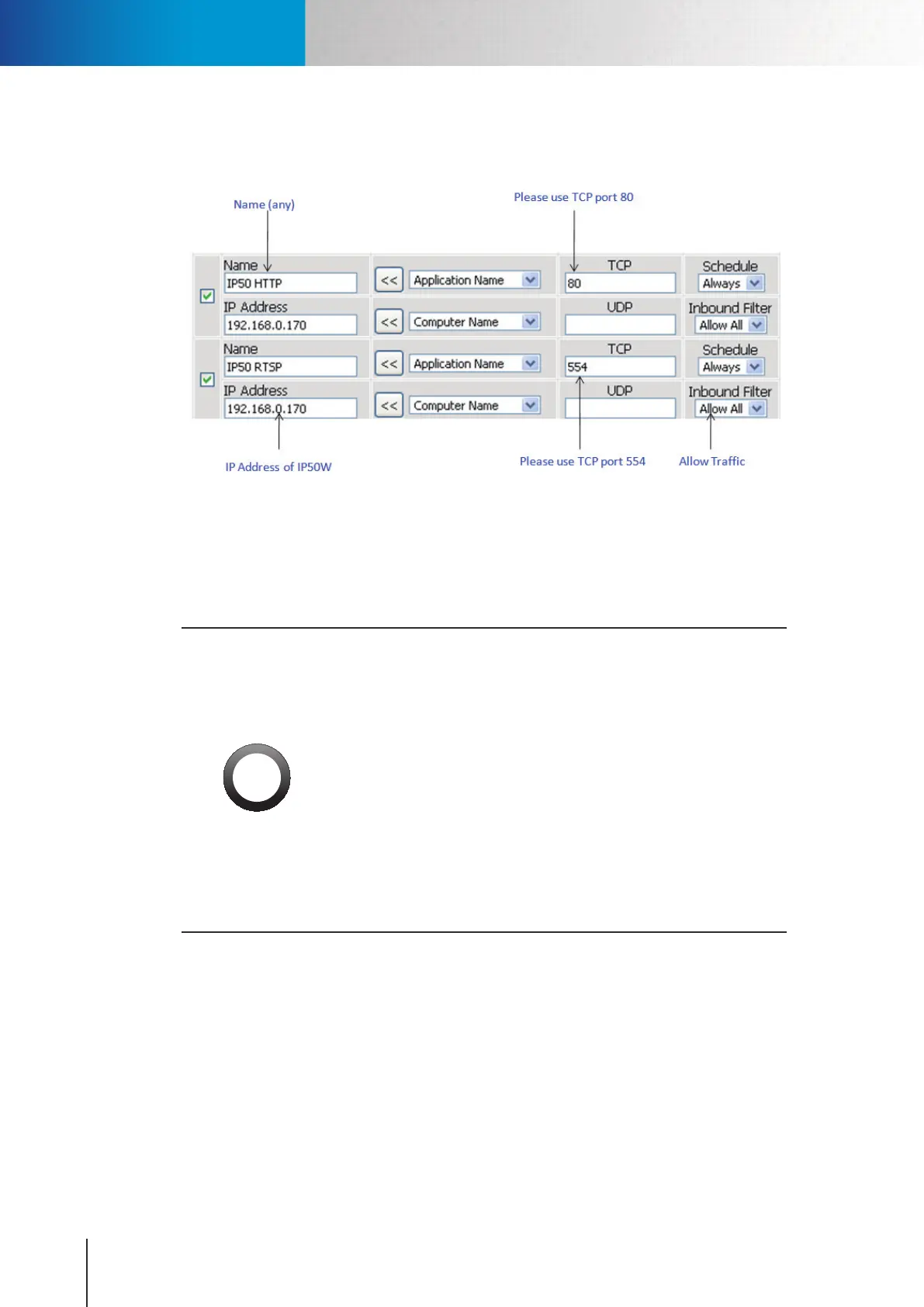
after port forwarding is set. The following gure exemplies the settings you need to make in order to
remotely view the IP camera.
Figure 9-10. Port forwarding
Having taken the above steps, you should be able to log in to the IP camera from a remote location by
entering the DDNS address or the static IP address in the location eld of a web browser (depending on your
conguration).Forexample,inthiscase,youshouldenter"http://61.220.20.16:80"intothelocationeldof
Internet Explorer to access the IP camera.
Important:
• IfyouhavemultipleIPcamerasinstalledonanetwork,youwillneed
to change the HTTP and RTSP port on them manually so each one of
them will use a dierent port. E.g. changing the HTTP and RTSP port
for the 2nd device to 81 and 555 respectively and accessing the 2nd
device by logging on to http://61.220.20.16:81.
• Whenconfiguringportforwarding/mappingonyourrouter,note
that the public RTSP port must be qual to the internal RTSP port used
by the IP camera. For instance, if the IP camera uses RTSP port 554
internally, then its mapped public RTSP port on the router should be
554 too. Though the same does no apply to the camera's HTTP port.
The camera using HTTP port 80 can have 8080 as its mapped public
HTTP port on the router.


 To Next Page