3-7
Chapter 3: Installtion
Running the iWizard Installer
Before running Compro software, make sure you have the IP Camera beside you. To install the software, insert
the installation CD supplied with the camera into your CD-ROM drive, and the iWizard installer will start and
guide you during the installation process of the hardware and software for your IP camera. You will be asked
to select the displayed language rst. Then please click on [IP Camera Setup] and select the camera you wish
to install, and follow the steps below.
Note:
If Autorun has been disabled in your computer, please browse the
contentsoftheinstallationCDanddouble-clickonthe"iWizard.exe"
le to run the setup wizard.
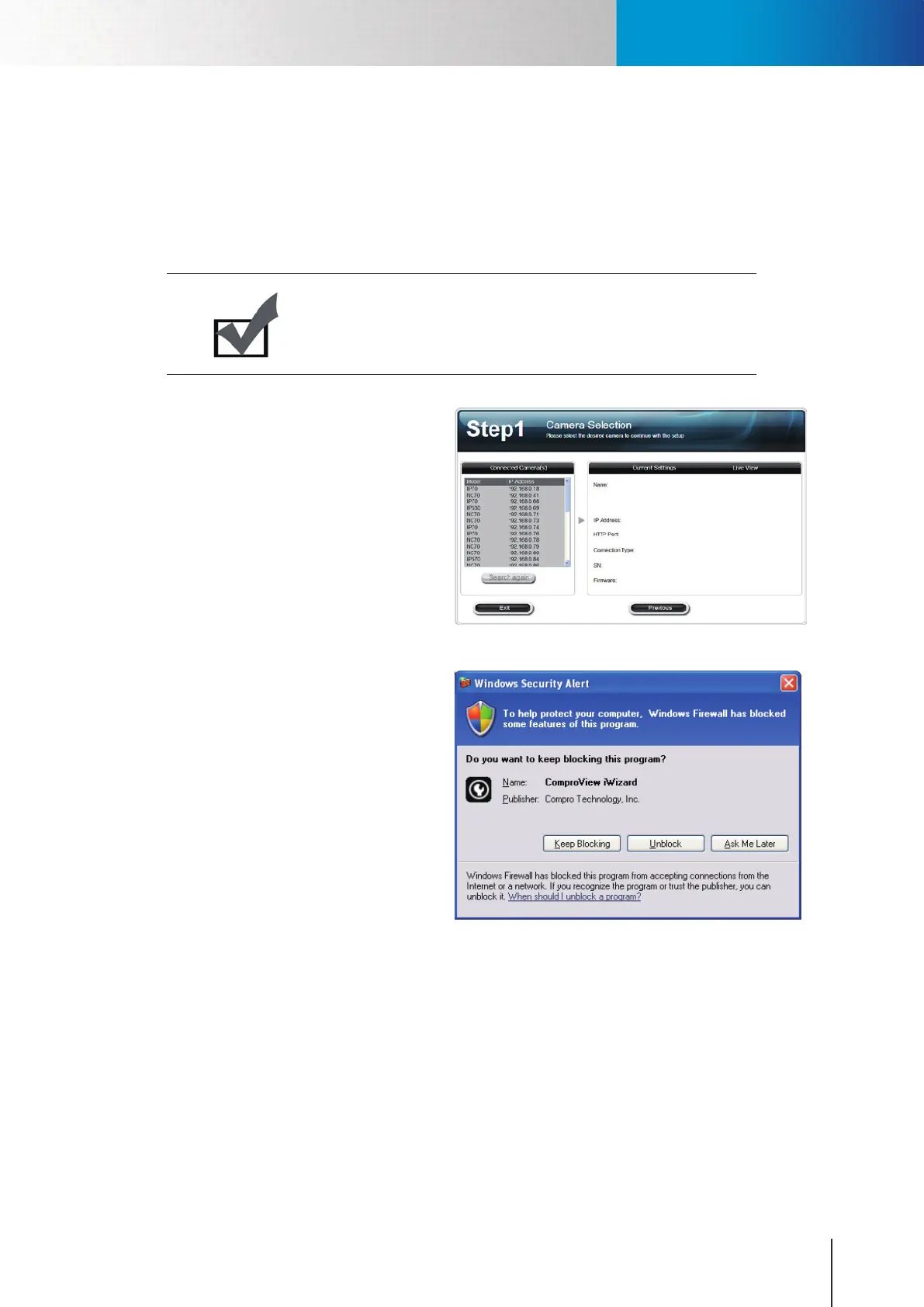
1. The wizard searches for all available
cameras on your local network. Click on
a camera from connected camera list,
and wait until the live video and camera
information are displayed on the right
side. (You can double-check the device
name and the MAC ID which are printed
on the serial number sticker at the back
of IP camera and on the package). Then,
click [Next].
Figure 3-9. Camera selection
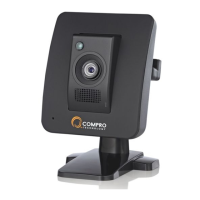
2. Meanwhile, if you see the Windows
Security Alert dialog box during the
search, please choose [Unblock]..
Figure 3-10. Security alert dialog (Windows XP)
Installing Camera Software


 To Next Page