58 59
Contour
®
next GEN blood glucose monitoring system
HELP
Transfer Results to a Personal Computer
You can transfer test results from the Contour next GEN meter to a
computer where they can be summarized in a report with graphs and
tables. To make use of this feature, you need diabetes management
software and a 1-meter (or 3-foot) long USB-A to Micro USB-B cable.
This type of cable is available in electronics retail stores.
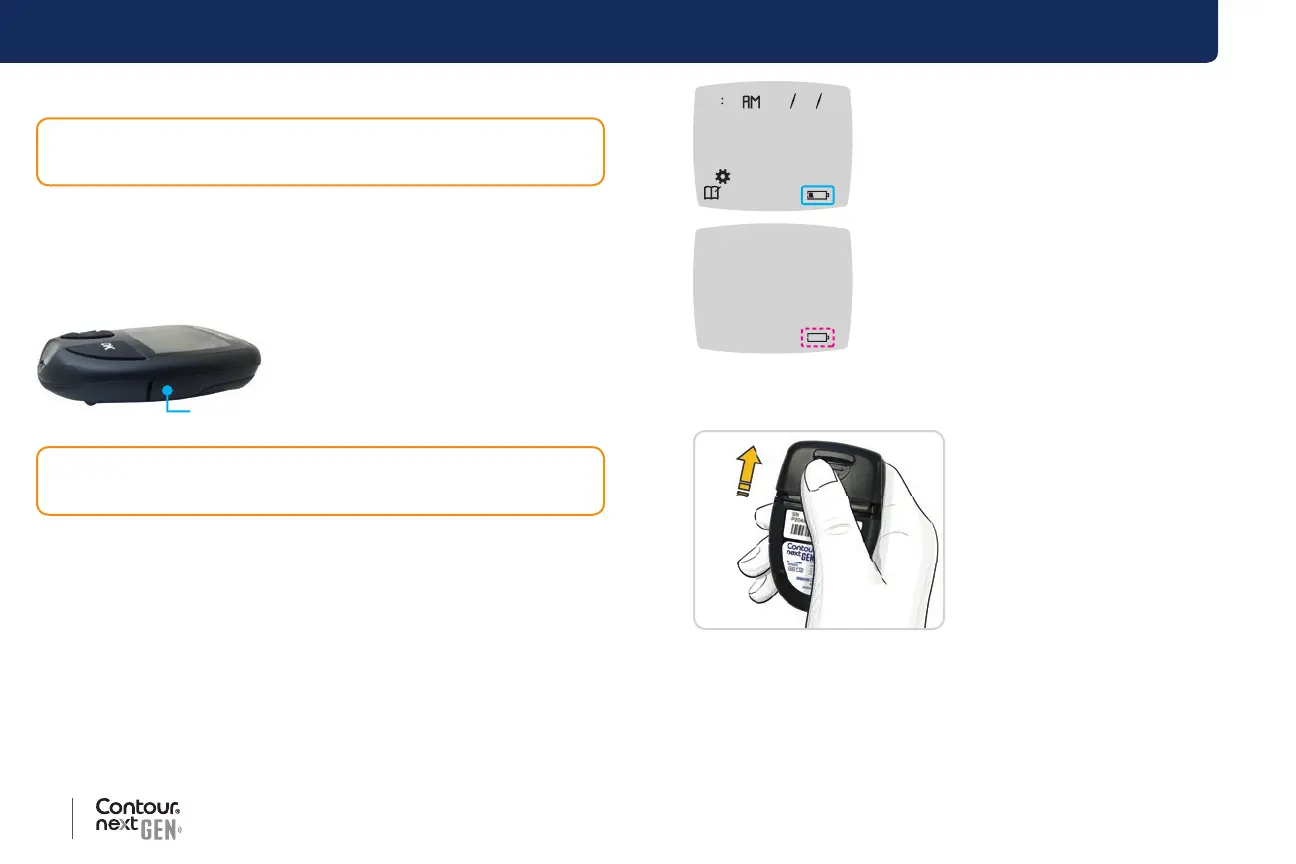
Ensure your meter’s USB port door is
completely closed when not in use.
Batteries
When the batteries are low, the Low Batteries symbol displays on
every screen.
Replace the batteries immediately. When you see this symbol, you can
only test about 10 more times at a frequency of 3 tests per day before
the batteries are dead.
CAUTION: Do not attempt to perform a blood glucose test when the
Contour next GEN meter is connected to a computer.
CAUTION: Use only approved equipment from the manufacturer or
certied body such as UL, CSA, TUV, or CE.
10 45 42620
The meter operates normally, displaying the
Low Batteries symbol until you replace the
batteries.
When you are no longer able to perform a test
due to low batteries, the meter displays the
Dead Batteries screen. Replace the batteries
immediately.
Replace the Batteries
1. Before replacing your batteries,
turn o your meter.
2. Turn the meter over and slide the
battery cover in the direction of
the arrow.
3. Remove both of the old batteries and replace them with two 3-volt
CR2032 or DL2032 coin cell batteries.


 To Next Page