46 • TSS-770 and TSS-1070 Product Manual — Doc. 8745C
Security Tab Selections
Expand the Security accordion to configure the following settings:
l SSLMode:Select an SSL(Secure Sockets Layer) mode to use for establishing a secure
connection to the touch screen:
o
Encrypt and Validation:The touch screen will require a username and password to
validate an encrypted SSLconnection. Enter a username and password in the
appropriate fields that are displayed.
o
Encrypt: The touch screen will use an encrypted SSL connection
o
OFF:Thetouch screen will not use an SSLconnection.
l Enable Authentication:Turnon the toggle to use authentication for the touch screen as
described in Authentication (below).
Authentication
Turn on the Enable Authentication toggle in the Security settings to use authentication for the
touch screen. Authentication is turned on by default. When authentication is enabled, settings
are displayed within the Security accordion.
Authentication Settings
When authentication is turned on, the web configuration interface prompts the user to enter a
new administrator username and password. After rebooting the touch screen, this username
and password must be entered to access the web configuration utility or to connect to the touch
screen through Crestron Toolbox™ software.
CAUTION: Do not lose the administrator username and password, as the touch screen settings
must be restored to factory defaults to reset the username and password.
Use the following Authentication Management settings to add, delete, and edit touch screen
users and groups.
Current User
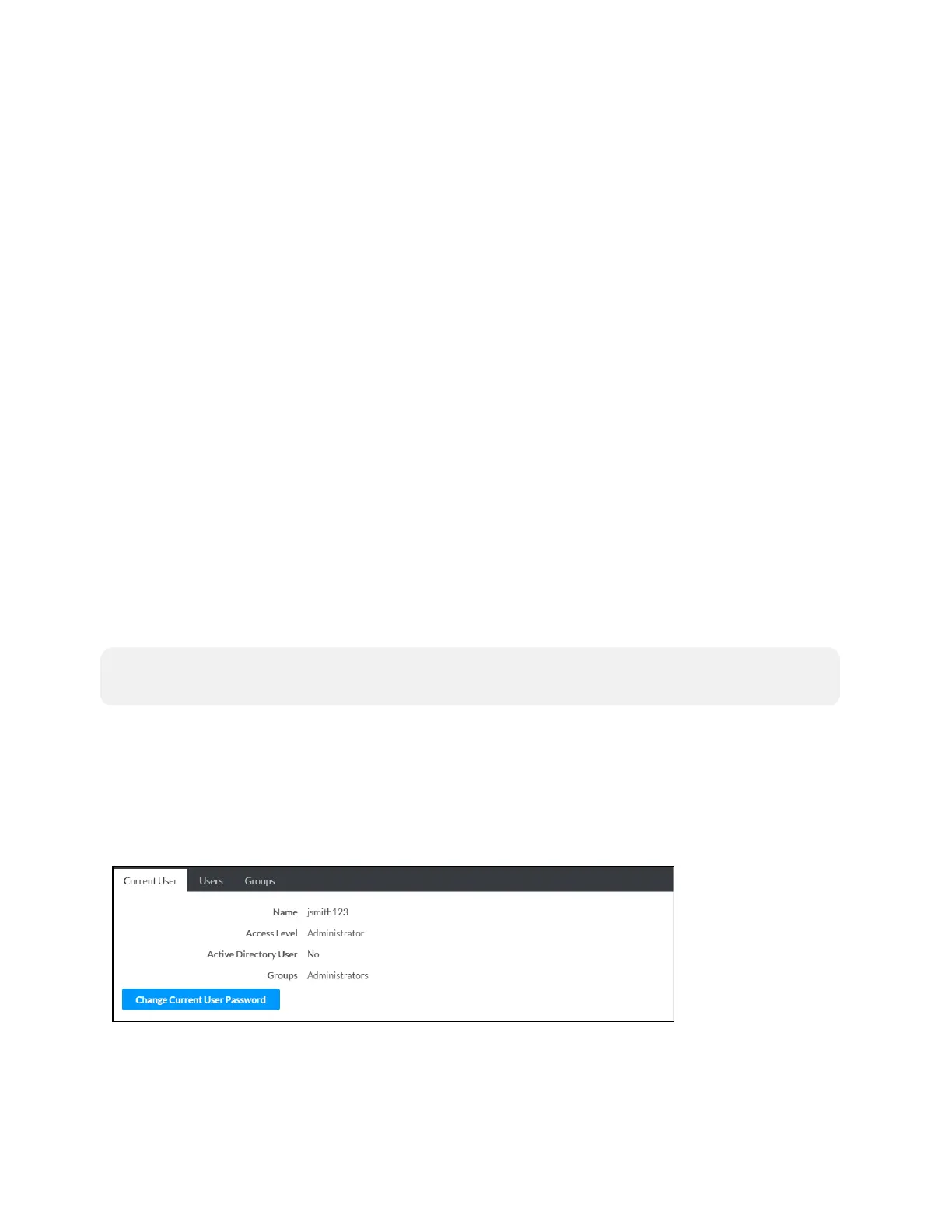
Click the Current User tab to view and edit information for the current touch screen user.
Authentication Management - Current User Tab









 To Next Page