36
3.3.2.1 Activate Bluetooth on your phone or tablet
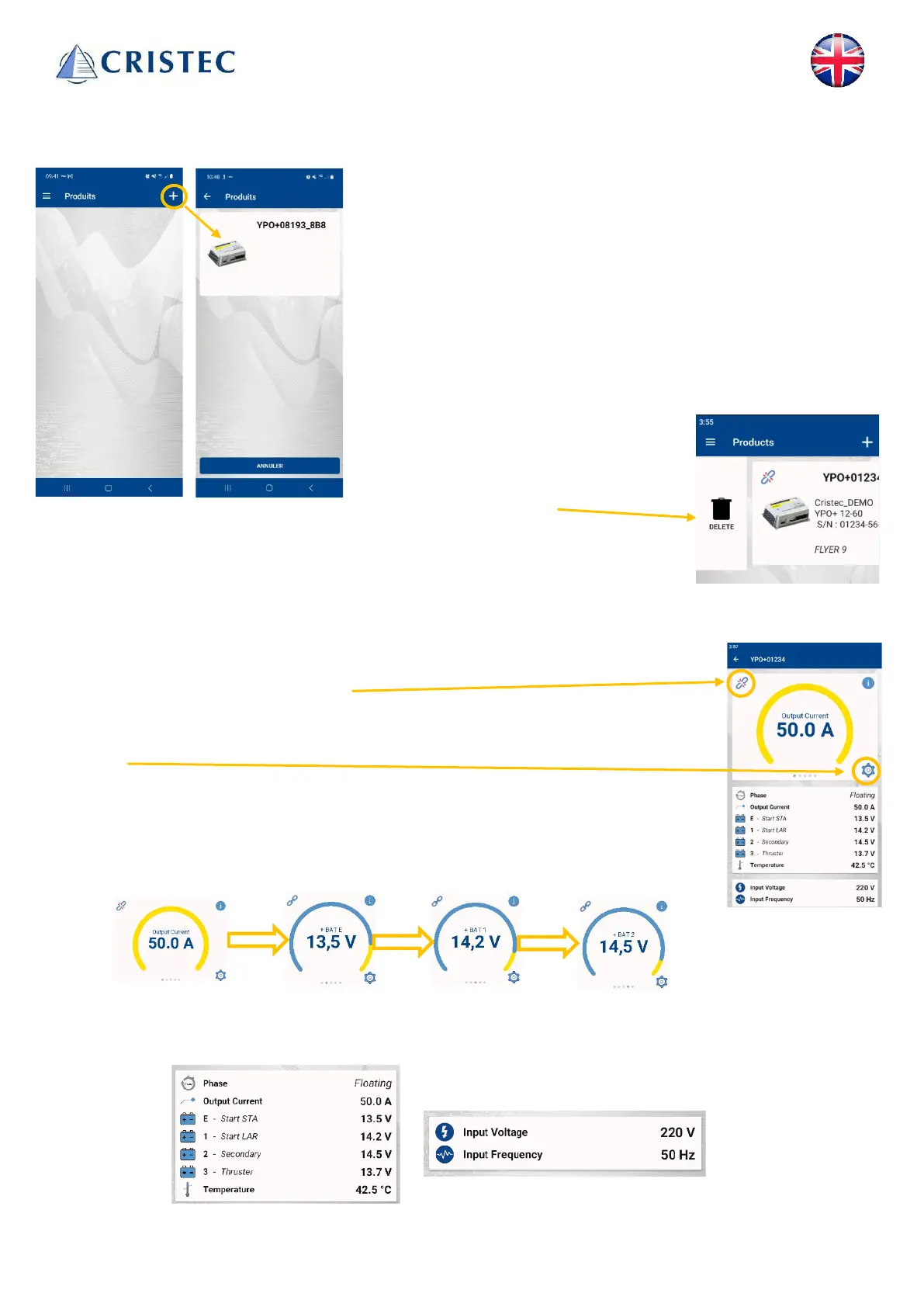
3.3.2.2 Add the charger
The charger may already be present when you open the application,
if you've already installed it. If not, you can always add a device by
pressing the + button at the top right of the screen. When the
charger appears, simply click on it to add it to the application.
If no charger appears after 30 seconds:
- Check that the charger is powered
- Check that Bluetooth is enabled on your phone or tablet.
To delete a device, slide the charger to the right until the recycle
garbage can appears. Then confirm.
To delete a device, slide the loader to the
right until the recycle garbage can
appears. Then confirm.
3.3.2.3 Monitoring
When you click on the connected charger, a page with various data appears. This is the
supervision page. The Bluetooth connection icon appears, but you don't necessarily
have access to the charger's settings.
To access the charger settings, press the wheel on the right of the screen (see chapter
3.3.2.5).
At the top of the screen, you can scroll through voltage and current information of the
various batteries.
The lower section displays charge phase information, charger voltage and current, temperature (with optional
sensor) and AC input voltage and frequency.



 To Next Page