Chapter 5: Operaon Instrucons
5.1 Turning on device
Refer to 4.6.7, connect the computer USB port
5.3 Laboo-HDI installaon & startup
5.3.1 Connecng the Dongle and install LaBoo5.1.*soware
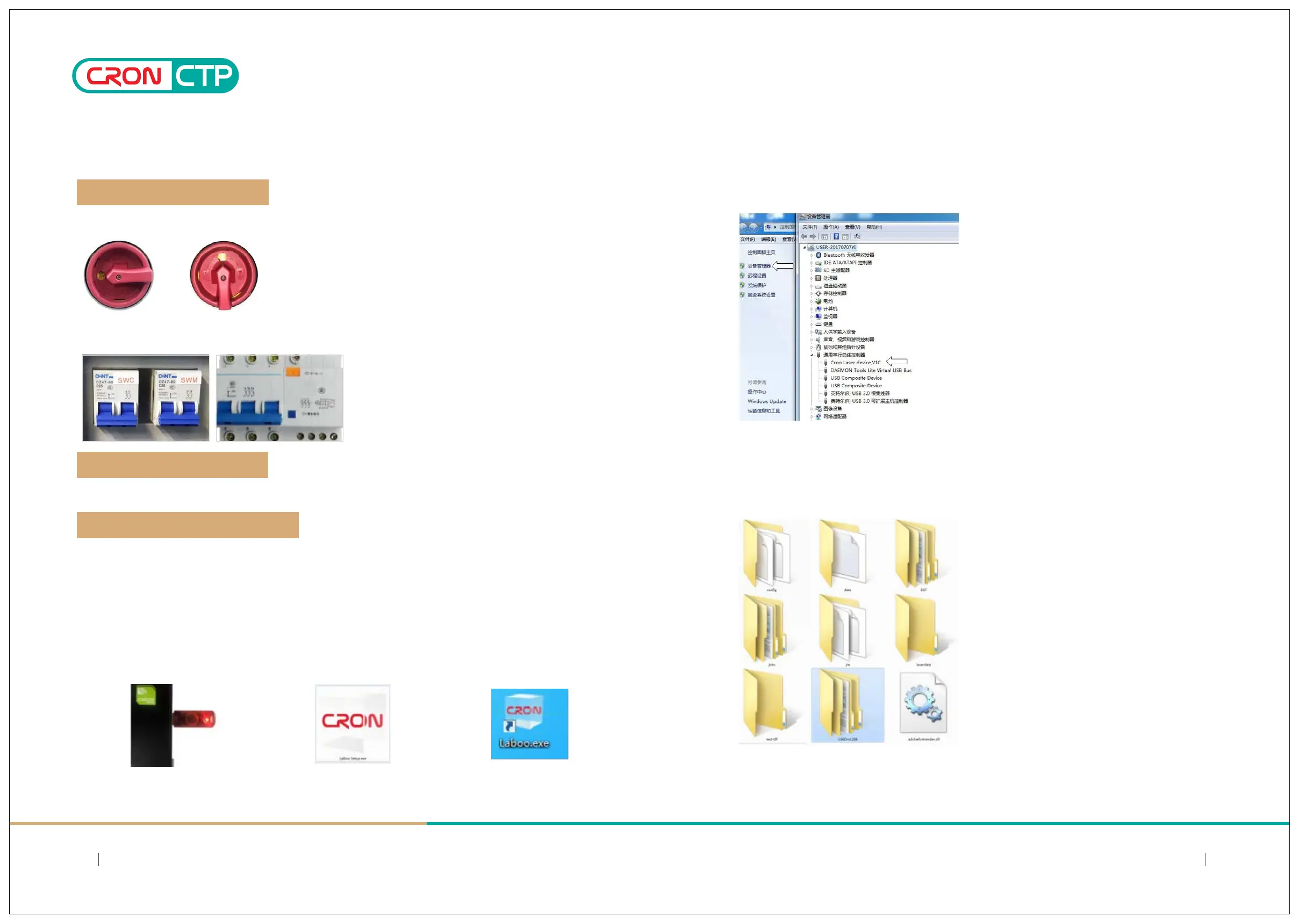
5.3.2 Verify and making sure CTP device driver is installed correctly
5.2 Connecng to computer
b)
a) Using the cam switch, Then turn the cam switch to the ON posion to allow power supply access to the device.
b)Using miniature circuit breakers, switch the circuit breaker up to the ON posion for power supplies to the
device (right figure is a 3-phase power circuit breaker).
a) Remove the supplied dongle from the LaBoosoware box and plug it into the USB port of the computer;
b) Inserts theLaBoo soware installaon disk(provided in the LaBoo soware box) and insert it into your
computer's CD-ROM drive and run the "HDI Setup.exe" file;
c) Follows the soware installaon steps to install the LaBoosoware and dongle driver.Aer installaon is
completed successfully, the computer desktop will have the following icon shown as below:
a) Under Windows Control Panel - Device Manager, confirmed that the CTP device driver has been
properly installed. The following hardware “CRON laser device, V1C” can be found under the Universal
Serial Bus controller.
b) If soware installaon incorrect, the soware will not be able to establish connecon to the device. In
this case, you need to manually install the CTP device driver by updang with newer driver for the
Windows. Device driver files are stored in the LaBoosoware root directory - "USBDrv128B" folder, please
manually update unl the device driver is installed and shown in the Device Manager under the Universal
Serial Bus controller.
c)a)
2120
SIMPLE AND DIRECT 丨 STEADY 丨 MAJOR
SIMPLE AND DIRECT 丨 STEADY 丨 MAJOR



 To Next Page