Note: This can only be done by an administrator.
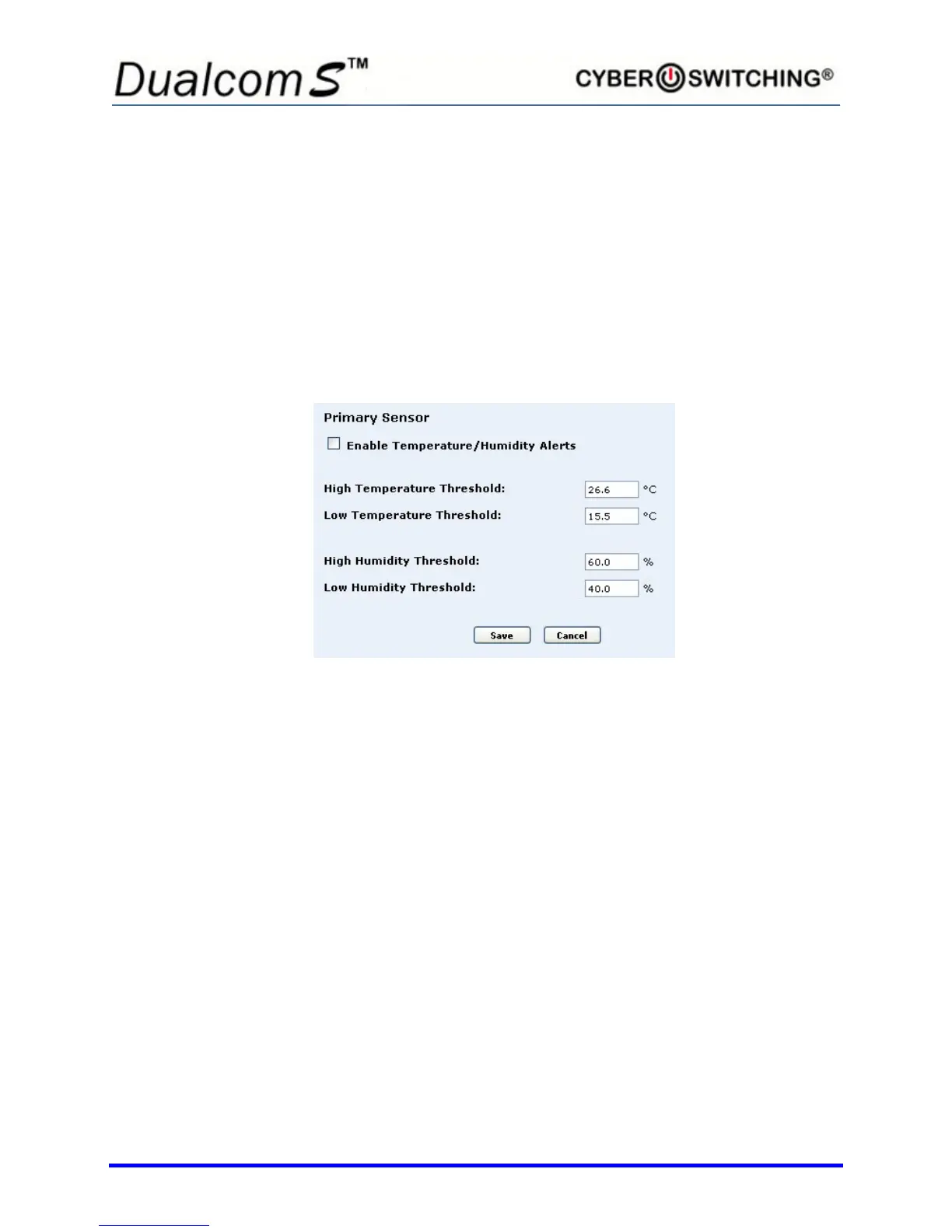
2. Click in the Enable Temperature/Humidity Alerts checkbox. An x
appears indicating the option is active. Click again to remove the x and
disable the option.
3. To change the High/Low Temperature or High/Low Humidity Threshold
settings for the primary sensor, click in the box of the desired setting.
4. Enter the desired high and low temperature and/or humidity threshold
number.
5. Click Save.
6. To enable the alert for the secondary sensor, click Edit next to
Secondary Sensor.
7. Click in the Enable Temperature/Humidity Alerts checkbox. An x
appears indicating the option is active. Click again to remove the x and
disable the option.
8. To change the High/Low Temperature or High/Low Humidity Threshold
settings for the secondary sensor, click in the box of the desired setting.
9. Enter the desired high and low temperature and/or humidity threshold
number.
10. Click Save.



 To Next Page