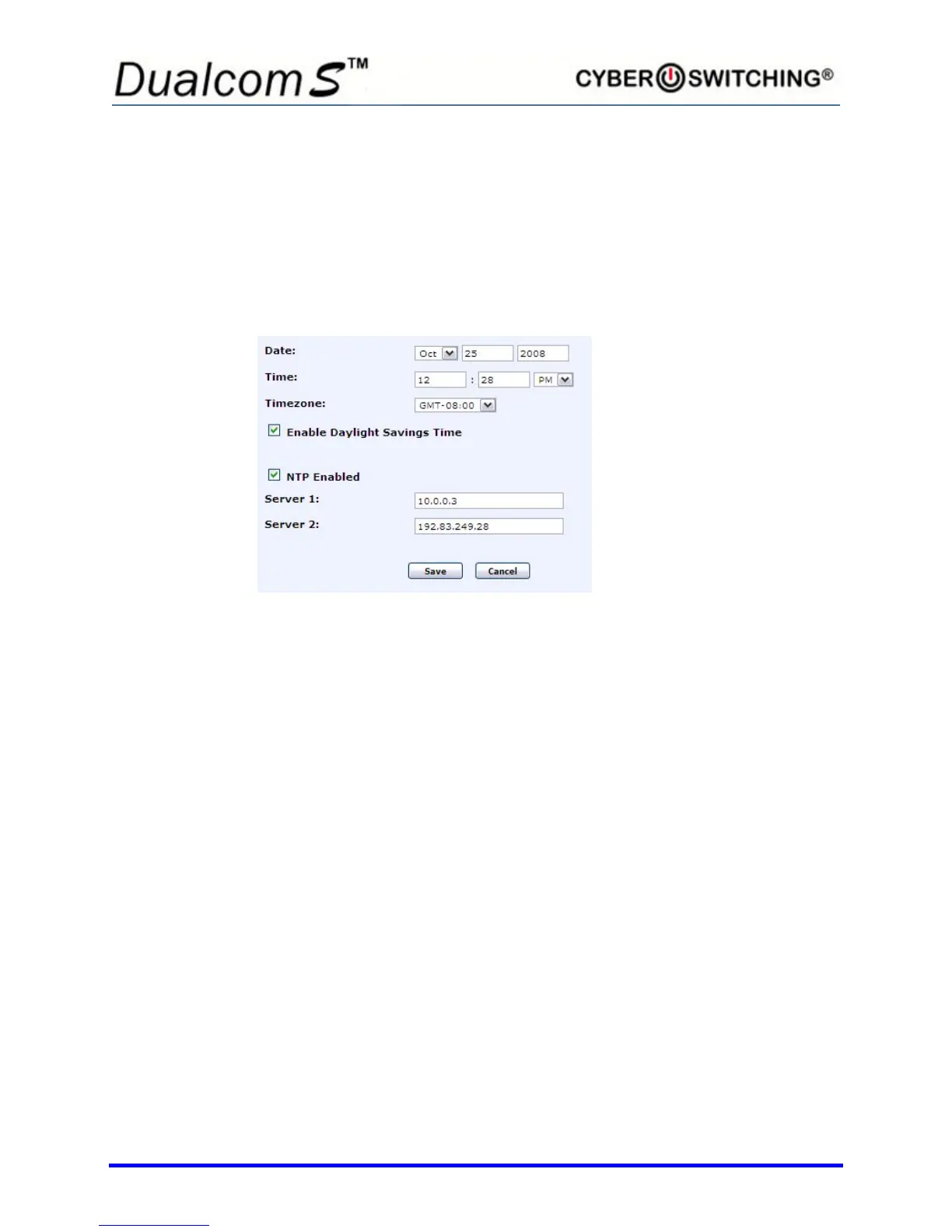
TIME/DATE Setup
The following shows how to set the time and date on your unit. It is important
that the time and date be accurate as they directly affect the logs and
schedules for desired use.
NTP
The time/date on the Dualcom S can either be set manually or automatically
using NTP.
To configure the NTP settings with an NTP Server, do the following:
1. Click in the box next to NTP Enabled. A checkmark appears.
2. Enter Server 1 and Server 2 settings in their respective boxes.
3. Click the Save. The page refreshes with the new date and time that the
Dualcom S receives from the server.
To manually set the date and time, uncheck the NTP Enabled check box and
enter the date and time in the corresponding Date: and Time: boxes. Be sure to
select AM or PM, and the time zone you are in.
To compensate for daylight savings time, click in the Enable Daylight Savings
Time checkbox. A checkmark appears.
Note: It is highly recommended that a network NTP server be used.



 To Next Page