7 Configuration
Installation manual
33
EBSH/X(B)11+16P50D
Daikin Altherma 3 R ECH₂O
4P759878-1 – 2024.01
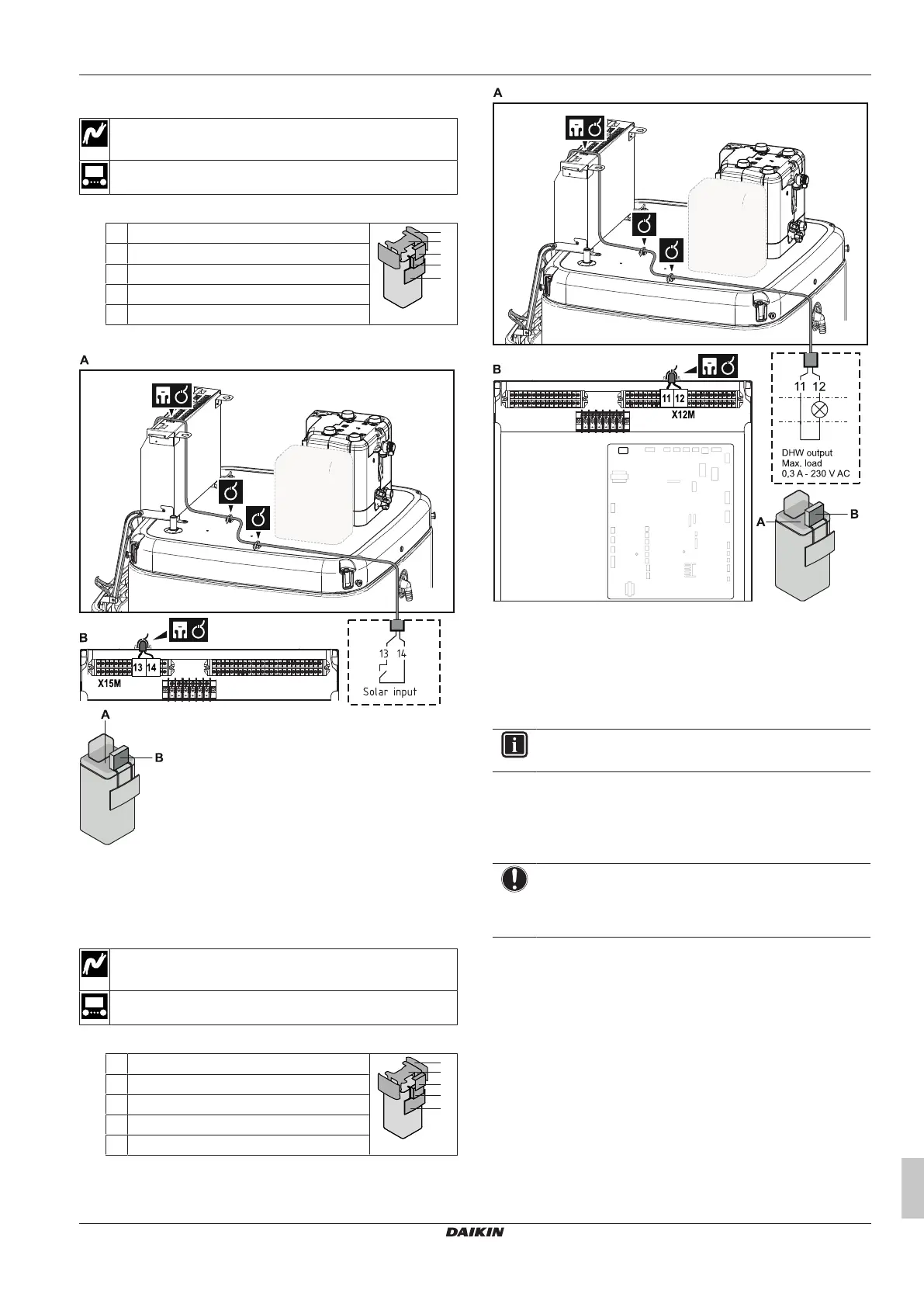
6.3.15 To connect the solar input
Wires: 0.5mm²
Solar input contact: 5VDC (voltage supplied by PCB)
—
1 Open the following (see "4.2.1To open the indoor unit"[413]):
1 User interface panel
2 Switch box
3 Switch box cover
4 Top cover
5 Side panel
2 Connect the solar input cable as shown in the illustration below.
3 Fix the cable with cable ties to the cable tie mountings. General
information, see "6.3.1 To connect the electrical wiring to the
indoor unit"[422].
6.3.16 To connect the DHW output
Wires: 2×0.75mm²
Maximum running current: 0.3A, 230VAC
—
1 Open the following (see "4.2.1To open the indoor unit"[413]):
1 User interface panel
2 Switch box
3 Switch box cover
4 Top cover
5 Side panel
2 Connect the DHW signal cable as shown in the illustration
below.
3 Fix the cable with cable ties to the cable tie mountings. General
information, see "6.3.1 To connect the electrical wiring to the
indoor unit"[422].
7 Configuration
INFORMATION
Cooling is only applicable in case of reversible models.
7.1 Overview: Configuration
This chapter describes what you have to do and know to configure
the system after it is installed.
NOTICE
This chapter explains only the basic configuration. For
more detailed explanation and background information,
see the installer reference guide.
Why
If you do NOT configure the system correctly, it might NOT work as
expected. The configuration influences the following:
▪ The calculations of the software
▪ What you can see on and do with the user interface
How
You can configure the system via the user interface.
▪ First time – Configuration wizard. When you turn ON the user
interface for the first time (via the unit), the configuration wizard
starts to help you configure the system.



 To Next Page