IV. Instructions before Use
Dakewe (Shenzhen) Medical Equipment Co., Ltd. 17
www.dakewemedical.com
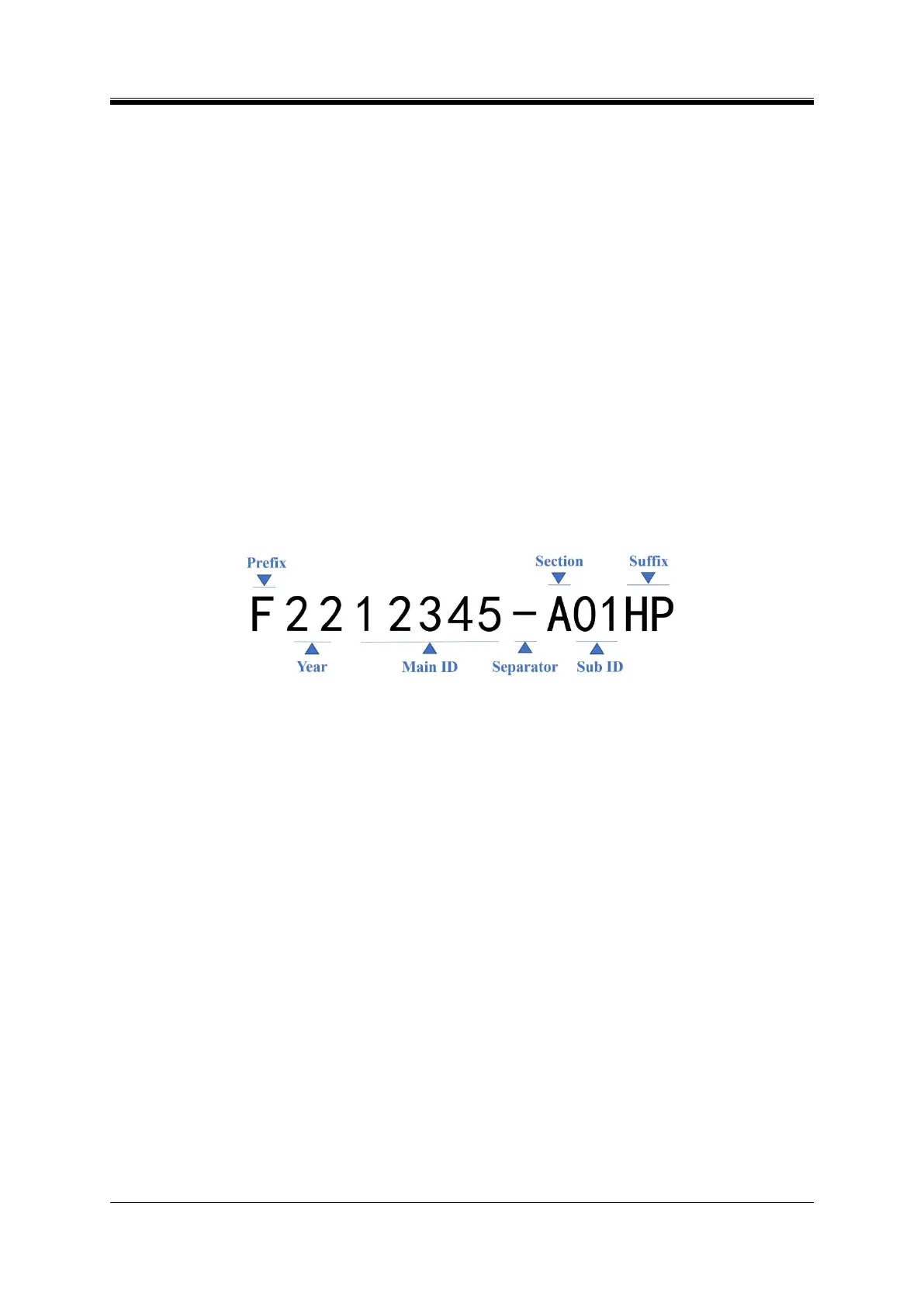
Year: The tissues are sorted by year, and it is displayed after the prefix, which is the year of the
system time. See section 4.5.2 ID Composition.
Main ID: The main component of the pathology ID, which is the ID of the tissue, is displayed after
the year. See section 4.5.2 ID Composition.
Separator: It is a symbol to separate the Main ID from the Sub ID, which is displayed after the Main
ID. See section 4.5.1 ID Setting.
Section: Indicates the location or the organ in the body of the tissue where the specimen is extracted
from or . It is displayed after the Separator. See section 4.5.2 ID Composition.
Sub ID No.: The sampling quantity for the same tissue, the Sub ID No. is displayed after the Section.
See section 4.5.2 ID Composition.
Suffix: A special identification of tissues, which is used to distinguish different tissues. See section
4.5.1 ID Setting.
Figure 4- 5 Printing effect of pathology IDs
4. Print Order
The Dakewe Slide Printer has three print orders: By Main ID Reversive, By Main ID Sequential, and
By Sub ID No. Sequential, which can be changed on the [Menu] - [Print Settings] - [Others] interface.
By Main ID Reversive: The pathology ID added first are printed first, and new print jobs can be added
during printing. The printing outcome is as follows: “23-12345-01, 23-12346-01”.
By Main ID Sequential: The pathology IDs added first are printed. New print jobs cannot be added during
printing. The printing outcome is as follows: “23-12346-01, 23-12345-01”.
By Sub ID No. Sequential: The pathology ID added first are printed first. When there are multiple
Sub ID following the same pathology ID, the greater Sub ID is printed first. The printing outcome is as
follows: “23-12345-01, 23-12346-02, 23-12346-01”.
5. On-demand Output Detection (Available for S200 Only)
By default, the instrument enables “On-demand output detection”. Message and voice prompt will pop up
when using on-demand printing mode and the following situations occur:
Too many slides in the on-demand output hopper: remove the slides in the on-demand output
hopper, and click the “Print” button in the message box to continue printing;


 To Next Page