IV. Instructions before Use
Dakewe (Shenzhen) Medical Equipment Co., Ltd. 19
www.dakewemedical.com
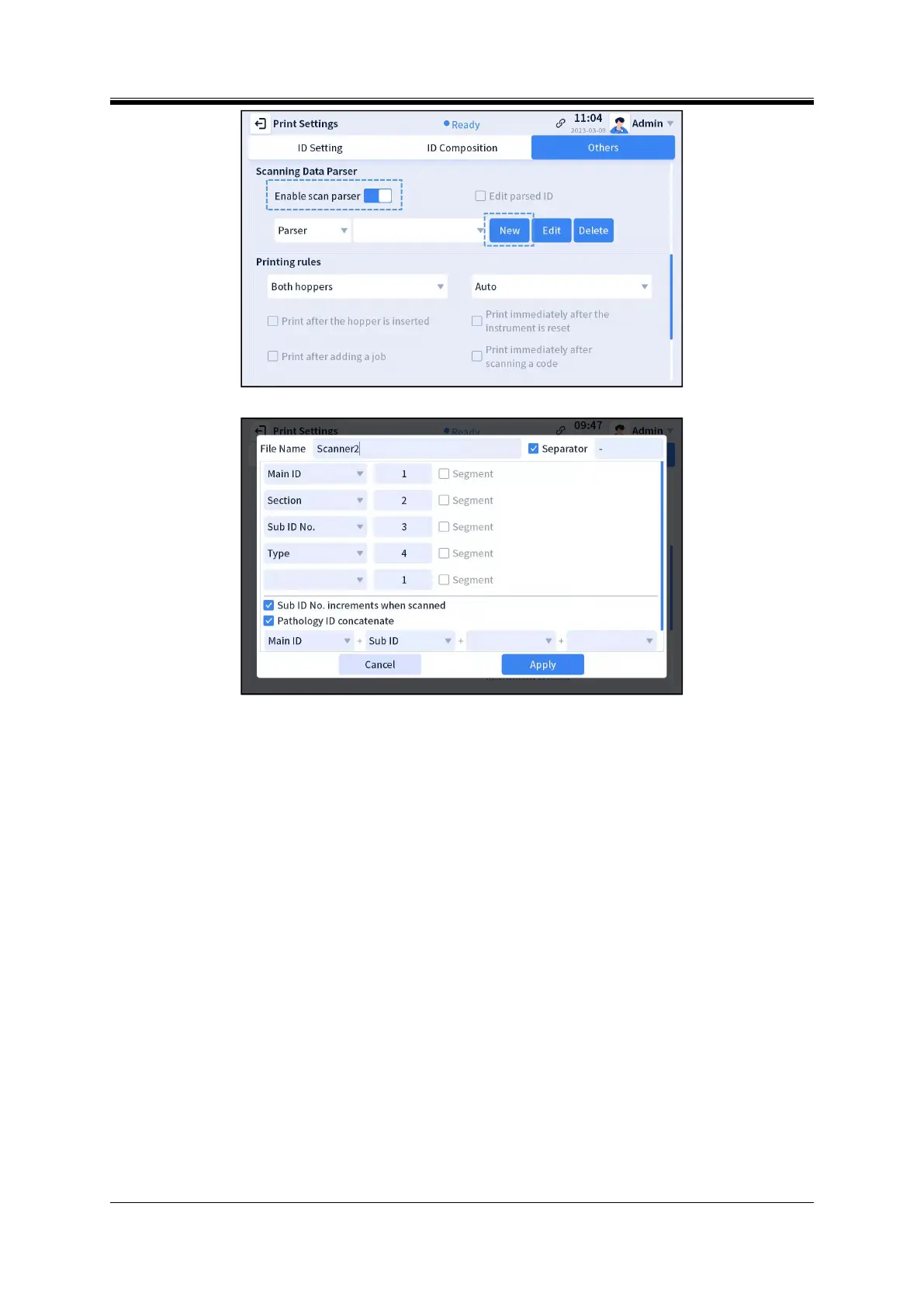
Figure 4- 8Scanning Data Parser
Figure 4- 9 Create a new scan parsing rule
1. Create a new scan parsing rule
Click the "New" button, and an interface appears as shown in Figure 4-9.
Enter the file name: The File Name is a required field for naming the newly added scan parsing
rule for purpose of differentiating parsing rules.
Enter the separator: The Separator is activated when checked to differentiate fields with different
meanings in the QR code information; it may be set as a letter/number/symbol or their combinations,
but it must not be empty.
Select the field to be parsed: Each field can only be parsed once under the same parsing rule.
Filling of correlation and use of segmentation: See 8.4.2 Correlation and segmentation.
Sub ID increments when scanned: Activated when checked. When the same QR code or barcode is
scanned continuously, the Pathology ID number is increased by 1 after each scanning.
Pathology ID Concatenate: Check "Pathology ID Concatenate", and the pathologyId field in the
template will display the 8 fields concatenated in sequence (Figure 4-11).
[Note]: If the field to be parsed contains the "Prefix", "Suffix", "Custom1", "Custom2", "Custom3",
"Custom4" and "Custom5", and "Pathology ID Concatenate" is applied, the concatenated content displayed


 To Next Page