IV. Instructions before Use
20 Dakewe (Shenzhen) Medical Equipment Co., Ltd.
www.dakewemedical.com
in the pathologyId field will be the content parsed; if the field to be parsed does not contain the "Prefix",
"Suffix", "Custom 1-5", and "Pathology ID Concatenate" is applied, the concatenated content displayed in
the pathologyId field will be the content set by the user on the homepage.
Click "Apply" to save this parsing rule.
2. Parse the Filed "Type"
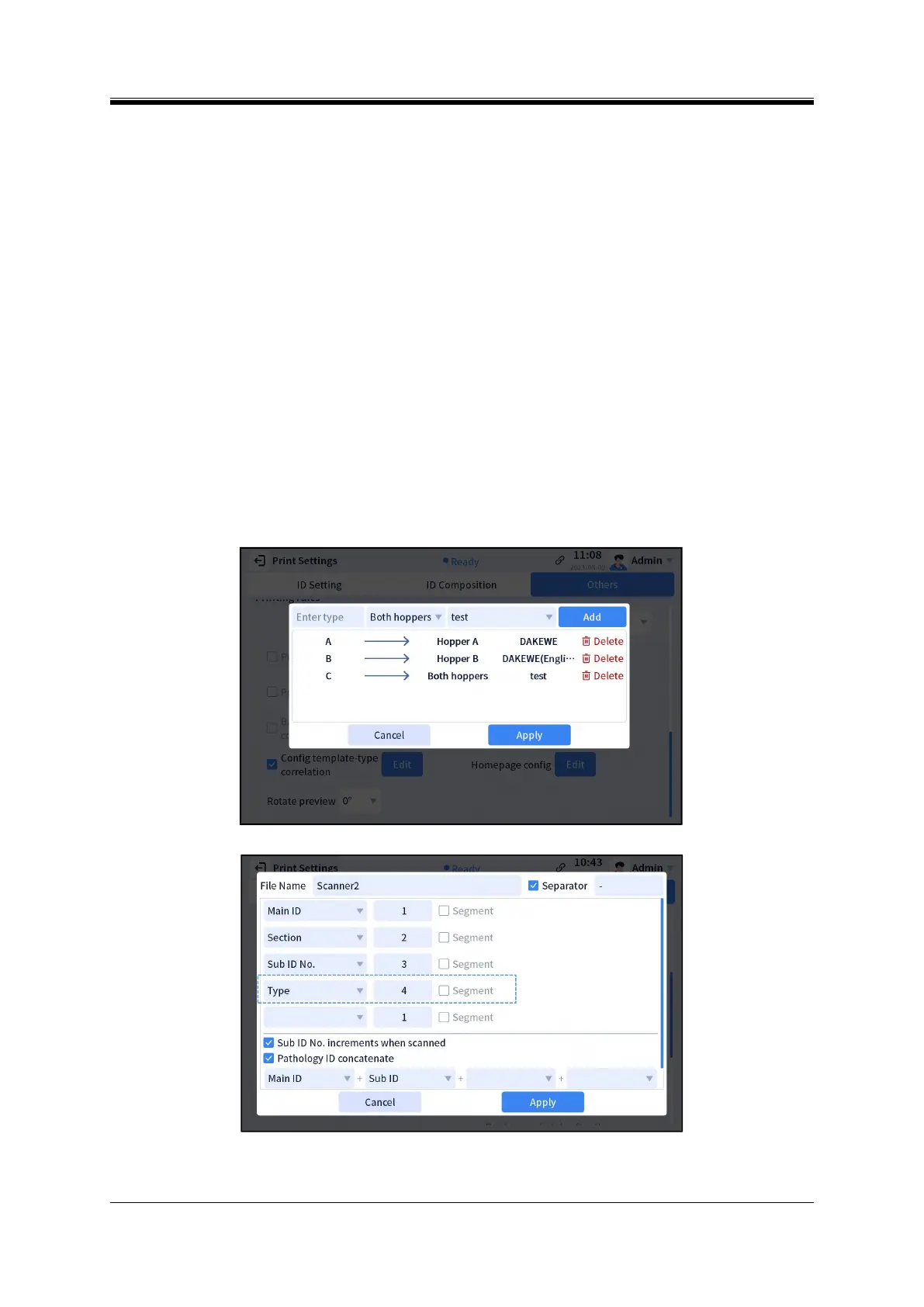
"Scan parser" can be used together with "Config Template-Type Correlation" when the user wants to
decide on the input hopper slides and templates used for printing at the time of scanning to add the
Pathology ID. This is achieved by the parse field "Type". The steps are as follows:
Step 1: Add the field "Type" to the content of the QR code to be parsed by scanning;
Step 2: Configure the correlation among the type in the content of the QR code, the template and the
input hopper channel used for this type (see 4.2.3 Config Template-Type Correlation);
Step 3: Create the corresponding scan parsing rule.
Figure 4- 10 Config Template-Type Correlation
Figure 4- 11Create a new scan parsing rule - Type


 To Next Page