IV. Instructions before Use
26 Dakewe (Shenzhen) Medical Equipment Co., Ltd.
www.dakewemedical.com
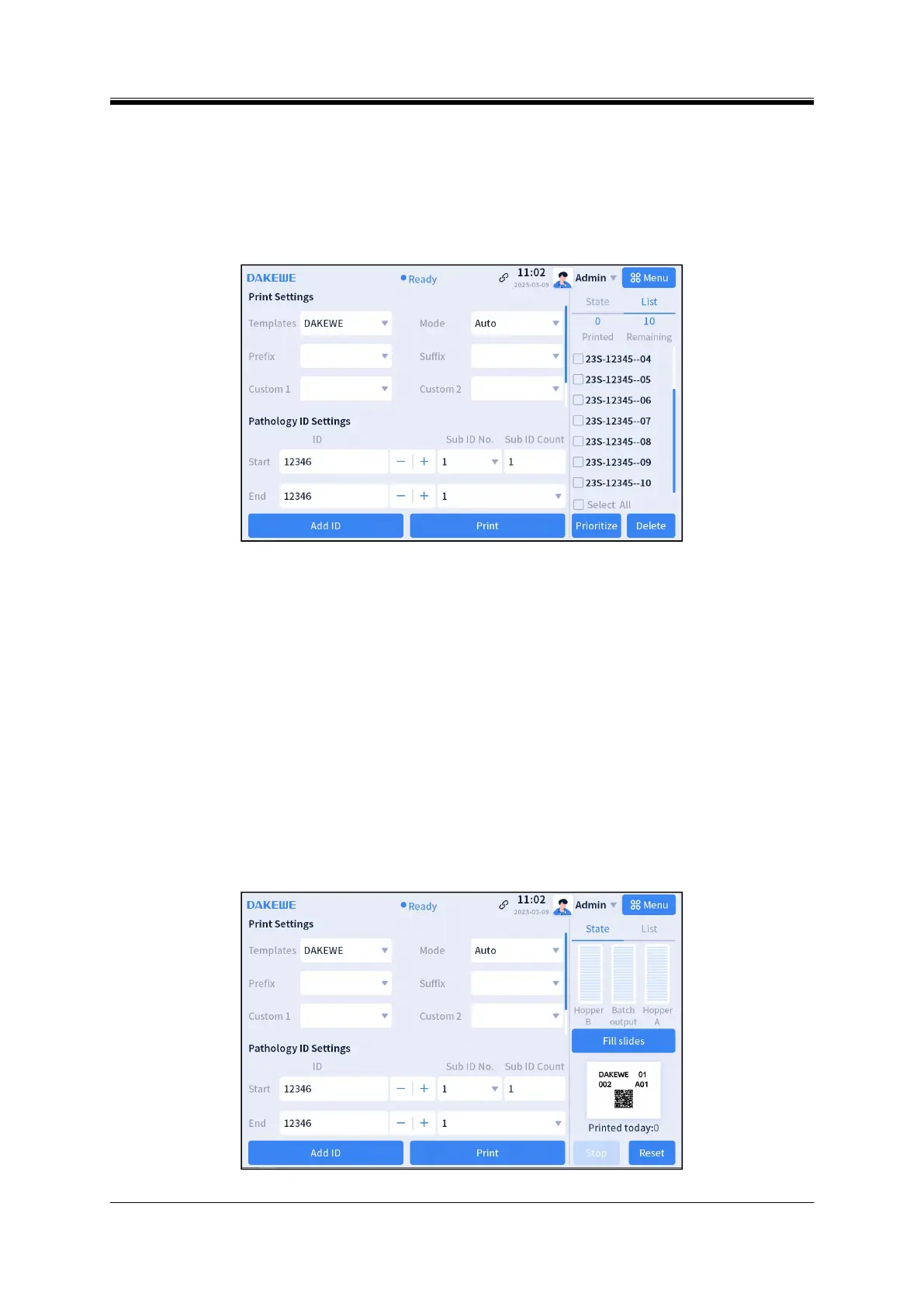
3. Pathology ID settings
It is the printed pathology ID information, which mainly includes: pathology tissue ID, section, sub ID,
and sub ID count; the user can add pathology ID individually or in batches by entering the starting number
and the ending number of the pathological tissue.
Figure 4- 21 Homepage - List
4. Status
The user can click “Status” or “List” to switch between the hopper status bar and the print jobs list.
Hopper Status Bar (Figure 4-21): It displays the remaining slides in Hopper A and B, the stored slides in
the batch output, the preview of the ID that is currently printed, and the total amount of IDs printed today.
The remaining slides in hopper B and batch output capacity are not available on S100. Yellow input hopper
indicator implies that the hopper will be empty soon. Yellow output hopper indicator implies that the output
hopper is about to be fully loaded. Red input hopper indicator implies that the output hopper is fully loaded.
Print Jobs List (Figure 4-22): It displays the count of IDs printed and to be printed on that day and the
ID pending list. The user can check the pending ID or check “All” to perform the operations of “Delete” or
“Prior” for ID.
Figure 4- 22 Homepage - Status


 To Next Page