Login and Configuration
30 DD400 Series Restorer User Guide
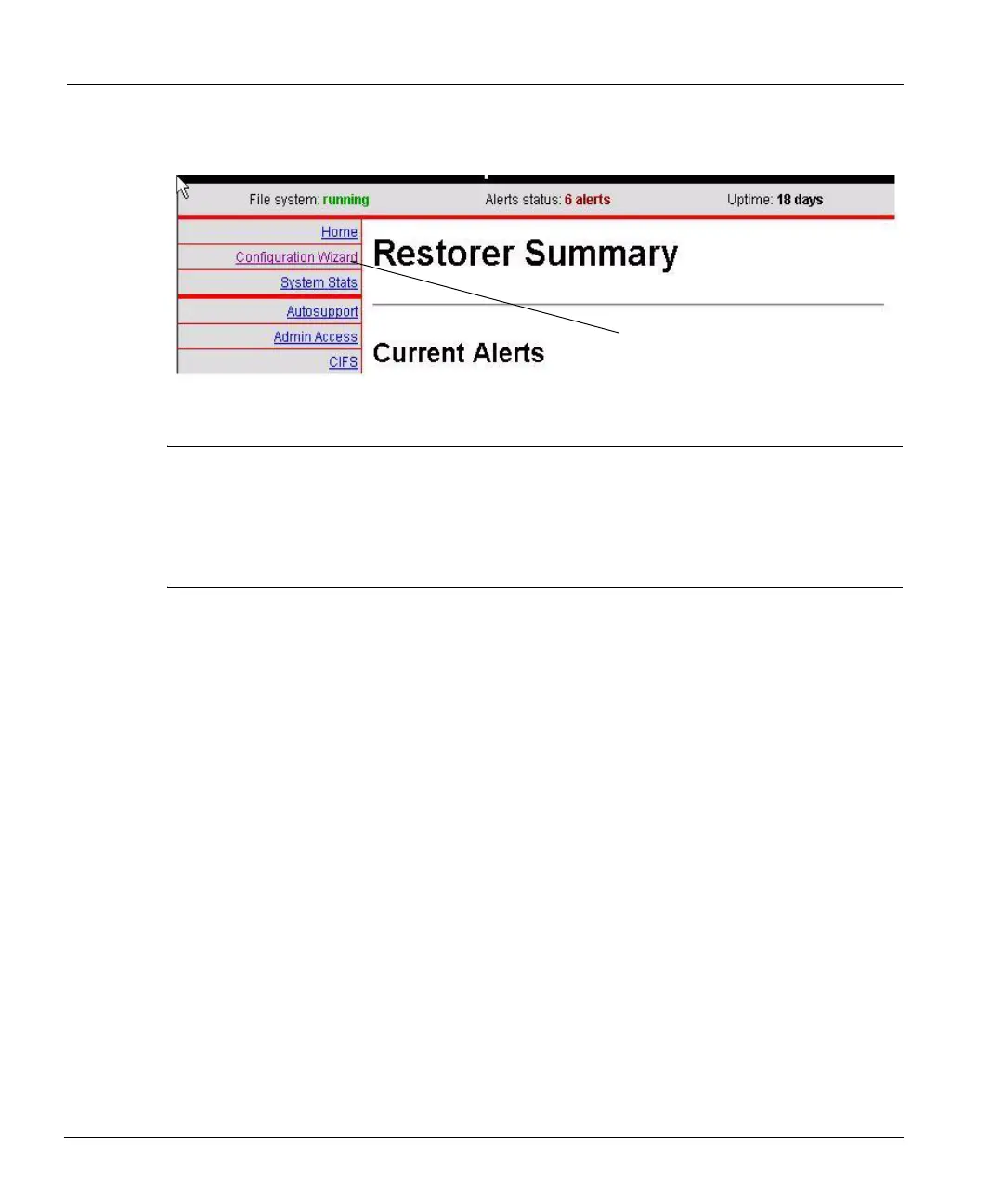
4. Click on the Configuration Wizard link as shown in Figure 15.
Note Most of the installation procedure in this chapter uses the command line interface as an
example. However, the Configuration Wizard of the DDR Manager has the same
configuration groups and sets the same configuration parameters. With the console, click on
links and fill in boxes that correspond to the command line examples that follow. To return
to the list of configuration sections from within one of the sections, click on the Wizard List
link in the top left corner of the Configuration Wizard screen.
If you earlier set up DHCP for one or more restorer Ethernet interfaces, a number of the config
setup
prompts display the values given to the restorer from a DHCP server. DHCP servers
normally supply values for a number of networking parameters. Press Return during the installation
to accept DHCP values. If you do not use DHCP for an interface, determine what you will use for
the following values before starting the configuration:
• Interface IP addresses.
• Interface netmasks.
• Routing gateway.
• DNS server list (if using DNS).
• A site domain name, such as yourcompany.com.
• A fully-qualified hostname for the restorer, such as rstr01.yourcompany.com.
You can configure different network interfaces on a restorer to different subnets. However,
multiple interfaces must not be linked to the same LAN or VLAN in the network.
When configuring restorer software:
• At any prompt, enter a question mark (?) for detailed information about the prompt.
• Press Return to accept a displayed value.
Configuration link
Figure 15: Configuration Wizard link



 To Next Page