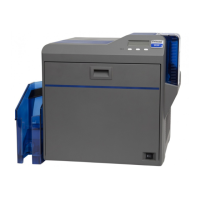
SR200 & SR300 Card Printers and LM200 & LM200 Laminators Installation Guide 27
Chapter 4: Installing the USB
Printer Driver
ThischaptercontainsproceduresforinstallingtheprinterdriveronaPC
thatwillbeconnectedtotheSR200orSR300cardprinterwithaUSB
cable.FollowtheprocedurethatcorrespondstoyourPC’sversionof
Microsoft®Windows®.
Installing with a USB Connection
Useoneofthefollowingprinterdriverinstallationproceduresforeachprintertobeinstalled
usingaUSBcable.
Windows 7 Installation
1. InserttheInstallationCD,shippedwithyourprinter, inthePCdrive.
2. StarttheInstallationsetupifyourPCdoesnotruntheinstallprogramautomatically.
The“WelcometoSRCardPrinter”dialogboxdisplays.
Caution:Ifyourprinterhasasmartcardoptioninstalled,makesurethatyouinstallthe
smartcarddriverbeforeinstallingtheprinterdriver.RefertoChapter 3:"Installingthe
SmartCardDriver”forinstructions.
Caution:TheprinterwillnotbeinstalledifyouconnecttheUSBcableandpoweronthe
printerbeforeinstallingtheprinterdriver.Waituntilyouareinstructedtoconnectthe
cableandpowerontheprinter.



 To Next Page