EasyManua.ls Logo

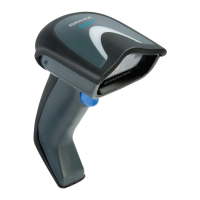
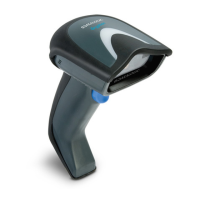
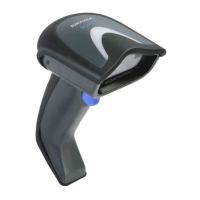
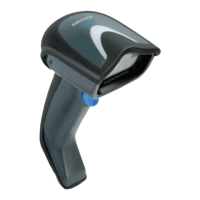
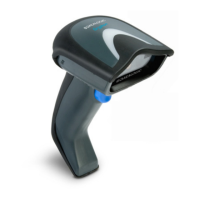
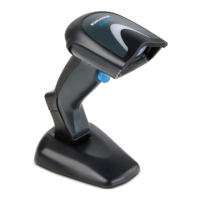
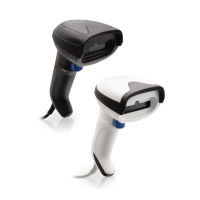
Datalogic Gryphon GD4200 - User Manual

Datalogic Gryphon GD4200
304 pages
Print Icon
To Next Page IconTo Next Page
Loading...
L
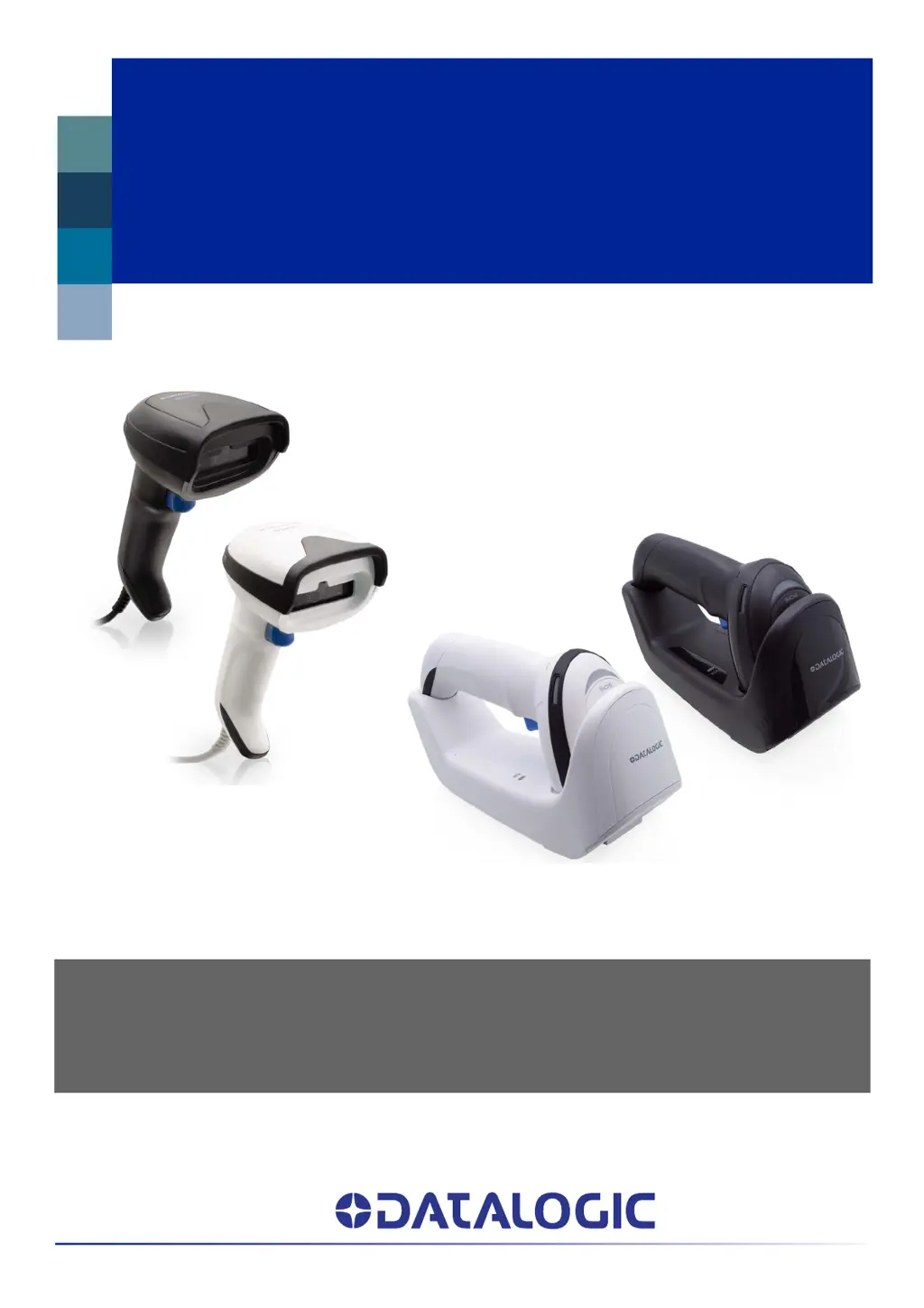
Gryphon™ I
GD/GBT/GM4200
PRODUCT REFERENCE GUIDE
General Purpose Linear Bar Code Reader: Corded or with Bluetooth®
Wireless Technology or Datalogic’s STAR Cordless System™

Table of Contents

Other manuals for Datalogic Gryphon GD4200

Questions and Answers

  • A
    amy86Aug 3, 2025
    What to do if Datalogic Gryphon GD4200 LED is on but doesn't decode barcode?
    • J
      Jennifer AllenAug 3, 2025
      If the LED is on, but the bar code does not decode, the reader may not be programmed for the correct bar code type. Check that the reader is programmed to read the type of bar code scanned. Also, verify the bar code label to ensure it is not defaced and try scanning another bar code type. Adjust the distance between the reader and the bar code.
  • A
    Adam JonesAug 8, 2025
    Why is my Datalogic Gryphon GD4200 Barcode Reader not transmitting the decoded barcode to the host?
    • A
      amandataylorAug 8, 2025
      If the bar code is decoded but not transmitted to the host, the reader may not be programmed for the correct host type. Scan the appropriate host type bar code.
  • C
    Christopher MedinaAug 13, 2025
    What to do if Datalogic Gryphon GD4200 Barcode Reader LED is on but barcode does not decode?
    • L
      Lisa MitchellAug 13, 2025
      If the LED is on, but the Datalogic Barcode Reader doesn't decode the barcode, ensure that the imager is programmed to read the barcode type you are scanning. Check the label to make sure it is readable. Try scanning another barcode type. Also, adjust the distance between the imager and the barcode by moving the imager closer or further away.
  • T
    Timothy WebsterAug 18, 2025
    Why nothing happens when scan button is pulled on Datalogic Barcode Reader?
    • U
      uadamsAug 18, 2025
      If nothing happens when you pull the scan button on your Datalogic Barcode Reader, check the system power and ensure the power supply is connected. Also, make sure all cable connections are secure.
  • B
    Betty MartinAug 23, 2025
    How to troubleshoot a Datalogic Barcode Reader that does nothing when the scan button is pulled?
    • A
      Adam WeissAug 23, 2025
      If nothing happens when the scan button is pulled, check the system power and ensure the power supply is connected. Also, ensure all cable connections are secure, as loose interface or power cables could be the cause.
  • T
    Thomas ArmstrongAug 28, 2025
    What to do if barcode is decoded but not transmitted to the host on Datalogic Barcode Reader?
    • J
      Jamie DixonAug 28, 2025
      If the barcode is decoded but not transmitted to the host from your Datalogic Barcode Reader, ensure the imager is programmed for the correct host type. Scan the appropriate host type barcode.

Summary

Chapter 1. Introduction

Battery Safety

Crucial safety instructions for handling and using the scanner's battery pack.

Programming the Reader

Methods for configuring the scanner via bar codes or Aladdin software.

Chapter 2. Setup

Wireless Setup and Base Station

Steps to configure and position the wireless base station for GBT/GM4200.

Connecting the Base Station

Procedure for connecting the wireless base station to a terminal or PC.

Battery Replacement

Step-by-step guide for safely replacing the scanner's battery pack.

Chapter 3. Configuration with Bar Codes

Interface Configuration

Options for setting up communication interfaces like RS-232, USB, and Keyboard Wedge.

RS-232;USB-COM Settings

Detailed configuration parameters for RS-232 and USB COM interfaces.

Keyboard Interface Settings

Configuration options specific to Keyboard Wedge and USB Keyboard interfaces.

Data Format Configuration

Settings to control message string composition, prefixes, suffixes, and label IDs.

Reading Parameters

Settings that control scanner behavior, beeps, and LED indicators.

Scan Mode Configuration

Defines how the scanner operates, such as trigger modes or continuous scanning.

Beep and LED Control

Customization of beeper sounds and LED indicator behavior for feedback.

Symbology Configuration

Enables or disables specific barcode symbologies and configures their parameters.

UPC-A Settings

Configuration options for the UPC-A barcode symbology.

Appendix A. Technical Specifications

Appendix B. Standard Defaults

Appendix D. Keypad

Appendix F. ASCII Chart

Datalogic Gryphon GD4200 Specifications

General IconGeneral
ConnectivityUSB, RS-232, Keyboard Wedge, Wand Emulation
Scan PatternSingle Line
Humidity5% to 95% non-condensing
IP RatingIP52
TypeHandheld
Reading DistanceUp to 60 cm / 23.6 in (depending on barcode density)
Light SourceLED
Power Supply5 VDC
Supported BarcodesUPC, EAN, Code 39, Code 128
Operating Temperature0 to 50 °C
Storage Temperature-20 to 70 °C
Drop Specification1.5 m drop to concrete
Warranty3 years

Related product manuals