EasyManua.ls Logo

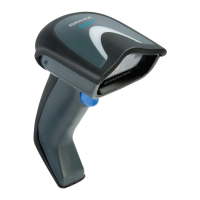
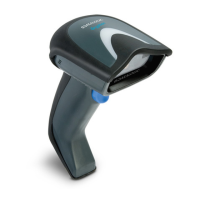
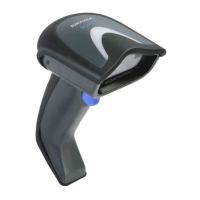
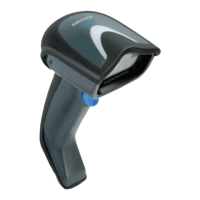
Datalogic Gryphon GD4500 - User Manual

Datalogic Gryphon GD4500
363 pages
Print Icon
To Next Page IconTo Next Page
Loading...
L
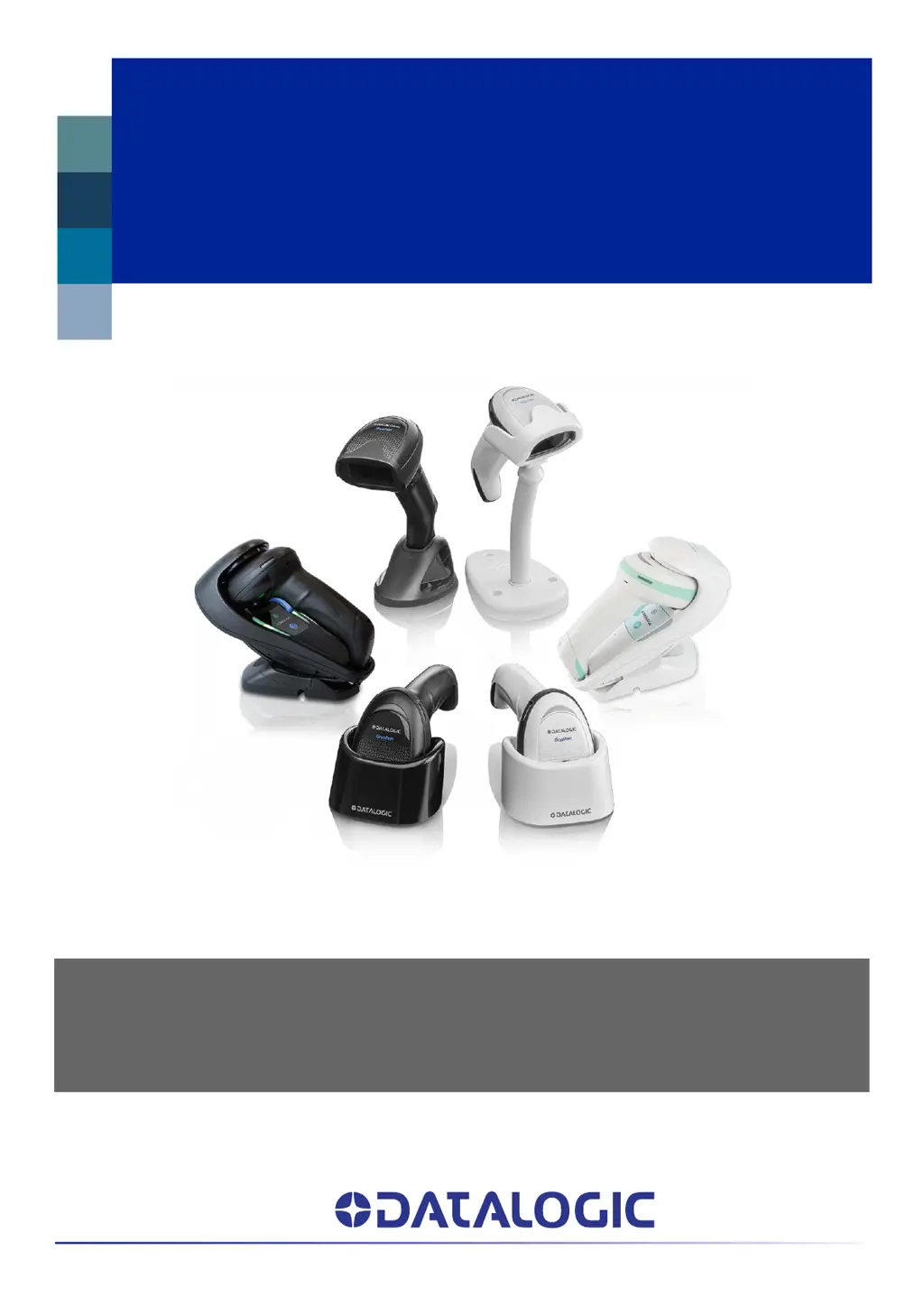
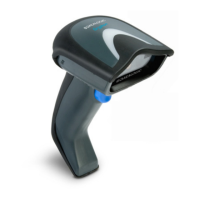
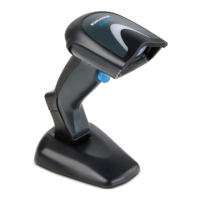
Gryphon™ 2D Family
Gryphon I GD/GBT/GM4500
PRODUCT REFERENCE GUIDE
General Purpose Handheld
Area Imager Bar Code Reader

Table of Contents

Other manuals for Datalogic Gryphon GD4500

Questions and Answers

  • E
    Evan ThomasJul 29, 2025
    What to do if Datalogic Gryphon GD4500 LED is on but barcode won't decode?
    • R
      Richard BarronJul 29, 2025
      If the LED is on but the barcode doesn't decode, it could be due to several reasons: * The reader might not be programmed for the correct barcode type. Ensure the reader is programmed to read the type of barcode you are scanning. * The barcode label may be unreadable. Check the label to ensure it is not damaged. You can also try scanning another barcode. * The distance between the reader and the barcode might be incorrect. Try moving the reader closer to or further away from the barcode.
  • B
    Bobby RiveraAug 4, 2025
    Why Datalogic Barcode Reader doesn't work when I pull the scan button?
    • J
      jameswallerAug 4, 2025
      If nothing happens when you pull the scan button on your Datalogic Barcode Reader, it could be due to the following reasons: * There may be no power to the reader. Check the system power and ensure the power supply is connected. * The interface or power cables might be loose. Ensure all cable connections are secure.
  • D
    David CainAug 10, 2025
    What to do if my Datalogic Gryphon GD4500 LED comes on, but the bar code is not decoded?
    • M
      Mrs. Jessica SalasAug 10, 2025
      If the LED is on but the barcode isn't decoded, there could be a few reasons. First, ensure the reader is programmed to read the type of barcode you're scanning. Second, check that the barcode label isn't damaged. Try scanning a different barcode. Lastly, adjust the distance between the reader and the barcode; move the imager closer to or further from the barcode.
  • E
    eparkAug 16, 2025
    What to do if Datalogic Barcode Reader decodes but doesn't transmit to the host?
    • A
      aschneiderAug 17, 2025
      If the barcode is decoded but not transmitted to the host, the reader might not be programmed for the correct host type. Scan the appropriate host type barcode to resolve this.
  • T
    tracy73Aug 22, 2025
    Why nothing happens when I pull the scan button on my Datalogic Gryphon GD4500 Barcode Reader?
    • S
      Samuel StanleyAug 22, 2025
      If nothing happens when you pull the scan button, it could be due to a lack of power or loose connections. Check the system power and ensure the power supply is properly connected. Also, make sure all cable connections are secure.

Summary

CHAPTER 1 INTRODUCTION

ABOUT THE READER

Introduces the Gryphon I GD4500 reader and its features.

BATTERY SAFETY

Provides essential safety instructions for handling and using the battery pack.

CHAPTER 2 SETUP

READER SETUP

Guides for connecting and setting up the reader and its accessories.

INTERFACE SELECTION AND CONFIGURATION

Covers selecting and configuring reader interface types.

CUSTOMIZING CONFIGURATION SETTINGS

Explains methods for customizing reader settings via bar codes or Aladdin utility.

CHAPTER 3 CONFIGURATION WITH BAR CODES

CONFIGURATION PARAMETERS

Details parameters for configuring the reader via bar codes.

RS-232 STANDARD SETTINGS

Configuration options for the RS-232 interface.

RS-232;USB-COM SETTINGS

Configuration options for RS-232 and USB-COM interfaces.

CHAPTER 4 REFERENCES

KEYBOARD INTERFACE

Details parameters specific to keyboard interfaces.

APPENDIX A TECHNICAL SPECIFICATIONS

GD4500 TECHNICAL SPECIFICATIONS

Lists physical, optical, and electrical characteristics of the GD4500.

GBT;GM4500 TECHNICAL SPECIFICATIONS

Lists characteristics of GBT/GM4500 including electrical, optical, and radio.

DECODING CAPABILITIES

Lists the bar code symbologies supported by the reader.

Datalogic Gryphon GD4500 Specifications

General IconGeneral
TechnologyImager
IP RatingIP52
Print Contrast Ratio (Minimum)15%
Motion Tolerance25 IPS
ESD Protection (Air Discharge)16 kV
Water and Particulate SealingIP52
ConnectivityUSB, RS-232, Keyboard Wedge
Light SourceLED
Decode Capability1D / Linear Codes, 2D Codes, Postal Codes, Stacked Codes
Drop ResistanceWithstands repeated drops from 1.8 m / 6.0 ft onto a concrete surface

Related product manuals