DriveRack
®
DriveRack® 260 User Manual
25
Configuration Functions
Section 3
‘ST’ (use this selection when you want to use a stereo in/stereo out configuration). Use the PREV PG and NEXT
PG buttons to move through Outputs 1-6, configuring Crossover modules as necessary, and then to the next
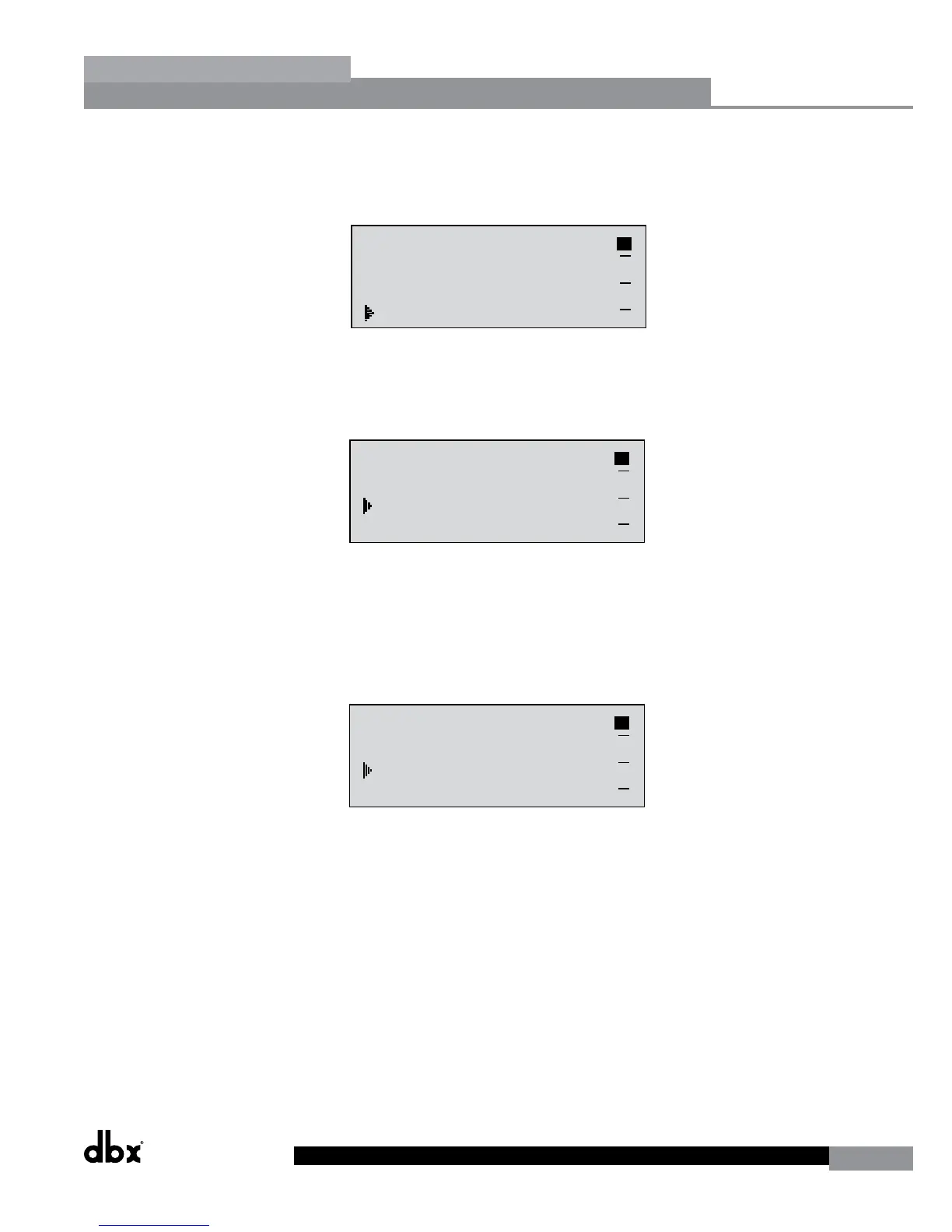
module screen which will appear something like this:
GEQ
Select
Link/Unlink
<DATA> - SELECT CHARACTER
<PREV/NEXTPG> - LEFT/RIGHT
<STORE>-EDIT/<UTIL>-EXIT
NAME: Output Ch2
CONFIGURATION ERROR!
One or more outputs
have duplicated
channels.
M
6
4
2
5
3
1
M
A
B
Program 1
8
FACT
GEQ
GEQ
G
G
A
B
COMP
Select
Link/Unlink
A
B
2
N
C
F
N
S
D
D
P2X6 PP
C
C
F
1
MONO DLY 1.3
10 ms Unused
Select
Link/Unlink
A
B
D
D
1X1 FILTER
Select
Route
2
A
A
3
4
A
B
5
6
A
A
2
POST EQ
Link/Unlink
2
3
4
5
6
2P
P
P
P
P
P
LIMITER
Select
Link/Unlink
2
3
4
5
6
2L
L
L
L
L
L
MONO DLY 20 MS
810 ms Unused
Select
Link/Unlink
2
3
4
5
6
2D
D
D
D
D
D
OUTPUT CH2
Route
NAME Output Ch2
2
3
4
5
6
2
<STORE>-EDIT NAME
• You are now in the Post-Crossover PEQ module. Rotate the DATA wheel to link and unlink these output
PEQ modules as desired. Use the PREV PG and NEXT PG buttons to move through outputs 1-6, linking and
unlinking modules as desired, and then to the next module screen which will appear something like this:
GEQ
Select
Link/Unlink
<DATA> - SELECT CHARACTER
<PREV/NEXTPG> - LEFT/RIGHT
<STORE>-EDIT/<UTIL>-EXIT
NAME: Output Ch2
CONFIGURATION ERROR!
One or more outputs
have duplicated
channels.
M
6
4
2
5
3
1
M
A
B
Program 1
8
FACT
GEQ
GEQ
G
G
A
B
COMP
Select
Link/Unlink
A
B
2
N
C
F
N
S
D
D
P2X6 PP
C
C
F
1
MONO DLY 1.3
10 ms Unused
Select
Link/Unlink
A
B
D
D
1X1 FILTER
Select
Route
2
A
A
3
4
A
B
5
6
A
A
2
POST EQ
Link/Unlink
2
3
4
5
6
2P
P
P
P
P
P
LIMITER
Select
Link/Unlink
2
3
4
5
6
2L
L
L
L
L
L
MONO DLY 20 MS
810 ms Unused
Select
Link/Unlink
2
3
4
5
6
2D
D
D
D
D
D
OUTPUT CH2
Route
NAME Output Ch2
2
3
4
5
6
2
<STORE>-EDIT NAME
• You are now in the Post-Crossover Dynamics module. The upper left-hand corner of the display indicates what
Dynamics processor type is currently selected (i.e. Limiter or AGC). Rotate the DATA wheel to select the
Dynamics processor type. Pressing and then rotating the DATA wheel lets you link or unlink these Dynamics
modules. Note that you can only link like type Dynamics modules. Use the PREV PG and NEXT PG buttons to
move through outputs 1-6, selecting and linking/unlinking these modules as necessary, and then to the next
module screen which will appear something like this:
GEQ
Select
Link/Unlink
<DATA> - SELECT CHARACTER
<PREV/NEXTPG> - LEFT/RIGHT
<STORE>-EDIT/<UTIL>-EXIT
NAME: Output Ch2
CONFIGURATION ERROR!
One or more outputs
have duplicated
channels.
M
6
4
2
5
3
1
M
A
B
Program 1
8
FACT
GEQ
GEQ
G
G
A
B
COMP
Select
Link/Unlink
A
B
2
N
C
F
N
S
D
D
P2X6 PP
C
C
F
1
MONO DLY 1.3
10 ms Unused
Select
Link/Unlink
A
B
D
D
1X1 FILTER
Select
Route
2
A
A
3
4
A
B
5
6
A
A
2
POST EQ
Link/Unlink
2
3
4
5
6
2P
P
P
P
P
P
LIMITER
Select
Link/Unlink
2
3
4
5
6
2L
L
L
L
L
L
MONO DLY 20 MS
810 ms Unused
Select
Link/Unlink
2
3
4
5
6
2D
D
D
D
D
D
OUTPUT CH2
Route
NAME Output Ch2
2
3
4
5
6
2
<STORE>-EDIT NAME


 To Next Page