44
DriveRack
®
DriveRack® 260 User Manual
Utilities/Meters
Section 5
• Once the list size has been selected, press the DATA wheel. Rotate the DATA wheel to select Index 1, if it is
not already selected. Press the DATA wheel in again to move down to the program selection parameter. Rotate
the DATA wheel to select the program which you would like to appear first in your custom program list. Press
the DATA wheel twice to move back to the List Index parameter and rotate the DATA wheel to set this to
List Index number 2. Press the DATA wheel again, then rotate the DATA wheel to select which program you
would like to appear second in your custom program list. Repeat this process for all programs which you want to
appear in your custom program list.
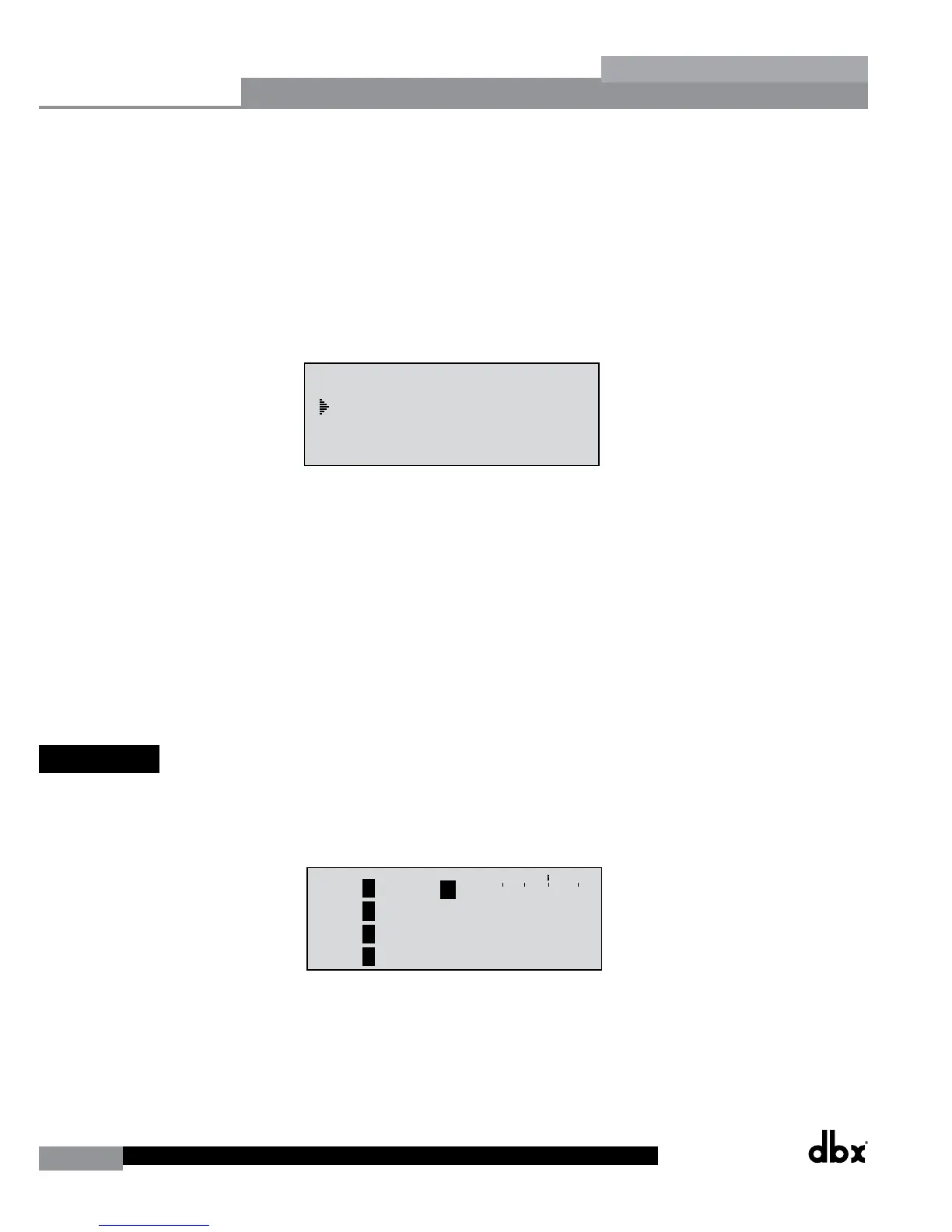
• Once you are done creating your custom Program List you need to turn Program List Mode on. To do this press
the NEXT PG button. The display will appear something like this:
Utility
LCD Contrast 10
Auto EQ Plot RTA
Power Up Modes
PUP Program Stored
PUP Mute Current
ZC Setup
Panel 1 None
(STORE) - EDIT PANEL
Panel 1 ZC-2
Boost 0dB Cut 0dB
Output
1 3 5
2 4 6
Set Security Level
Pre EQ
Low
Set 260 Device Level
High
Password
Enter Password
Password
Edit High Password
Edit Med Password
Press Store to Change
Press Store
Program List
List Size 10
List Index 1
Program 1
Prog Change Mode
Program List
Prog Lock 24
Output Jumpers
Output 1
Setting 30
Panel 1 ZC-3
Select A
No Change
Panel 1 ZC-4
Switch
No Change
123 4
<DATA> - SELECT CHARACTER
<PREV/NEXTPG> - LEFT/RIGHT:
<STORE>-SAVE/<UTIL>-EXIT
NAME: ROCK VENUE
<DATA> - SELECT CHARACTER
<PREV/NEXTPG> - LEFT/RIGHT:
<STORE>-SAVE/<UTIL>-EXIT
NAME:
• Turn the DATA wheel to change the Program Change Mode from ‘Normal’ to ‘Program List’.
• Once your program list has been built and Program Change Mode turned on, press the PROGRAM/CONFIG
button to exit.
• Now as you turn the DATA wheel, you should see only the programs which you assigned in your custom
program list. If at any time you would like to set the Program List Mode back to normal, simply press the
UTILITY button, go back to the ‘Prog Change Mode’ page and switch the mode from ‘Program List’ to ‘Normal’.
Note: The Program Lock parameter shown in the above screen shot allows you to prevent overwriting of certain User
Programs. All program numbers from the set number and below will be locked and cannot be overwritten.
5.6 Meters
To meter various aspects of the 260, press and hold the UTILITY button until the display enters the Metering section.
• Use the PREV PG or NEXT PG button to move to the page that appears as follows:
INS COMP o+
1
INS
2
-30-20 0 +20
-
A
B
A
B
LIM 0+
LIM
LIM
-30-20 0 +20
-
0+
-
0+
-
1
2
3
LIM 0+
LIM
LIM
-30-20 0 +20
-
0+
-
0+
-
4
5
6
Trim 0.0 Net 0.0 dB
Trim 0.0 Net 0.0 dB
Trim 0.0 Net 0.0 dB
1
2
3
Zone Controllers
Panel 1
Panel 2
Panel 3
Zone Controllers
Panel 4
Panel 5
Panel 6
Output Trims
Trim 0.0 Net 0.0 dB
Trim 0.0 Net 0.0 dB
Trim 0.0 Net 0.0 dB
4
5
6
Output Trims
This page meters the gain reduction of any Dynamic block configured in the Insert 1 or Insert 2 block.
• Use the PREV PG or NEXT PG button to move to the page that appears as follows:


 To Next Page