dCS Rossini CD / Network Player User Manual Software Issue 1.0x
February 2016
Rossini Player Manual v1_0x Page 26 English version
STEP 7 – Clocking
So far, the system has been set up to lock to the clock generated by the source, or in Master Mode for
CD playback, asynchronous Network and USB interfaces. This is the simplest arrangement, but it
does not give the very best sonic performance due to clock jitter.
Using the Rossini Clock
The performance can be improved further by adding a Rossini Master Clock to the system.
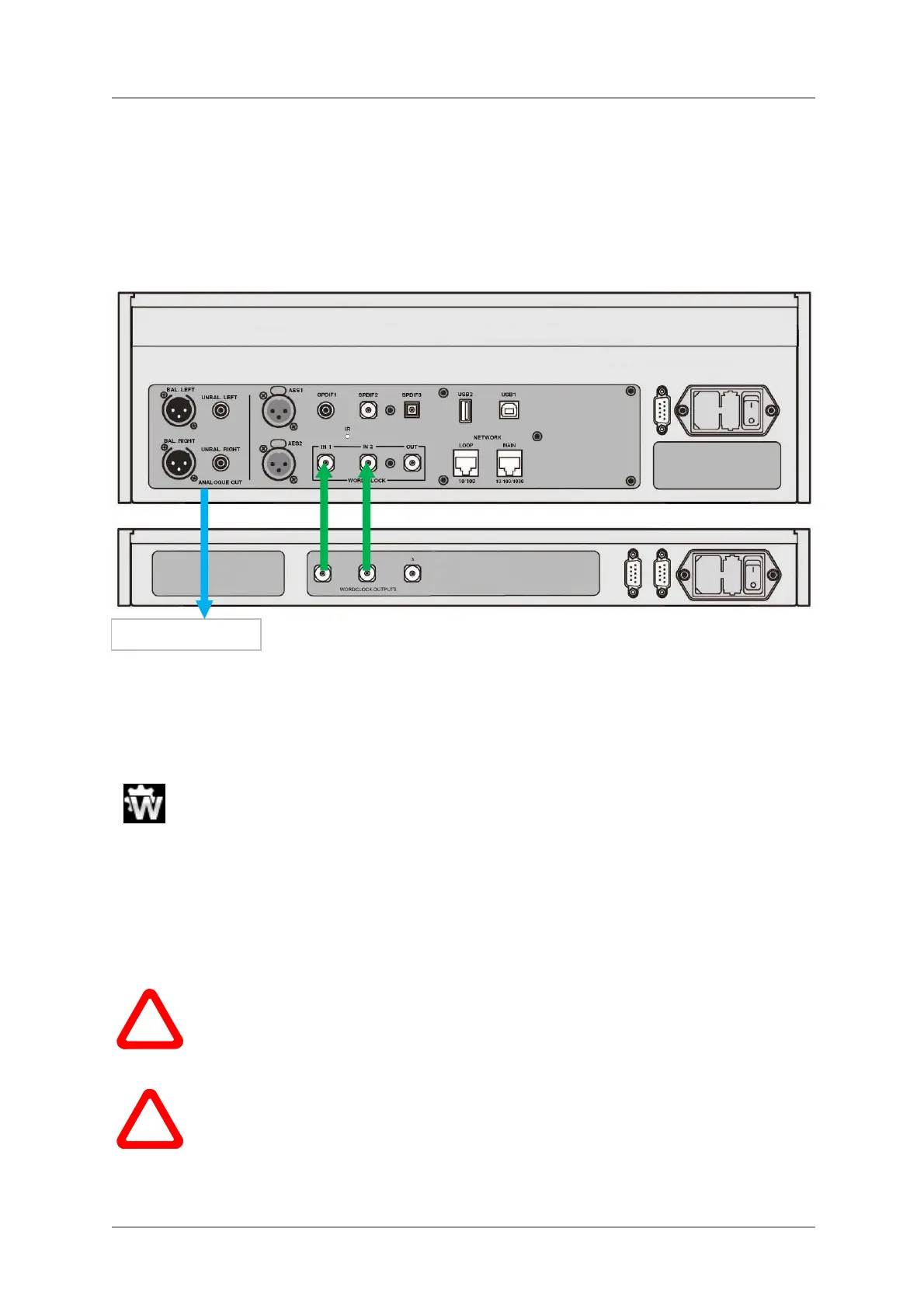
Figure 5 – Using the Rossini Player and Clock together
• Use the Player’s Input button to select the input you want to lock to the Clock – this can be the
Network, USB1, USB2 or CD input only.
• Power up the Rossini Clock.
• Connect the Clock’s Word Clock Output 1 to the Player’s Word Clock Input 1 and the Clock’s
Word Clock Output 2 to the Player’s Word Clock Input 2.
Set the Player’s Unit Settings > Sync Mode menu page to Word Clock 1-2 Auto and
allow the system to re-lock. The “W1” or “W2” icon will be displayed.
• Play some music.
The Rossini Clock provides the Player with 44.1kHz and 48kHz word clock simultaneously, ensuring it
can stay locked to any valid sample rate.
• If you want to lock sources connected to the AES or SPDIF inputs to word clock, we suggest that
you consider using the Vivaldi Master Clock to synchronise the system. It has many more outputs
than the Rossini Clock.
!
Please note if you lock one of the Player’s AES or SPDIF inputs to a Master Clock, the
source equipment (e.g. a CD player) MUST be locked to the same Master Clock,
otherwise you will experience periodic clicks, dropouts, noises or distortion on the output.
For more information, please see the manual for the Vivaldi Master Clock.
!
At the time of writing, the Rossini Player’s CD mechanism will lock to word clock at
44.1kHz only. This is only a concern if you use it with a Master Clock which can output
higher frequencies (such as the Vivaldi Clock).
Analogue outputs


 To Next Page