7 User Interface 22
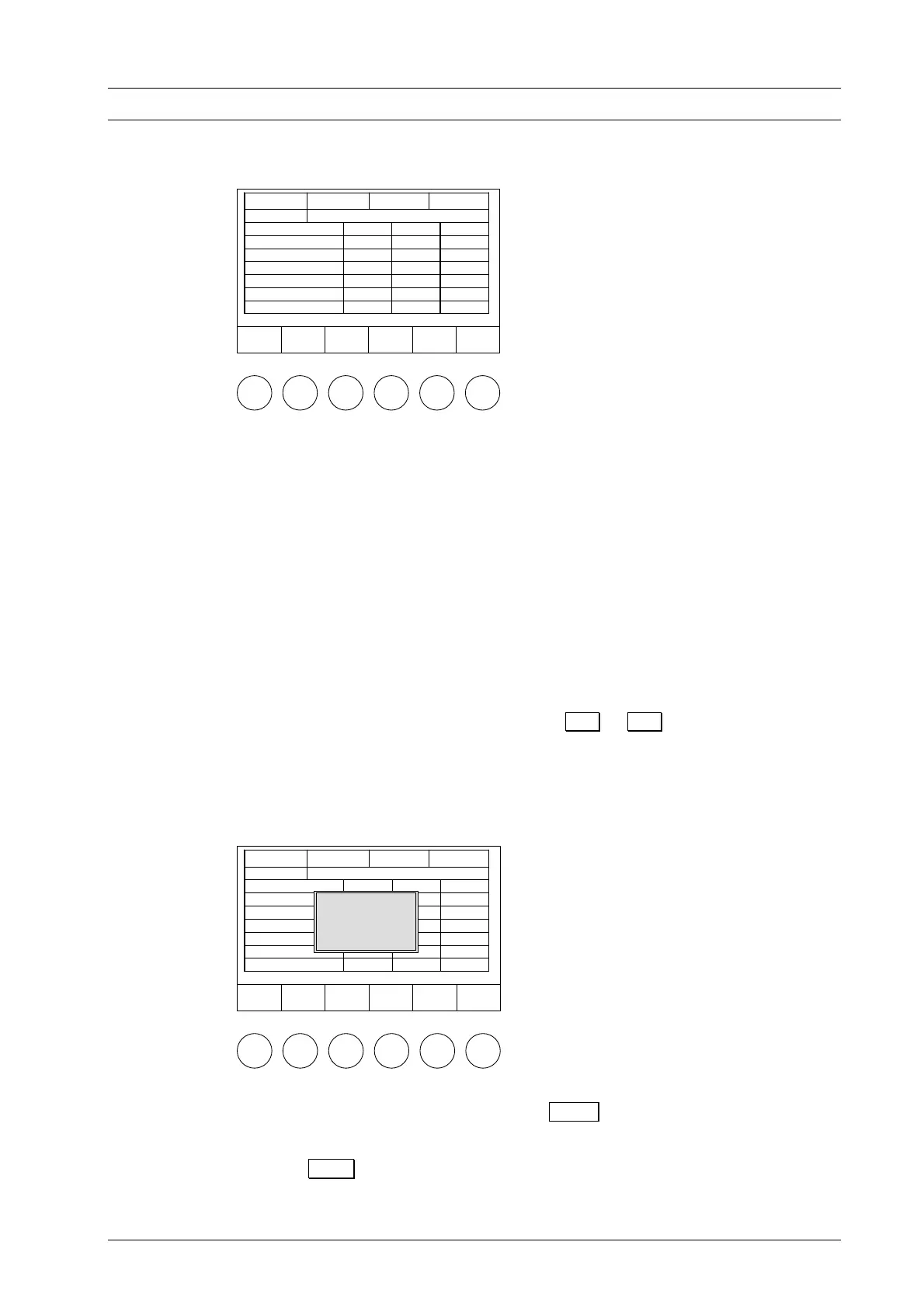
Figure 12
Save
Å
Position
Æ
Position
Program
Start
Cancel
Tc 350°C # 123456789 00:00:00
200
In the second line from the top, there is a
first character flashes (cursor), prompti
enter e.g. the name "WASH_FIRIN
colored bar instead of the program name. The
ng you to enter the name of the program. Now
G_TEST" ("_" stands for space) via the
lphanumeric keypad (see above). After entering the program name, you then confirm it a
with the "ENTER" key.
The cursor jumps to the next entry field, the holding time for drying. Enter either the
number "4" or press one of the control keys "+" or "--" until the number 4 appears (i.e.
scroll up and down through the possible entries). Confirm the entry by pressing
"ENTER".
The cursor automatically jumps to the next entry field, the closing time. Enter 2 min
closing time, then 550 preheating temperature, no holding time for preheating (just
press "ENTER"; an empty entry is interpreted as 0 or "do not perform"), then 980 firing
temperature, 80 temperature rise rate, 1 min firing temperature holding time, no holding
time for cooling and relaxation, and 100% VAC level.
If you confirm an incorrect entry by pressing "ENTER", you can correct the entry by
moving the cursor to the position by pressing Å or Æ and entering the correct
value. Please note that an input value is only accepted by confirming with "ENTER".
an input is outside the permissible range, an error message will be displayed on the
a firing temperature of 1,300°C, the appropriate
O.K. to return to program display entry
If
screen indicating the permissible range (Fig. 13).
Figure 13
Drying -:--
Closing -:--
Preheating ----°C -:--
Firing Temperature ----°C ---°C/min --:--
Cooling -:--
Relief -:--
VAC (level) --- %
O.K
Tc 550°C # 123456789 00:12:22
011 Wash firing
Drying 4:00
Closing 2:00
Preheating °C -:--
Firing Temperature °C 1:00
Cooling °C --:--
Relief ---° --:--
VAC (level) 980°C 100 % --:--
ERROR!
RANGE:
[ 100 – 1200°C ]
old value: 980°C
For example, if you enter and confirm
message is displayed on the screen. Press
mode.
After you finish entering the program, the program must be saved . This is done by
pressing Save .
This will take you to the SAVE AS menu (Fig.14).
DEKEMA Dental-Keramiköfen GmbH, AUSTROMAT
®
D4, Version 3, 2006


 To Next Page