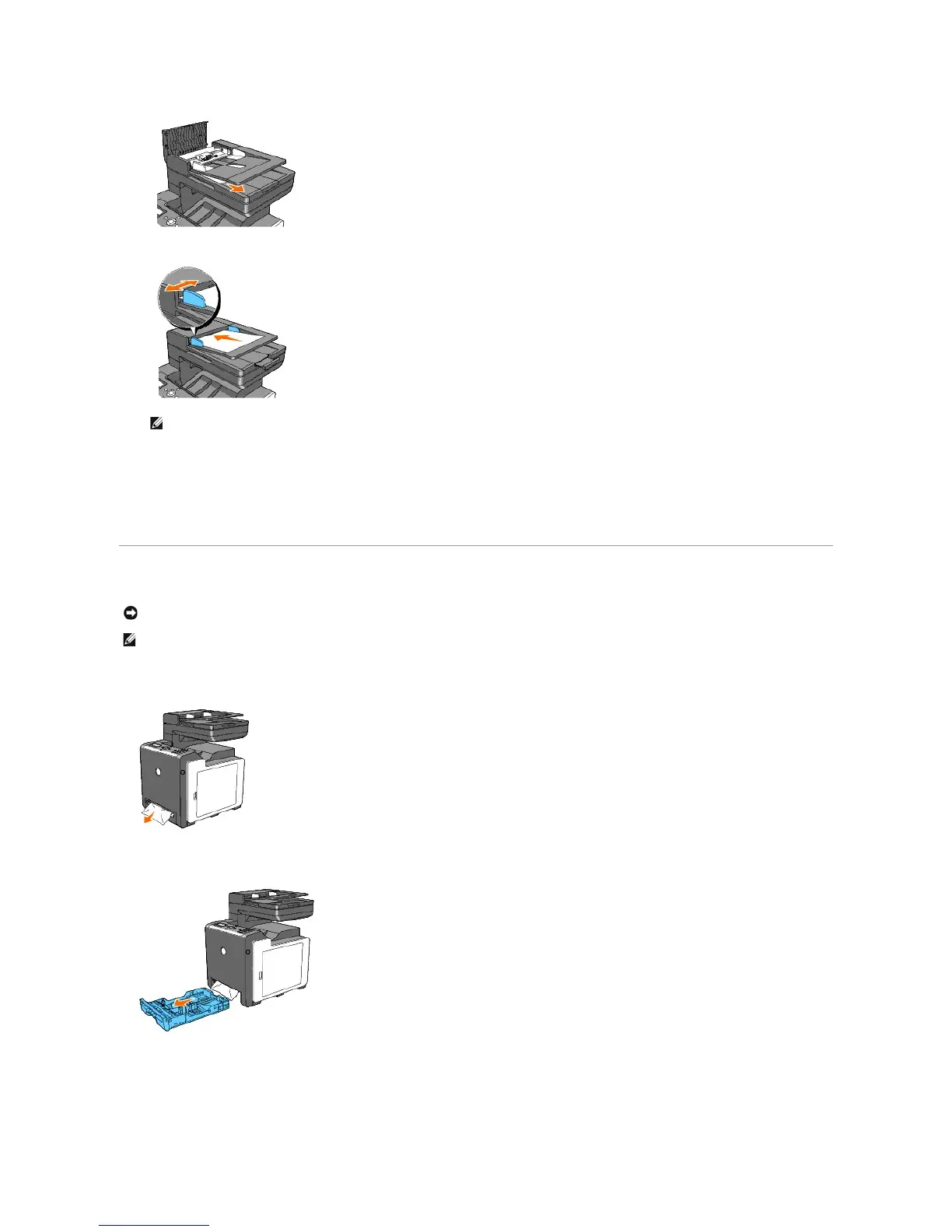
b. Close the ADF cover. Then load the documents back into the ADF.
2. If you cannot see the paper or the paper does not move when you pulled, open the document cover.
3. Remove the document from the roller or the feed area by carefully pulling it gently to the right.
4. Close the document cover. Then load the documents back into the ADF.
Clearing Paper Jams From the Single Sheet Feeder
1. Pull the jammed paper out of the single sheet feeder. If no jammed paper can be found or it is hard to remove the paper, go to the next step to remove
the jammed paper from the inside of the printer.
2. Remove the tray 1 from the printer, and then pull out the jammed paper remaining inside the printer. If no jammed paper can be found or it is hard to
remove the paper, go to the next step to remove the jammed paper from the inside of the printer.














 To Next Page