Steps
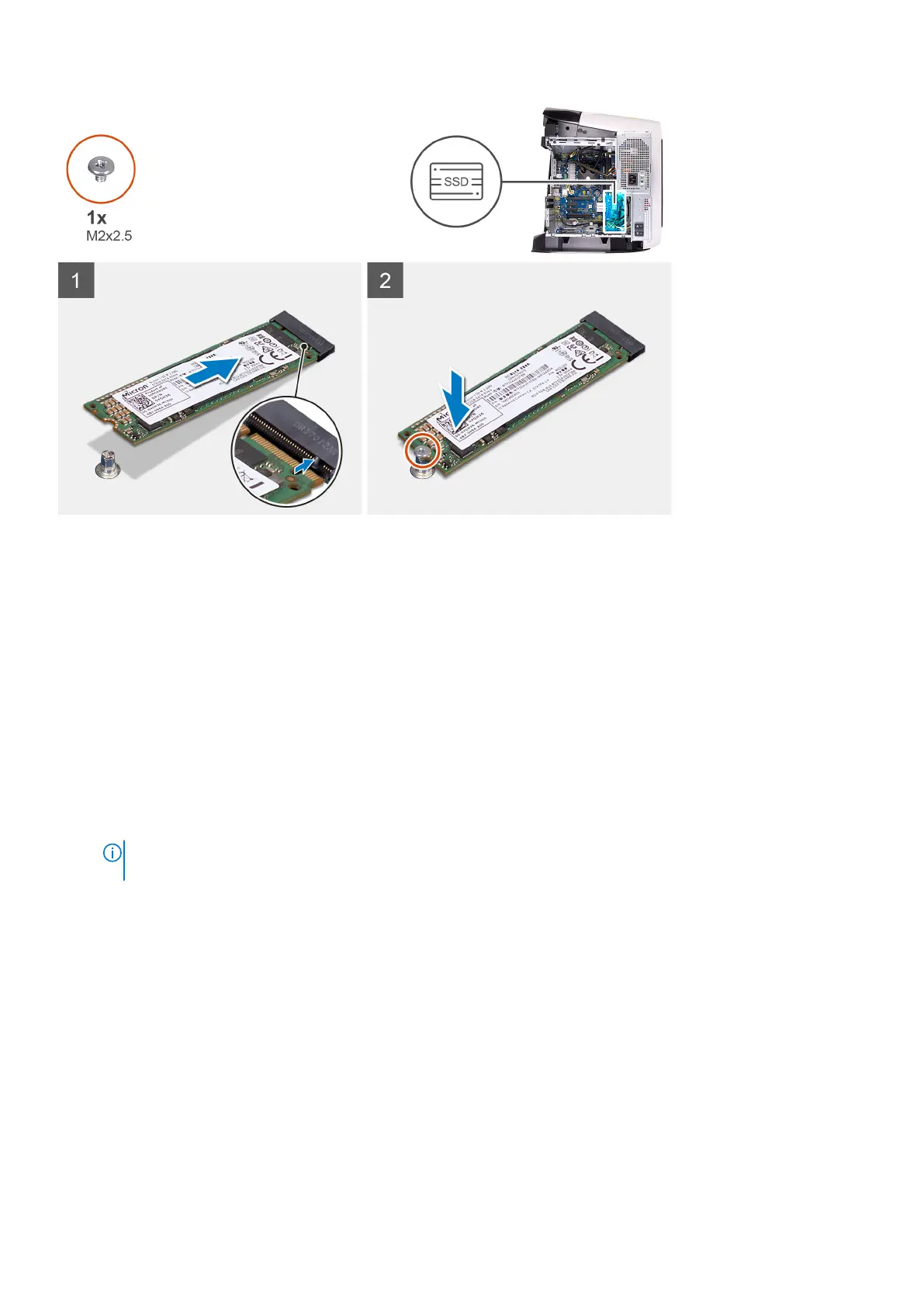
1. Align the notch on the solid-state drive with the tab on the solid-state drive slot.
2. Insert the solid-state drive at a 45-degree angle into the system board.
3. Press the other end of the solid-state drive down and replace the screw (M2x2.5) that secure the solid-state drive to the
system board.
Next steps
1. Install the single-graphics card.
2. Install the left-side cover.
3. Follow the procedure in After working inside your computer.
4. Verify if the storage device is installed correctly (optional):
● If you are replacing a storage device which does not have the operating system installed, follow the steps in Identifying
storage device in device manager.
● If you are replacing a storage device that had the operating system installed, follow the steps in Identifying your storage
device in system setup (BIOS).
NOTE:
To install the operating system on to your storage device, see Reinstall Windows 10 to the Dell factory
image using recovery media in the knowledge base article 000176966.
Külön videokártya
A külön videokártya eltávolítása
Elõfeltételek
1. Kövesse a Mielőtt elkezdene dolgozni a számítógép belsejében című fejezet utasításait.
2. Távolítsa el a bal oldali burkolatot.
Errõl a feladatról
Az alábbi ábrák a videokártya elhelyezkedését és az eltávolítási folyamatot szemléltetik.
50
Alkatrészek eltávolítása és beszerelése




 To Next Page