96 Removing and Installing Parts
5
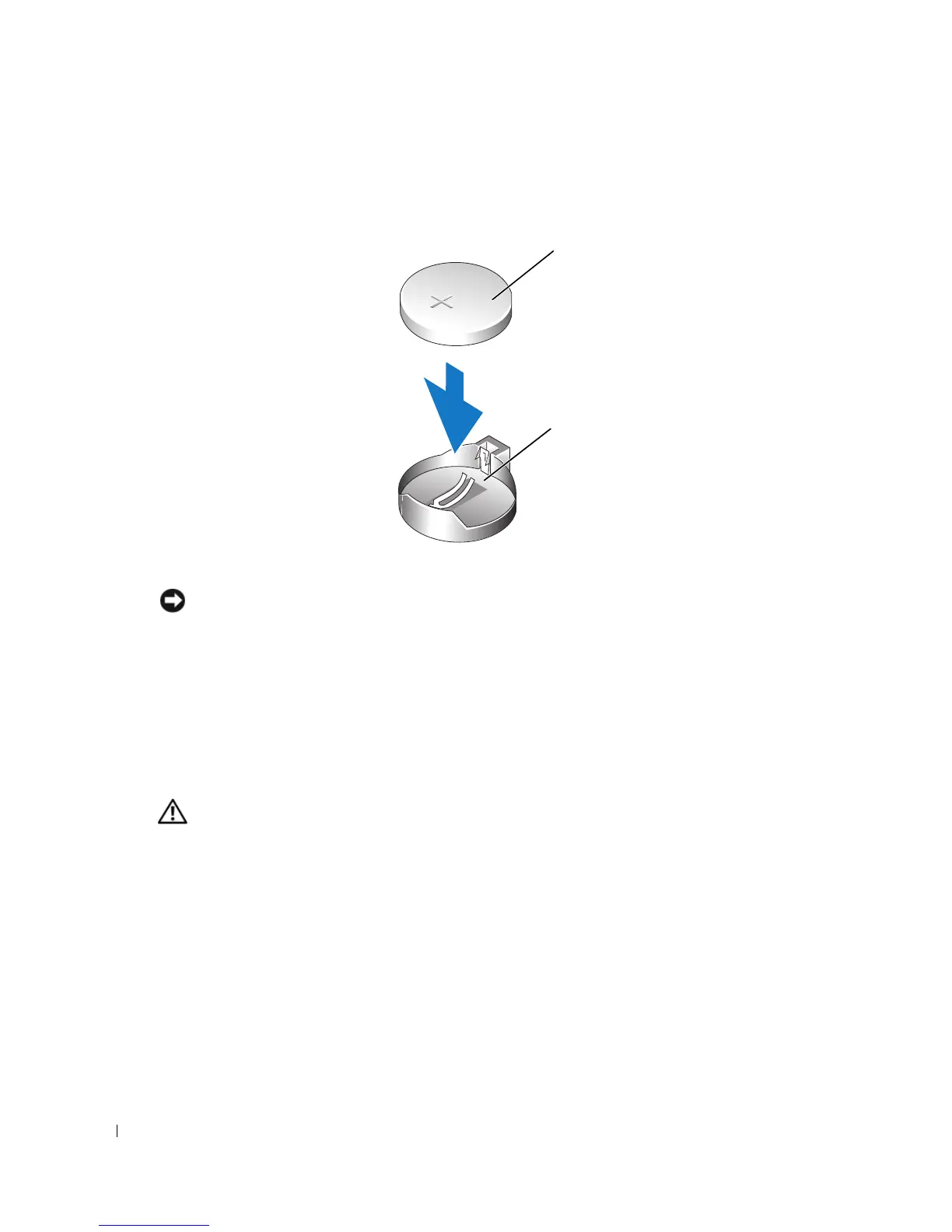
Insert the new battery into the socket with the side labeled "+" facing up, and snap the
battery into place.
6
Replace the computer cover (see page 96).
NOTICE: To connect a network cable, first plug the cable into the network port or device, and then plug
it into the computer.
7
Connect your computer and devices to electrical outlets, and turn them on.
8
Enter system setup (see page 103) and restore the settings you recorded in step 1.
9
Properly dispose of the old battery. See the
Product Information Guide
for battery disposal
information.
Replacing the Computer Cover
CAUTION: Before you begin any of the procedures in this section, follow the safety instructions
located in the Product Information Guide.
1
Ensure that all cables are connected, and fold cables out of the way.
Gently pull the power cables toward you so that they do not get caught underneath the drives.
2
Ensure that no tools or extra parts are left inside the computer.
3
Align the bottom of the cover with the tabs located along the bottom edge of the computer.
4
Using the tabs as leverage, rotate the cover downward and close.
5
Snap the cover into place by pulling back on the cover release latch, and then releasing the
latch when the cover is seated.
battery socket
battery






 To Next Page