b. With your free hand, gently squeeze the sides of the card retention mechanism to release it from the tab slots holding it in place.
c. Pivot the card retention mechanism upward to release it from the two tab slots.
4. Set the card retention mechanism aside in your work area.
5. If you are installing a new card, remove the filler bracket to create a card-slot opening. Then continue with step 5.
6. If you are replacing a card that is already installed in the computer, remove the card. If necessary, disconnect any cables connected to the card.
7. Prepare the new card for installation.
8. Place the card in the connector and press down firmly. Ensure that the card is fully seated in the slot.
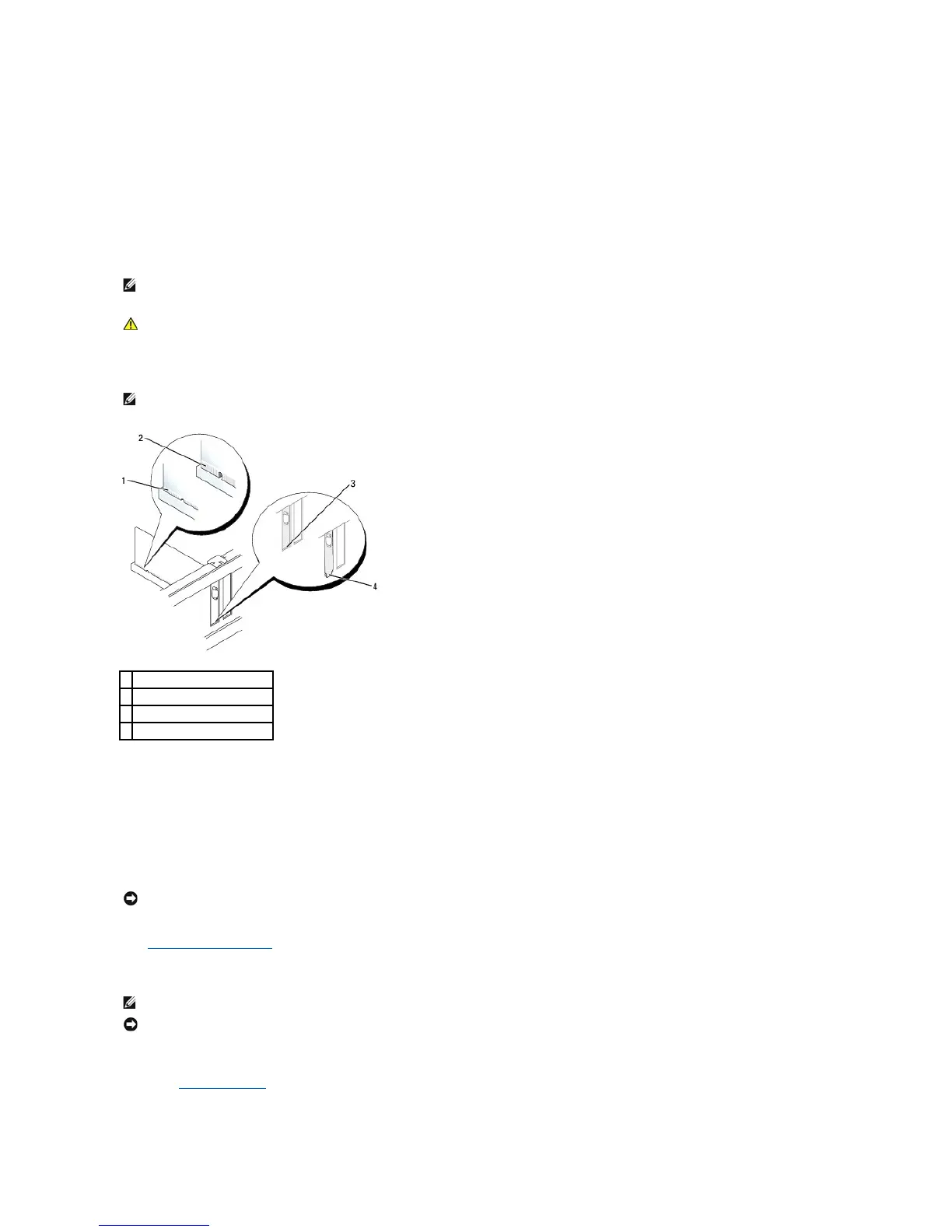
9. Before you replace and lower the card retention mechanism, ensure that:
l The tops of all cards and filler brackets are flush with the alignment bar.
l The notch in the top of the card or filler bracket fits around the alignment guide.
10. Gently press down on the card retention mechanism to secure the adapter bracket in place.
11. Secure the card(s) by closing the card retention latch and snapping it into place.
12. Replace the computer cover.
13. Connect any cables that should be attached to the card.
14. If you installed a sound card:
a. Enter system setup, select Audio Controller, and change the setting to Off.
b. Connect external audio devices to the sound card's connectors. Do not connect external audio devices to the microphone, speaker/headphone,
or line-in connectors on the back panel of the computer.








 To Next Page