Back to Contents Page
Ultra Small Form Factor Computer
Dell™OptiPlex™GX620
User's Guide
About Your Ultra Small Form Factor Computer
Inside Your Computer
Connecting the Power Adapter
Badge
About Your Ultra Small Form Factor Computer
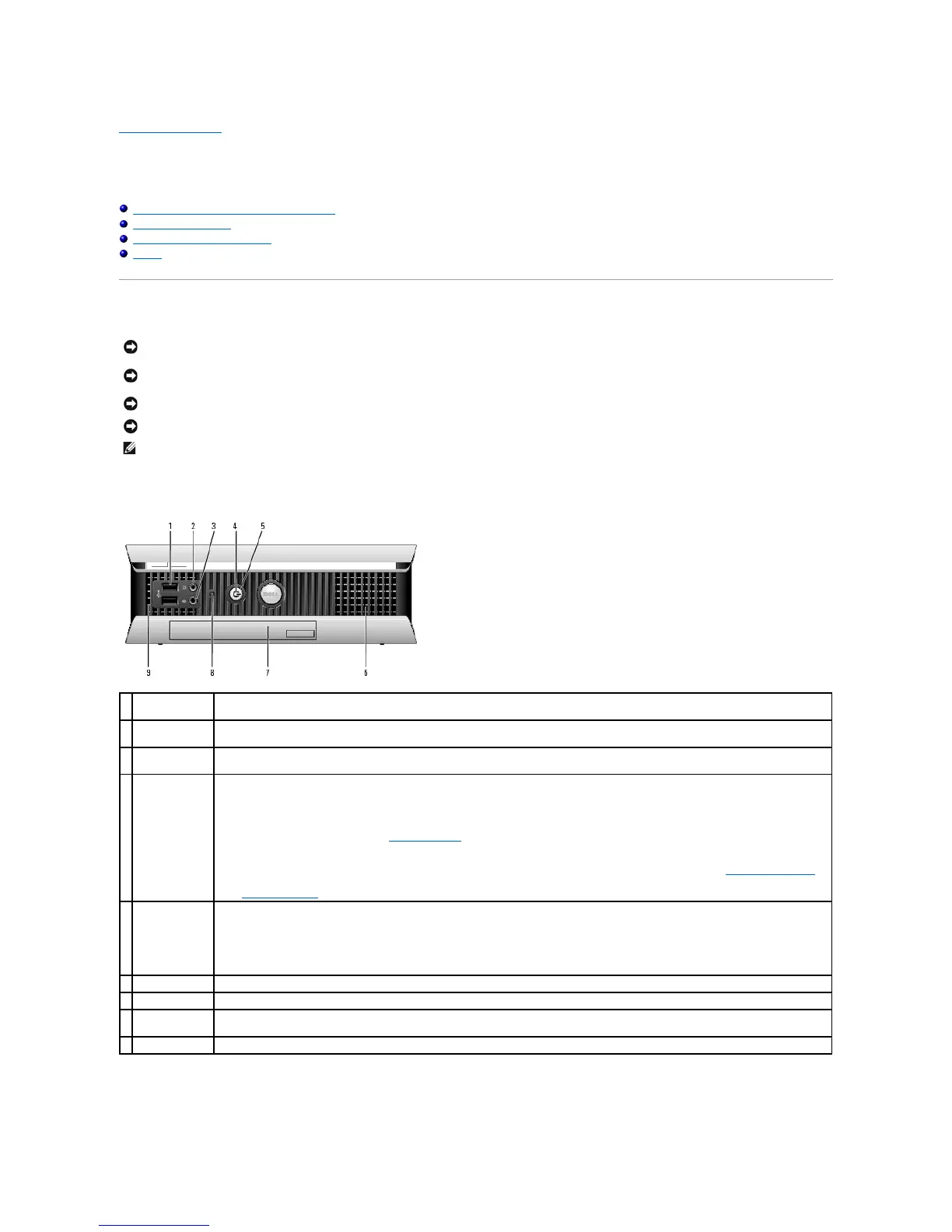
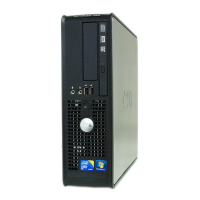
Front View
Side View
NOTICE: When setting up your computer, secure all cables toward the back of your work area to prevent the cables from being pulled, tangled, or
stepped on.
NOTICE: When setting up your computer, ensure that the computer has at least 6 cm (2 inches) of airflow space on the front and the back of the
computer.
NOTICE: To ensure proper ventilation, do not block the cooling vents.
NOTICE: Do not place your monitor on the computer. Use a monitor stand.
NOTE: If you want to orient your computer under a desktop or on a wall surface, use the optional wall-mount bracket. To order this bracket, contact
Dell.
Connect USB devices such as a mouse, keyboard, memory key, printer, joystick, and computer speakers into either of the USB
connectors.
Attach headphones to this connector.
Attach a microphone to this connector.
The power light illuminates and blinks or remains solid to indicate different states:
l No light — The computer is turned off.
l Steady green — The computer is in a normal operating state.
l Blinking green — The computer is in a power-saving mode.
l Blinking or solid yellow — See "Power Problems."
To exit from a power-saving mode, press the power button or use the keyboard or the mouse if it is configured as a wake device in the
Windows Device Manager. For more information about sleep modes and exiting from a power-saving mode, see "Power Management."
See "Diagnostic Lights" for a description of light codes that can help you troubleshoot problems with your computer.
Press this button to turn on the computer.
NOTICE: To avoid losing data, do not use the power button to turn off the computer. Instead, perform a Microsoft®Windows®
shutdown.
The vents allow air to flow through your computer. To ensure proper ventilation, do not block these cooling vents.
Install a D-module CD/DVD drive, second hard drive, or floppy drive in the module bay.
The hard-drive access light is on when the computer reads data from or writes data to the hard drive. The light might also be on when
devices such as your CD player are operating.
The vents allow air to flow through your computer. To ensure proper ventilation, do not block these cooling vents.








 To Next Page