OPERATOR’S MANUAL
PM300, PM332, PM400 Planter Monitors
11001-1372-201702 Rev B
MONITORING PLANTING / 37
Parameters may be selected to display in numerical order from the following
list. (refer to MONITORING FUNCTIONS p. 39 for additional information).
• Average Population
• Average Seed Spacing
• Average Seeds Per Distance
• Population Row Scan
• Seed Spacing Row Scan
• Seed Per Distance Row Scan
• Minimum, Maximum, Average Row Population
• Minimum, Maximum, Average Row Spacing
• Minimum, Maximum, Average Spacing Per Distance
• Field Area 1
• Field Area 2
• Total Area 3
• Ground Speed
• Fan, Shaft, or Flow Frequency
Changing Graphic or Text Icons
The planting parameters display can be configured for text or graphic icons
in the upper window.
To Change the Graphic/Text Settings:
1. Press the Display & Service key with the Upper parameter icon
highlighted.
2. Press the Enter key.
3. Use the Down Arrow key to highlight the Graphic/Text icon.
4. Press Enter key to select the icon. Use the Up or Down Arrow key to
toggle to desired setting.
5. Press Enter to confirm selection.
CUSTOMIZING THE LOWER PARAMETER
WINDOW
The lower setup screen parameters can be modified to change the row
indicator type and size. Row indicator types include blinking box (blink rate
proportional to seeding rate), solid box (indicating row failure), bar graph, or
wiper gauge.
To Change the Row Indicator Type and Row Indicator Size:
1. Press the Display & Service key with the Lower Parameter row
indicator icon highlighted.
2. Press Enter to display the lower setup screen.
3. Highlight the Row Indicator Type or Row Indicator Size icon to change.
4. Press the Up or Down Arrow key to cycle through desired setting.
5. Press Enter to accept selection.
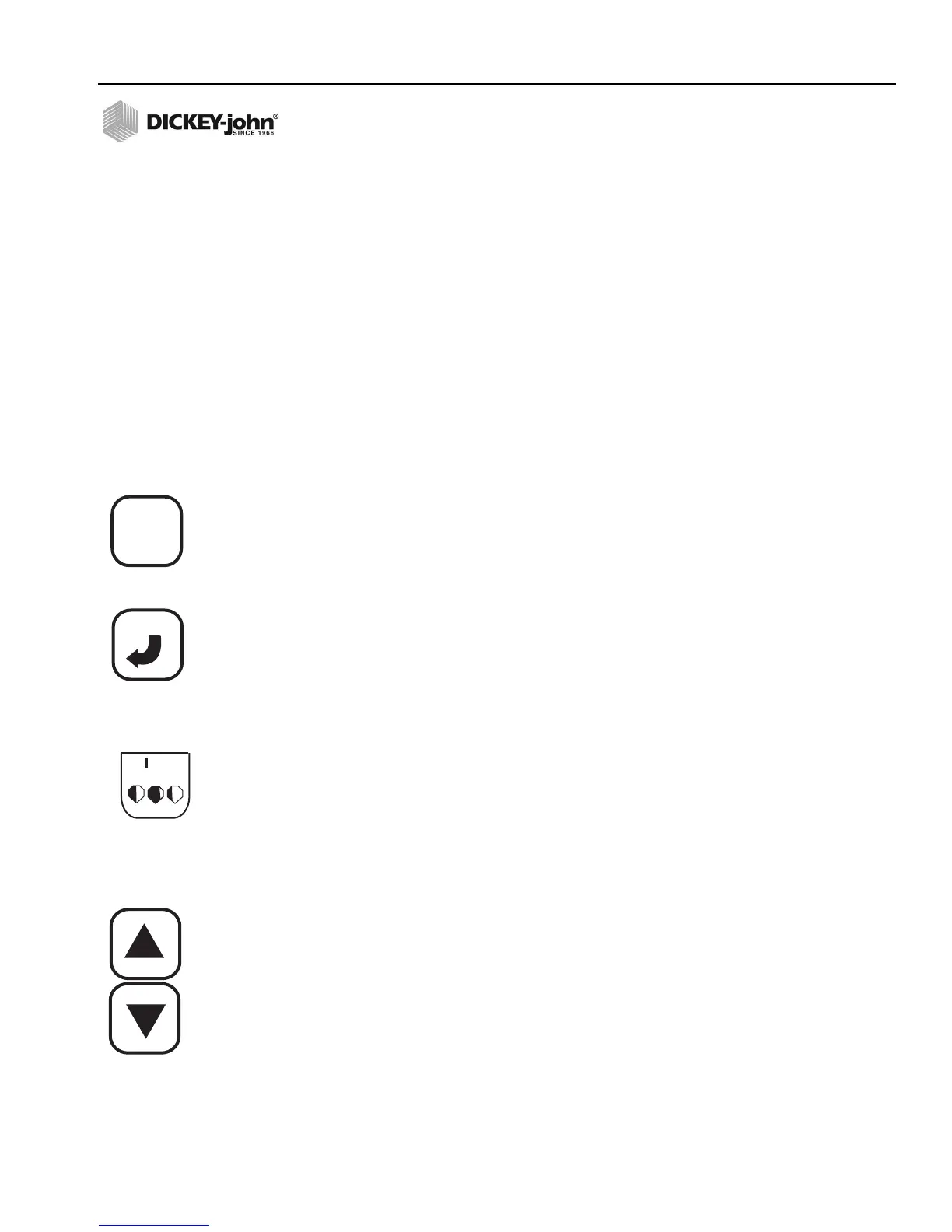
Up and Down Arrow keys
Enter key
Lower Parameter icon



 To Next Page