12
BAS-SVX069F-EN
Configuration Requirements
Because every environment is different, the Digi WR21 will likely require some small changes to
the configuration. This section will cover the initial setup of the router and the IP address
changes necessary for the Digi WR21 and the Tracer BAS controller to match your installation.
Determine the IP addresses Before Configuring the Digi WR21
1. Log into the Tracer BAS controller and then navigate to the IP Configuration page
(IInnssttaallllaattiioonn>>IIddeennttiiffiiccaattiioonn aanndd CCoommmmuunniiccaattiioonn>>IIPP CCoonnffiigguurraattiioonn)). Verify that the IP
address is configured for whichever Ethernet port is connected to the Internet.
2. Determine if the relevant Ethernet port that Tracer BAS controller is utilizing is either a DHCP
address or a static IP.
• If the Tracer BAS controller is configured to OObbttaaiinn IIPP AAddddrreessss AAuuttoommaattiiccaallllyy uussiinngg DDHHCCPP,
make a note of this for configuration of the Digi WR21.
• If the Tracer BAS controller is utilizing a static IP address, write down the IP address, Subnet
Mask, Gateway and DNS addresses.
EExxaammppllee:: In the configuration shown in the following figure, the IP address of a Tracer SC is
192.168.2.2, the subnet mask is 255.255.255.0 and the gateway is 192.168.2.1.
Figure 7. Tracer SC Identification and Communications
WR21 Ethernet Configuration
Connecting to the WR21
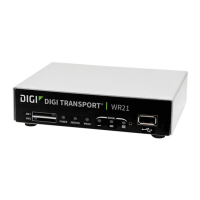
1. Connect a computer to LAN 1 of the WR21 router.
2. Update the computer’s IP address to 192.168.209.20. Use 255.255.255.0 for the subnet mask.
The default gateway and DNS IP addresses can remain blank. If you have questions on how
to make these changes, refer to “Configure the LAN IP Address on a PC,” p. 44.
3. Log into the router by entering 192.168.209.1 in the address bar of a web browser.
• Username: root
• Password: s27Fd^m9





 To Next Page