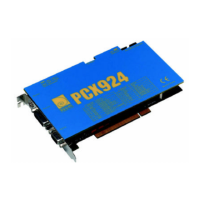
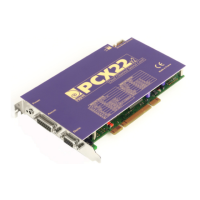
PCX924
v2
, PCX924-Mic & PCX22
v2
User’s Manual
• In the InstallShield Wizard Complete window, select 'Yes, I want to
restart my computer now' and click on Finish to complete the driver
installation. Instead of letting your computer reboot you should
shutdown your computer.
• Shut down your computer and insert the PCX924
v2 or PCX22v2
card.
• Restart your computer.
The system automatically detects the card and finds the driver.
Note: If you have already installed the card and its driver, but without
the Wave driver, and you now want to install the Wave driver, please
proceed as follows:
• Open the Windows Control Panel and double-click on the
Add/Remove Software icon.
• Select “Digigram np Runtime …”, and Next.
• Select Modify in the np Runtime window.
• Select the Wave option for the second group of boards. Next.
• Follow the instructions and reboot.
Removing the driver under Windows 98 SE and
Millennium
If the Wave driver is installed, remove it from <Start> <Settings> <Control
panel> <system><device manager><sound, video and games controllers>. Then
proceed as follows:
• Go to <Start> <Settings> <Control panel>
<Add/Remove Programs>.
• Select the ‘Digigram np Runtime…’ and remove it.
• Follow the instructions of the InstallShield wizard.
11


 To Next Page