lPage 57
Control Other Devices with the Remote
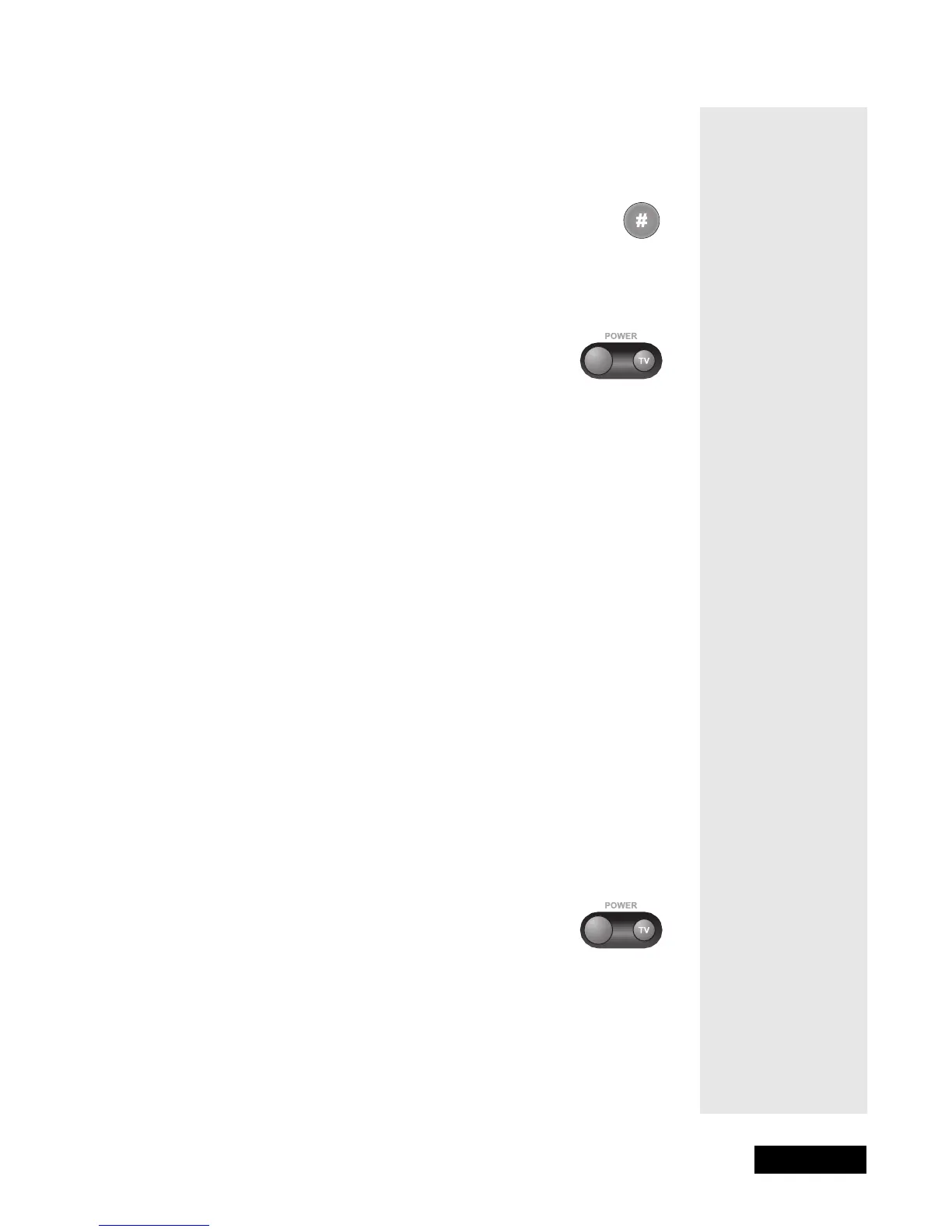
5. Press the blank Power button.
6. Press the up or down arrow button to set the remote to the next code.
The up arrow button scans ahead and the down arrow button scans
back. Press the button again to go on with the scan.
7. If the remote reaches the correct code, the device turns off.
When this happens, press the Pound (#) button to store the
code in the remote. If the code works, the mode button
flashes three times.
8. Press the blank Power button to turn the device back
on.
9. Try some other buttons to make sure they work.
Sometimes, the blank Power button works when
other buttons don’t.
Note: The mode button for the device starts to flash if you’ve scanned
all the codes for that device.
Try the Device Codes
Note: If you just did Scan for Device Codes, you don’t need to do
this.
1. Use the device’s buttons or its remote control to turn it on.
2. Find the brand name of the device in the tables on page 105. If the
brand isn’t listed, please see the section titled Scan for Device Codes,
below.
3. Press and hold the mode button for the device you want the remote to
control, for about three seconds. When all the other mode buttons
light up, let go of the mode button.
4. Only for the Aux mode, use a number button to enter 0 for a second
TV, 1 for a second VCR, or 2 for a tuner or amplifier. For any other
mode, skip to step 5.
5. Use the number buttons to enter a device code from the table.
6. Press the Pound (#) button. If the code works, the mode button
flashes three times.
7. Press the blank Power button to test if the code works
for the device. If it does, the device should turn off.
8. Turn the device back on and try some other buttons to
make sure they work. Sometimes, the blank Power
button works when other buttons don’t. If the code
works for other buttons, stop here.
9. If the code you entered doesn’t work, do steps 3 through 8 again with
another code from the tables.
Check the Device Codes
You can find out what device code you’ve set for each remote mode.
Tip: The
procedure at the
left explains
how to find out
the device code
you set for each
remote control
mode.



 To Next Page