EasyManua.ls Logo

Distech Controls RT Series - User Manual

Distech Controls RT Series
32 pages
Print Icon
To Next Page IconTo Next Page
Loading...
Hardware Installation Guide
Distech Controls, Inc.
Toll-free: 1-800-404-0043
Tel. International: 450-444-9898
www.distech-controls.com
sales@distech-controls.com
Roof Top (RT) Series: ECL-STAT-RT1P, ECL-STAT-RT2P, ECL-STAT-RT2EP,
ECB-STAT-RT1P, ECB-STAT-RT2P, ECB-STAT-RT2EP,
ECW-STAT-RT1P, ECW-STAT-RT2P, ECW-STAT-RT2EP
Heat Pump (HP) Series: ECL-STAT-HPP, ECB-STAT-HPP, ECW-STAT-HPP
Product overview
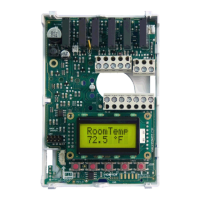
The Allure Communicating Roof Top (RT) and Heat Pump (HP) PI thermostat family
is specifically designed for single stage and multi-stage control of heating/cooling
equipment such as rooftop and self-contained units. The product features an intuitive,
menu-driven, back-lit LCD display, which walks users through the programming steps,
making the process extremely simple. Accurate temperature control is achieved due
to the product’s PI time proportional control algorithm, which virtually eliminates
temperature offset associated with traditional, differential-based thermostats.
All models contain two digital inputs, which can be set by the user to monitor filter
status, activate a remote temporary occupancy switch, and/or used as a general
purpose service indicator. In addition, depending on the model, up to three remote
sensor inputs are available. All models contain a SPST auxiliary switch, which can be
used to control lighting or disable the economizer function and a discharge air sensor
-input.
For more advanced applications, economizer control logic has been integrated onto the thermostat for use with proportional damper
economizer actuators.
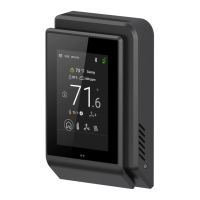
The thermostats are also compatible with the new Allure Cover accessories. Thermostats equipped with a PIR motion detector cover
provide advanced active occupancy logic, which will automatically switch occupancy levels from Occupied to Unoccupied as required by
local activity being present or not. This advanced occupancy functionality provides advantageous energy savings during occupied hours
without sacrificing occupant comfort. All thermostats can be ordered with or without a factory installed PIR motion detector cover ( see
ordering notes below).
Models available
Application 1 Heat / 1 Cool 2 Heat / 2 Cool
2 Heat / 2 Cool
with economizer
3 Heat / 2 Cool
heat pump
Model (programmable) CDIVI-7652A50(X)1 CDIVI-7652B50(X)1 CDIVI-7656B50(X)1 CDIVI-7652H50(X)1
Ordering Information Notes:
- (X) model number represents available communication options: X=E for LonWorks , X=B for BACnet MS-TP and X=W for Wireless
- The Allure communicating thermostats are delivered with the Allure cover (without PIR motion detector) installed by default.
- If motion detection is required, the appropriate Allure PIR motion detector covers need to be ordered separately and installed in the field.
- However, for minimum order quantities of 50 thermostats (any model), you can have your thermostat with the Allure PIR motion detector cover factory
installed. Lead time of 20 business days. In the Product Number, please replace the 3rd character from the end with a "5" (ex. CDIVI-7600A55E1.)
Features and benefits
Features
Benefits
Advanced occupancy functions
Through the network or smart local occupancy sensing
Ready for PIR motion detector accessory cover
Fully integrated advanced occupancy functionality with a PIR
accessory cover
2 digital inputs
Adds functionality
Smart fan operation
Saves energy during night mode
Unique configuration key with password protection
Minimizes parameter tampering
Lockable keypad
Tamper proof, no need for thermostat guards
6 hour reserve time for clock
No need to reprogram day/time after power shortage
Remote room and outdoor temperature sensor
Increase flexibility and functionality
Auxiliary output
Can be used for lighting and/or economizer override
Discharge air sensor
Can be used to monitor unit efficiency
Intuitive, menu-driven programming (7 day, 2/4 events - on
programmable models only)
Can be used for all types of establishments
Economizer output 0-10 Vdc economizer models only
Excellent retrofit opportunities
3 Heat/2 Cool (on heat pump models only)
Support single and two stages heat pump with one auxiliary
heat stage

Fig.1

Table of Contents

Questions and Answers

  • J
    Joseph CastilloAug 14, 2025
    Why is my Distech Controls Thermostat not calling for heating?
    • C
      carrie28Aug 14, 2025
      If your Distech Controls Thermostat isn't calling for heat, it could be due to several reasons. First, ensure you've selected the correct heating mode. If the thermostat is in Unoccupied mode, select Override to force the thermostat to the Occupied heating setpoint. The anticycle delay might be active; if so, wait for it to end. Check if the heating setpoint is already satisfied and raise it if necessary. Heating lockout could be enabled based on outside air temperature; to bypass this, change the configuration parameter H Lock to 120 °F (49 °C). Finally, a wiring error could be the culprit; start the fan by forcing it ON, then put a jumper across terminals RH & W1. If heating doesn't start, verify the wiring and check if a jumper is needed between RC & RH.
  • C
    Christopher TapiaAug 17, 2025
    Why is my Distech Controls RT not calling for cooling?
    • A
      ashleyhowardAug 17, 2025
      If your Distech Controls Thermostat isn't calling for cooling, first ensure that you have selected the cooling mode. If the thermostat is in Unoccupied mode, select Override to force the thermostat to the Occupied cooling setpoint. If the anticycle delay is active, wait for it to end. If the cooling setpoint is satisfied, lower it. Cooling lockout may be active due to outside air temperature; change the configuration parameter C Lock to -40 °F (-40 °C) to bypass it. Finally, a wiring error might be the issue; start the fan by forcing it ON, then put a jumper across terminals RC & Y1. If cooling doesn't start, verify the wiring.
  • R
    ronaldshieldsAug 20, 2025
    How to unlock keyboard menu on Distech Controls RT Thermostat?
    • J
      joshuavaldezAug 20, 2025
      If the keyboard menu on your Distech Controls Thermostat does not access all functions, it is likely that the keyboard is locked. To unlock it and access all levels of the menu, change the configuration parameter LOCKOUT to a value of “0”.
  • K
    Krystal MitchellAug 25, 2025
    How to fix no display on Distech Controls Thermostat?
    • R
      Robert ChaneyAug 25, 2025
      If there is no display on your Distech Controls Thermostat, it could be due to: * Absent or incorrect supply voltage. Check the power supply voltage between C & RC to ensure it's between 19-30 Vac. Also, check for any tripped fuses or circuit breakers. * An overloaded power transformer. Verify that the transformer used is powerful enough to supply all controlled devices, including the thermostat.
  • J
    John MurphyAug 27, 2025
    Why is auxiliary heat not working on my Distech Controls Thermostat?
    • H
      hernandezleahAug 27, 2025
      If your Distech Controls Thermostat auxiliary heat isn't operating, first ensure the thermostat is set to emergency heat mode. If it's in Unoccupied mode, select Override to force the thermostat to the Occupied heating setpoint. If the anticycle delay is active, wait for it to end. If the heating setpoint is satisfied, raise it. A high balance point may be set; to bypass the lockout, change the High BP configuration parameter to 90 °F (32 °C). Alternatively, heating lockout may be active; change the H Lock configuration parameter to 120 °F (49 °C) to bypass it. Finally, a wiring error could be the cause; start the fan by forcing it ON, then put a jumper across terminals RH & W1. If heating doesn't start, verify the wiring and check if a jumper is required between RC & RH.
  • J
    Jesus JonesSep 3, 2025
    What to do if my Distech Controls Thermostat will not turn on the fan?
    • J
      john52Sep 3, 2025
      If your Distech Controls Thermostat will not turn on the fan, first start the Fan by forcing the Fan ON mode. Then, put a jumper across terminals RC & G. If the fan still doesn't turn on, verify the wiring.
  • R
    Ryan FrankSep 6, 2025
    Why do temperature setpoints revert to original value on my Distech Controls RT Thermostat?
    • B
      briggsjacobSep 6, 2025
      If the temperature setpoints on your Distech Controls Thermostat revert to their original values after a certain time, it's likely that the temporary setpoint option is selected. To resolve this, ensure the thermostat is in Permanent setpoint mode. You can set this by going to the Set temperature menu and selecting Permanent setpoint as the setpoint type.
  • E
    Elizabeth RamosSep 9, 2025
    What causes missing digits on Distech Controls RT Thermostat display?
    • R
      Regina BushSep 10, 2025
      If the digital display on your Distech Controls Thermostat shows missing digits or erratic segments, it indicates a defective display. The solution is to replace the thermostat.
  • D
    Dwayne ParksDec 1, 2025
    Why is my Distech Controls RT heat pump not working in heating mode?
    • A
      annette36Dec 1, 2025
      If your Distech Controls Thermostat heat pump isn't operating in heating mode, first ensure you have selected the heating mode. If the thermostat is in Unoccupied mode, select Override to force the thermostat to the Occupied heating setpoint. If the anticycle delay is active, simply wait for it to end. If the heating setpoint is satisfied, raise it. A low balance point may be set; to bypass the lockout, change the Low BP configuration parameter to -12 °F (-24 °C). Alternatively, heating lockout may be active; change the H Lock configuration parameter to 120 °F (49 °C) to bypass it. A wiring error could also be the cause; start the fan by forcing it ON, then put a jumper across terminals RH & W1. If heating doesn't start, verify the wiring and check if a jumper is required between RC & RH. ...

Summary

Product Overview

Models Available

Lists available thermostat models for various HVAC applications.

Ordering Information Notes

Key notes for ordering specific thermostat configurations and communication options.

Features and Benefits

Highlights the key features and advantages offered by the thermostats.

Theory of Operation

General Features Overview

Summarizes the core features and operational capabilities of the thermostats.

Heat Pump Specific Features

Details the specialized features relevant to heat pump models.

Installation Guide

Thermostat Location Guidelines

Provides essential advice on selecting the optimal installation location for the thermostat.

Thermostat Installation Steps

Outlines the sequential procedure for physically installing the thermostat unit.

Wiring Identification and Terminals

Terminal Block Arrangement

Illustrates the layout of screw terminals for different thermostat models.

Important Wiring Notes

Offers crucial clarifications and considerations for thermostat wiring.

Detailed Wiring Diagrams

2 Heat;2 Cool Economizer Wiring

Specific wiring diagram for 2 Heat/2 Cool/Economizer programmable models.

Heat Pump Programmable Wiring

Specific wiring diagram for Heat Pump programmable models.

Remote Sensor Accessories

Sensor Models and Descriptions

Lists available remote sensors and their specific functionalities and uses.

Remote Sensor Wiring Guide

Illustrates the wiring configurations for various remote sensor types.

LonWorks Network Guide

LonWorks Summary Specifications

Key technical specifications for LonWorks network connectivity and operation.

LonWorks Network Configuration

Explains LonWorks network topology options, wiring, and requirements.

LonWorks Device and Cable Limits

Details maximum devices per segment and recommended cable lengths for LonWorks.

LonWorks Repeaters and Terminators

Explains the function of repeaters and required termination methods for LonWorks.

Shielded Twisted Pair Cable Grounding

Network Adapter Status LED

Explains the diagnostic meaning of the status LED on the LonWorks network adapter.

BACnet Network Guide

BACnet Summary Specifications

Key technical specifications for BACnet EIA-485 network connectivity.

BACnet Cable and Impedance

Details recommended cable types and impedance for BACnet networks.

BACnet Network Configuration

Explains the mandatory daisy chain configuration for BACnet EIA-485 networks.

BACnet Device and Cable Limits

Information on maximum nodes per segment and cable length for BACnet.

BACnet EIA-485 Repeaters

Guidance on using repeaters to extend the BACnet network.

BACnet EOL Resistors and Network Adapter

Explains EOL resistors and network adapter connections for BACnet.

User Programming and Settings

Status Display Overview

Describes the thermostat's LCD display and auto-scrolling status information.

User Menu Navigation and Controls

Explains how to navigate and use the thermostat's programming menu and keys.

Default Thermostat Configuration

Outlines the factory default temperature, schedule, and system settings.

Temperature and System Mode Settings

Covers setting temperature setpoints, temporary occupancy, and system operating modes.

Fan and Schedule Setup (2 Events)

Configuration options for fan operation and daily scheduling with two events.

Advanced Schedule Setup (4 Events)

Configuration options for daily scheduling with four events.

Clock, Day, and Installer Settings

Procedures for setting time/day and accessing installer configuration parameters.

Network Channel, Input, and Lockout Settings

Settings for network channels, digital inputs, menu scrolling, and keypad lockout.

Troubleshooting Guide

Troubleshooting All Models

Common issues and solutions applicable to all thermostat models.

Troubleshooting Heat Pump Models

Specific issues and solutions for heat pump model operation.

Product Specifications

Thermostat Technical Specifications

Key technical specifications including power, operating conditions, and temperature ranges.

Agency Approvals and Dimensions

Lists regulatory approvals and physical dimensions of the thermostat unit.

Distech Controls RT Series Specifications

General IconGeneral
SeriesRT Series
CategoryThermostat
Communication ProtocolBACnet MS/TP, Modbus RTU, LONWORKS
Power Supply24 VAC, 24 VDC
MountingWall mount
DisplayLCD
Operating Temperature0 to 50°C (32 to 122°F)

Related product manuals